How to assign learning to others
DevelopNow Portal > Team Development > “…”
DevelopNow Portal > Personal Development > “…”
Description
As a team leader, I want to be able to assign learnings to a other members of the company.
Applicable User Roles
List of roles that have access or can use this feature.
Team Leader
How To
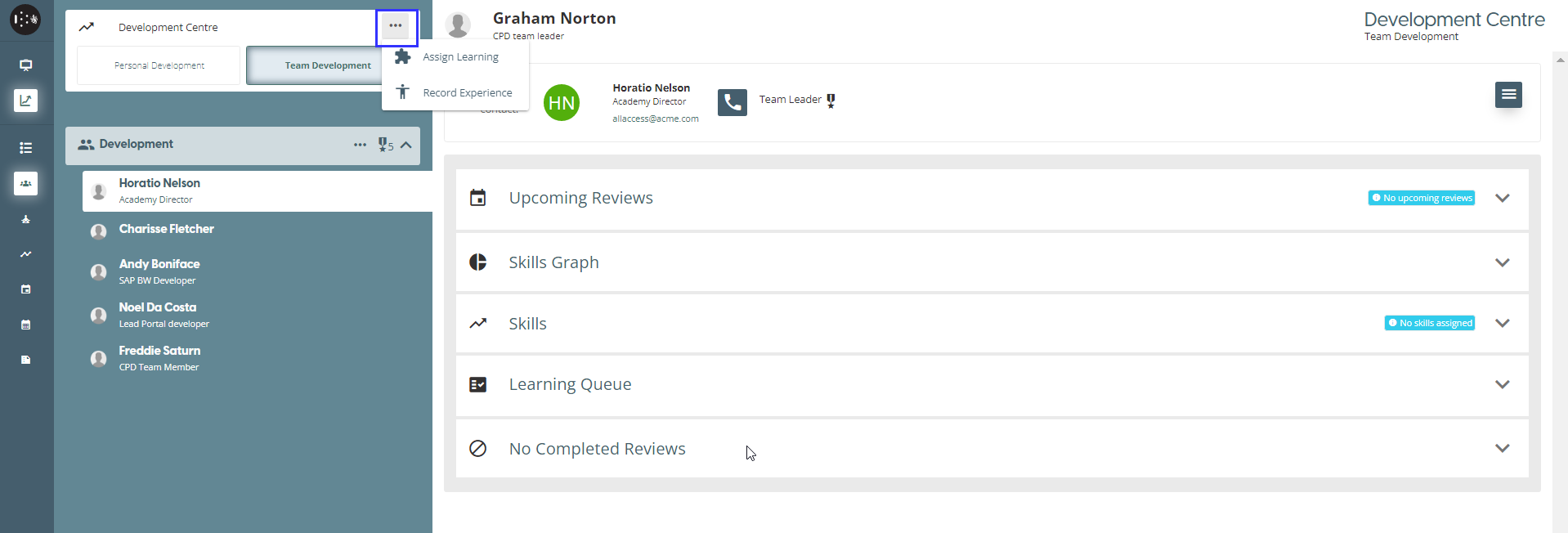
If you have the correct permissions, you will have the ability to assign learning to a company as a whole. When you are in the CPD portal and either in the Team Development or Personal Development view, there is an ellipses “…” button in the top left of the window. Clicking on this button will give you the option to assign learning.
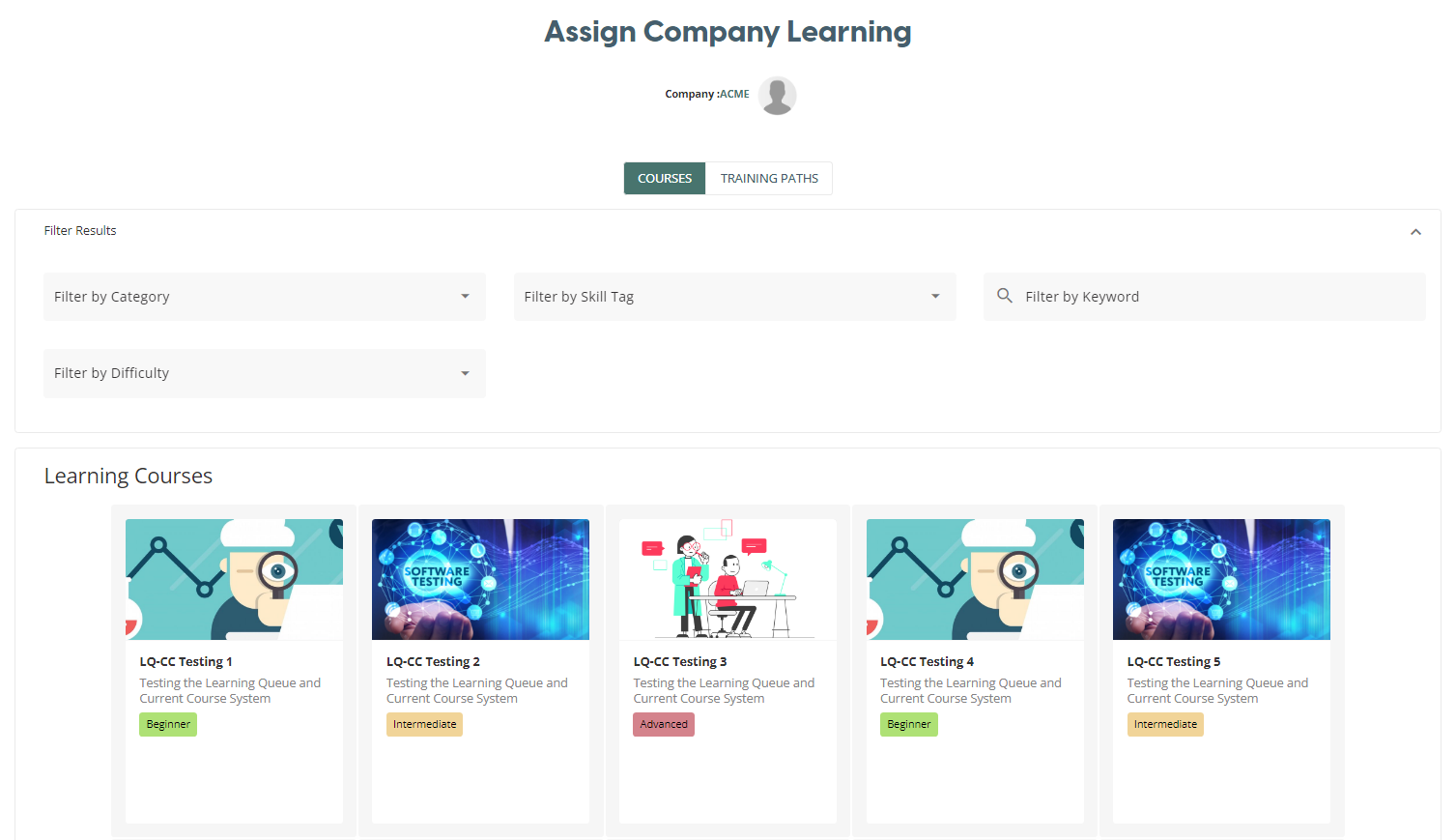
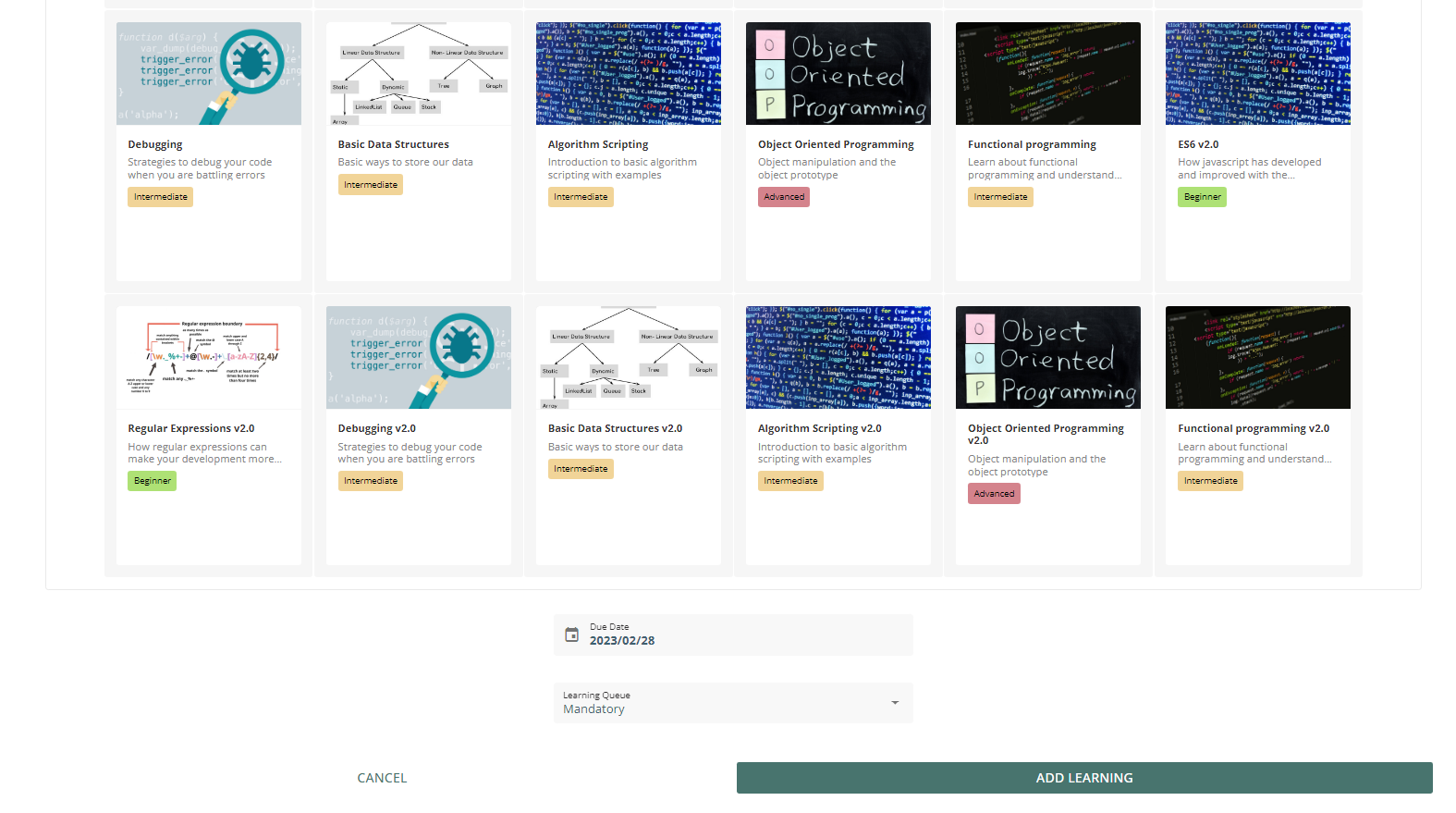
This will open the Assign Company Learning window. From here, courses or training paths can be assigned to all users associated with the company. To select a course you press on the course icon and it will have a green tick to show it has been selected.
To assign a training path, press the Training Path button to show a list of training paths that can be assigned. Clicking on a training path will add a tick to the item, showing it has been selected.
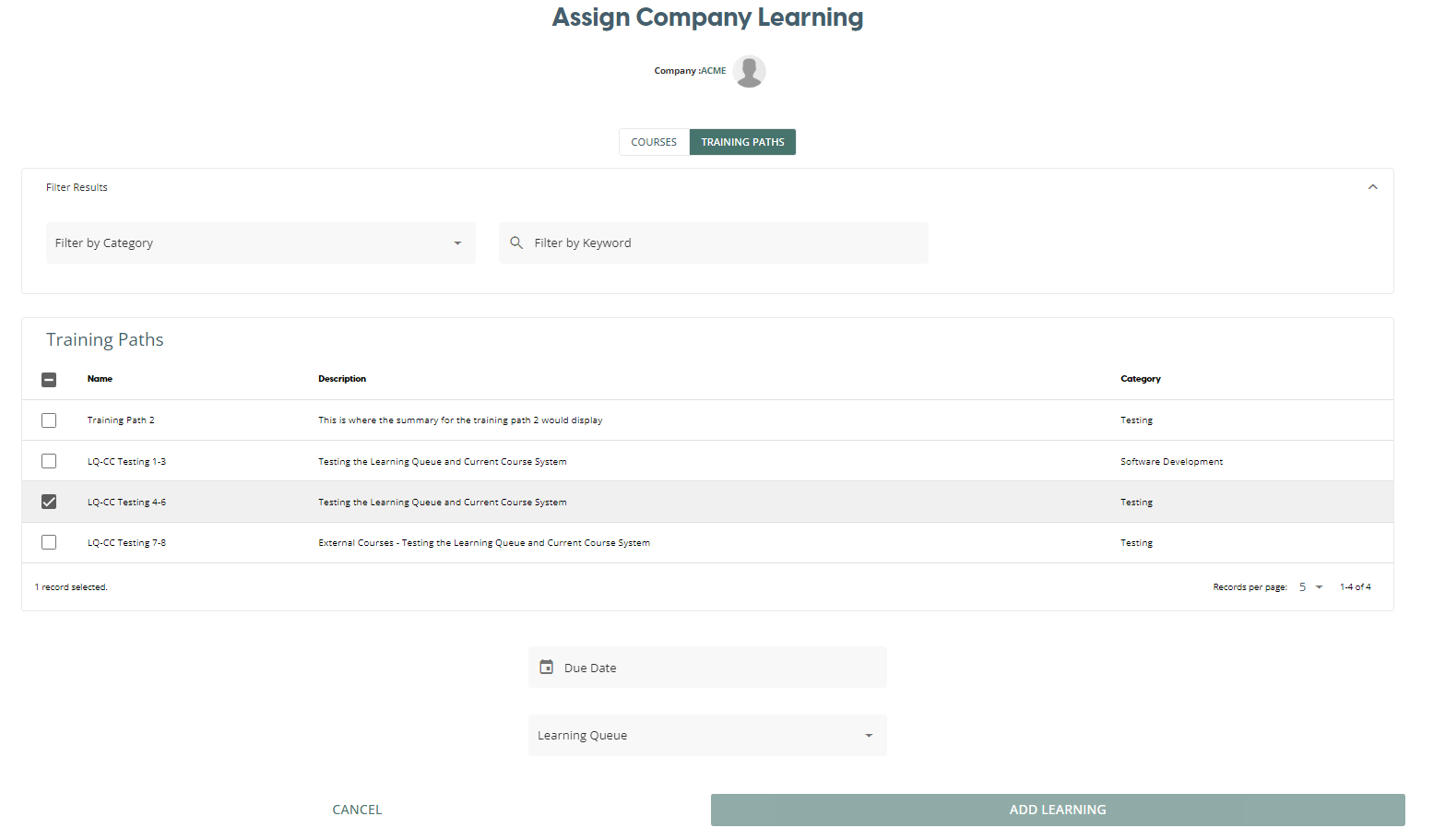
When you have finished selecting the relevant courses or training paths, you need to set a due date and the Learning Queue to assign the learning to. You have the option to select either Mandatory or Recommended. After choosing these options you can press “Add Learning” to assign the training to everyone in the company.
How to assign learning to a team
In the CPD portal there is also the ability to assign learning to a team. To do this, when you are in the portal navigate to the Team Development page. In the Navigation Menu you will be able to see a list of teams you have permission to assign learning to. To Assign Learning press the ellipses “…” button and press Assign Learning.
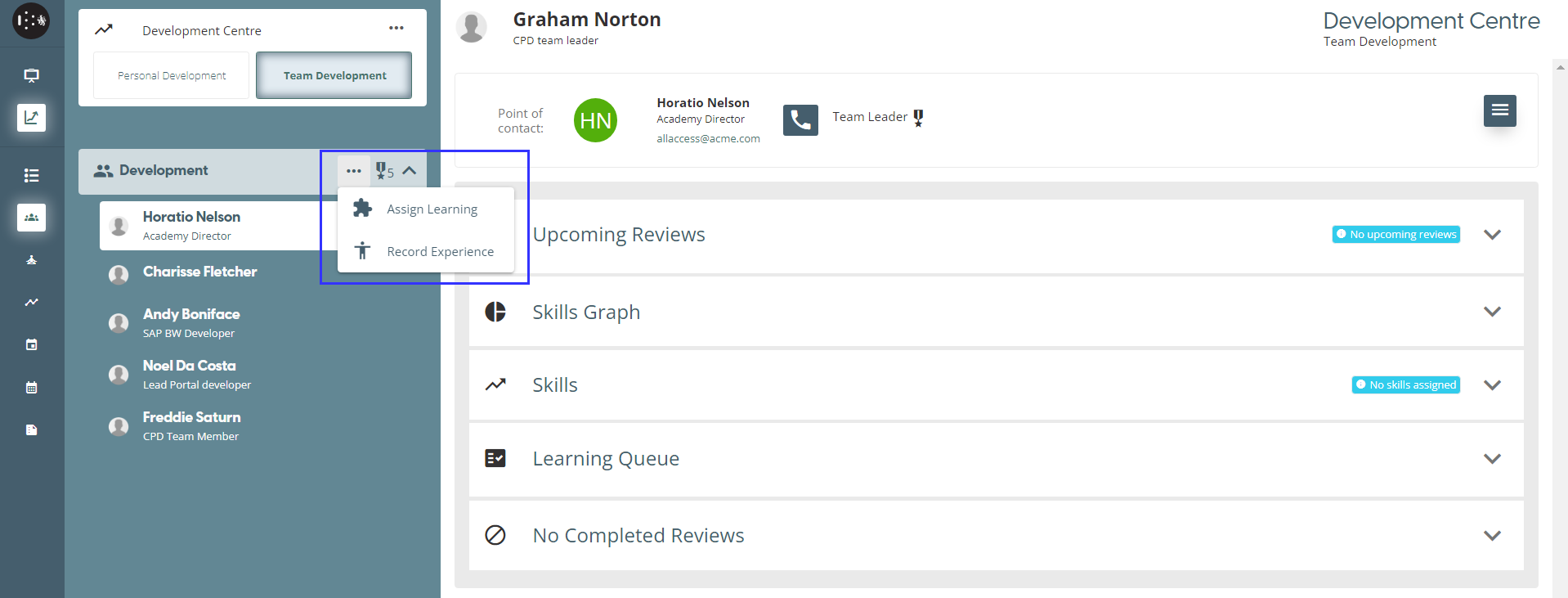
This will bring up the Assign Team Learning window, where courses and training paths can be assigned to the team with the same method as assigning to a company.

How to assign learning to an individual
If you are within the Team Development view, you can click on the down arrow on the teams element to show the individuals assigned to that team. After selecting an individual, you will be able to see their personal stats in the window. By clicking on the burger menu, you will see an option to Assign Learning.
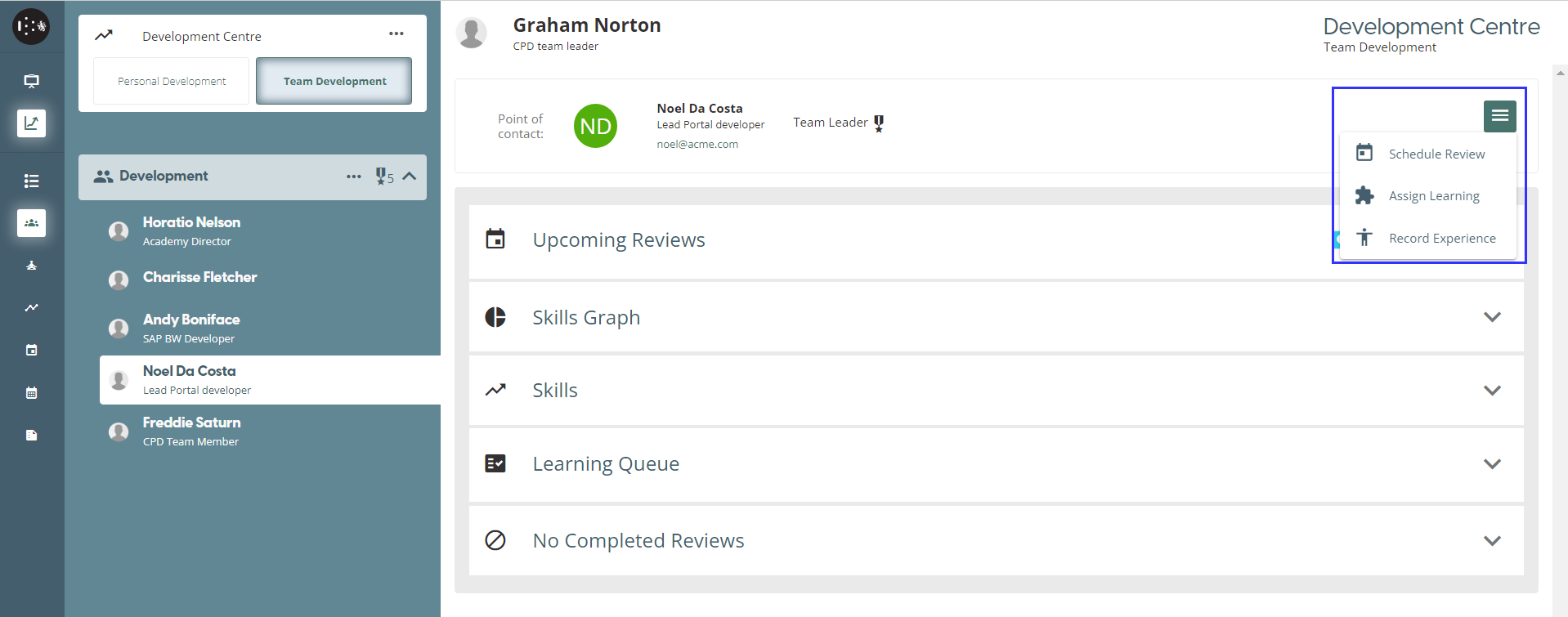
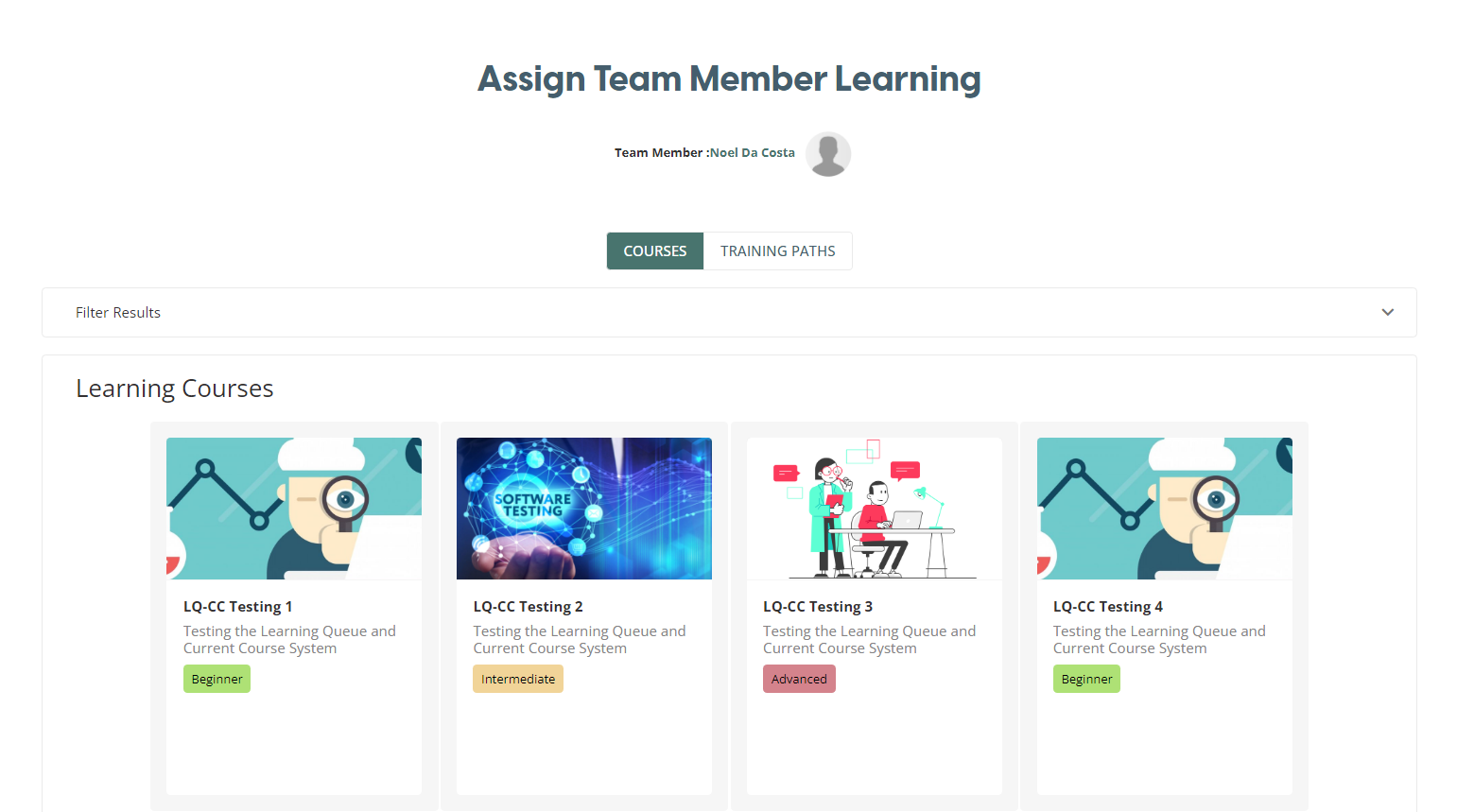
Clicking on this will bring up the “Assign Team Member Learning” window, where courses or training paths can be assigned to the individual with the same method as a team or company.