Applying for a Role
Description
As a applicant, I want to be able to a apply a campaign As a employee, I want to be able to a apply a campaign within the company
Applicable User Roles
List of roles that have access or can use this feature.
Applicant
Internal Applicant
How To
Follow a Link to Apply for a Role
Applicants will be provided with a link that allows them to apply for a role. If the applicant is not already logged in they will be taken to the login page, where they must either login or register for an account.
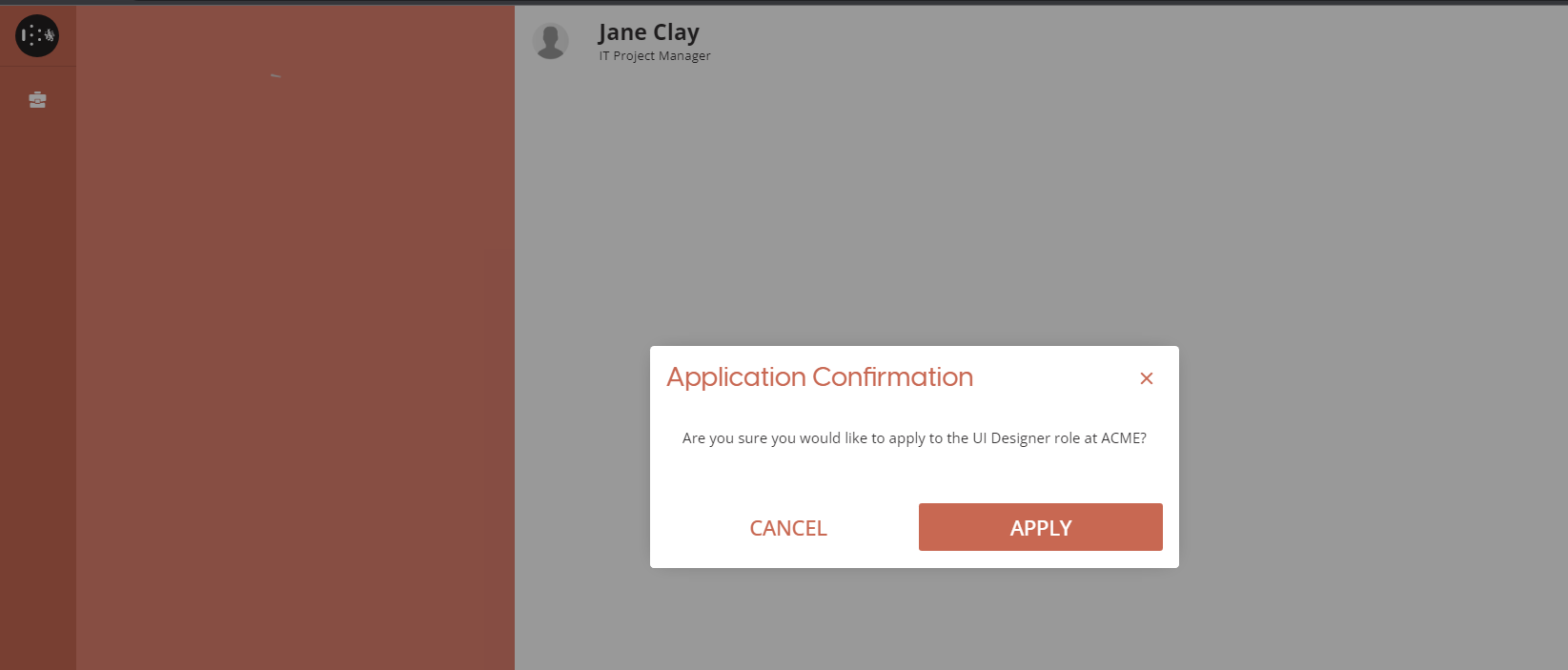
The applicant will be shown a pop-up asking them to confirm the role that they are applying to. Select “Start Application” to continue.
Applicant Portal
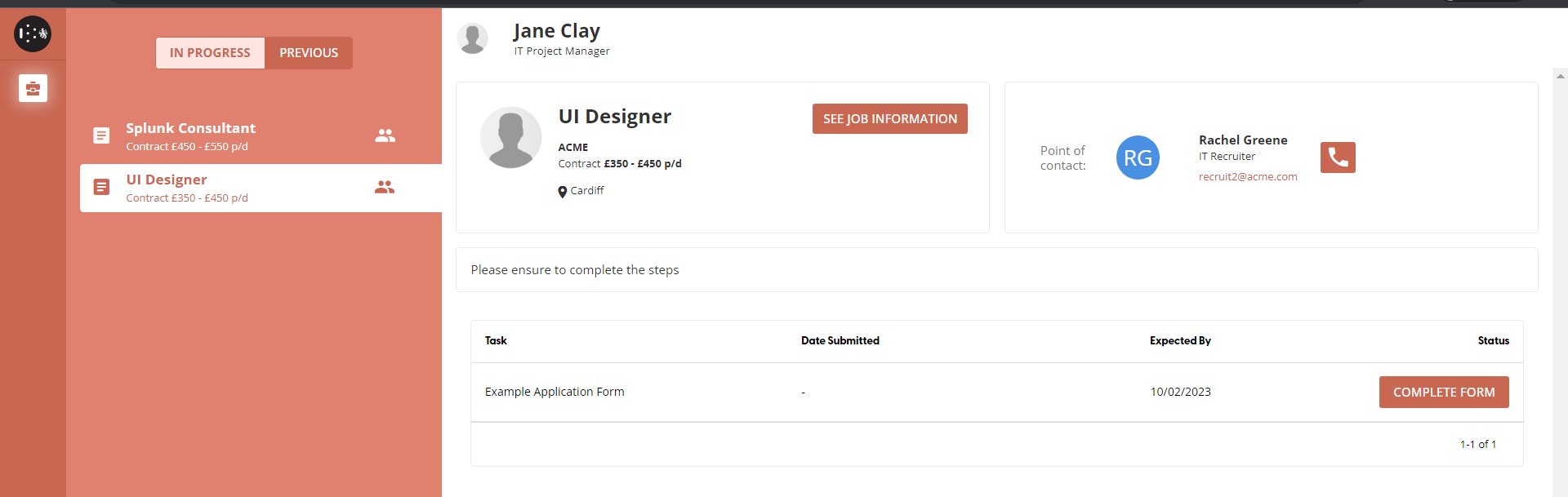
The applicant portal has a list in progress and previous job applications which the applicant can select from.
The application screen shows information about the selected role including:
-
Title
-
Company
-
Pay
-
Location
-
A point of contact
-
Applicant instructions
-
A tasks that must be completed
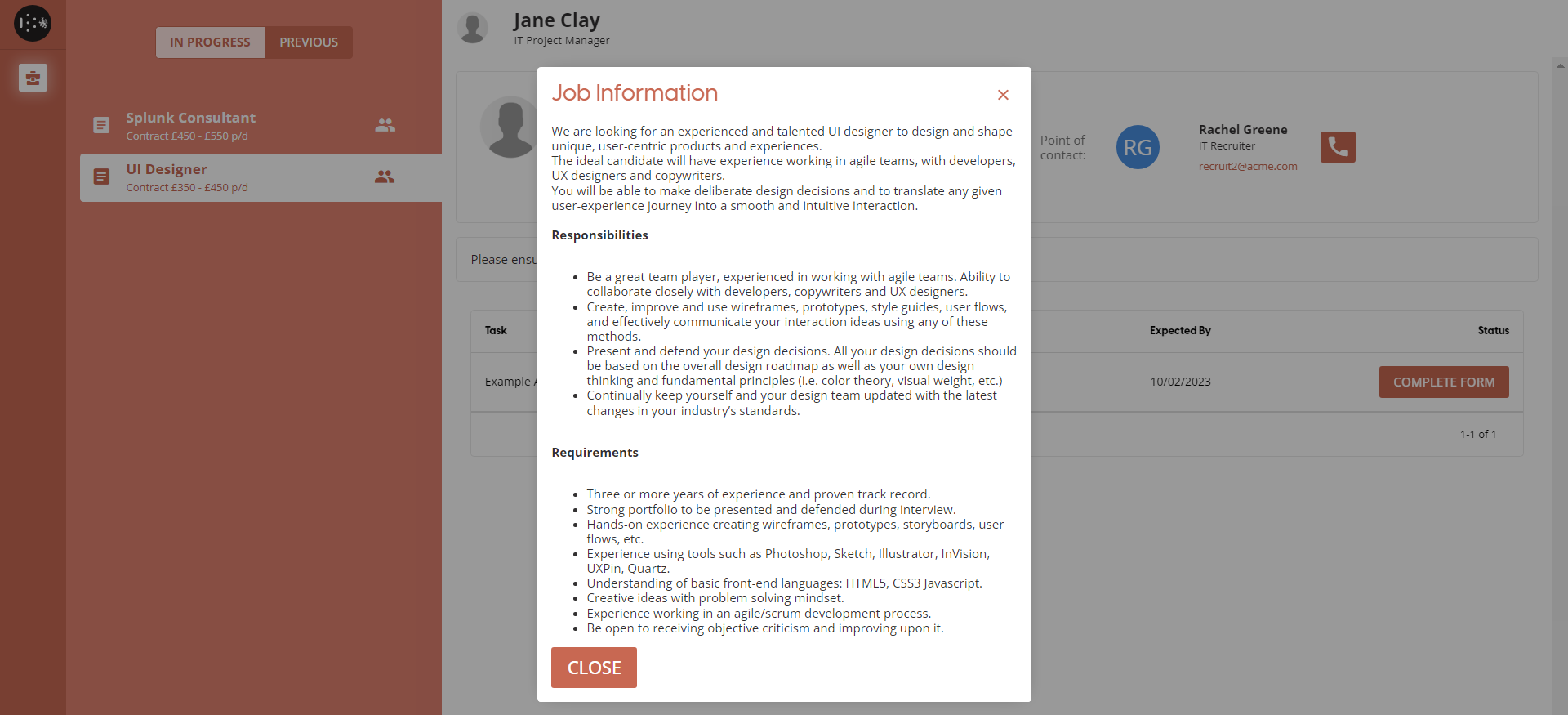
The applicant can select “See Job Information” in order to get a full description of the role.
Filling Out Forms
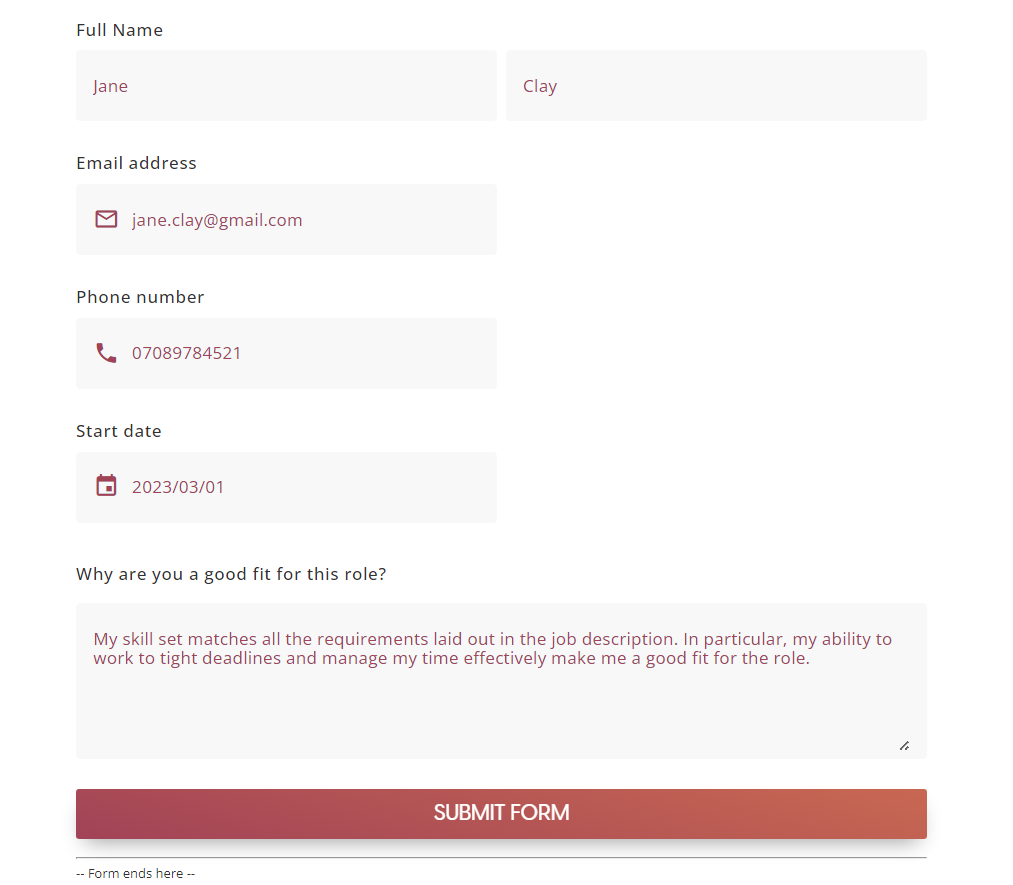
As part of the of the tasks to be completed, the applicant may be expected to fill out various forms.
Application Form
File Upload
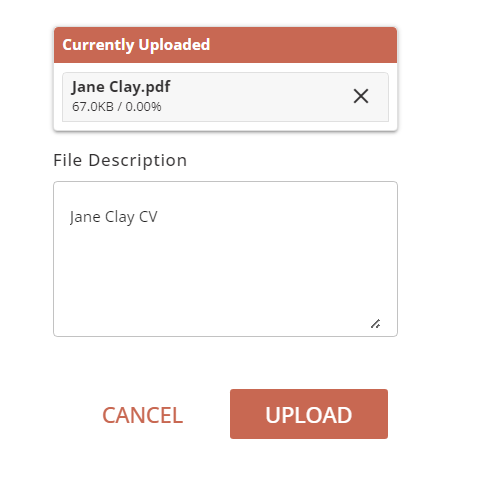
The applicant may be required to upload files such as a CV, ID, proof of address, etc…
Clicking the “+” button on the “Upload a File” panel opens a file picker; allowing the applicant to specify a file.
Waiting to Progress
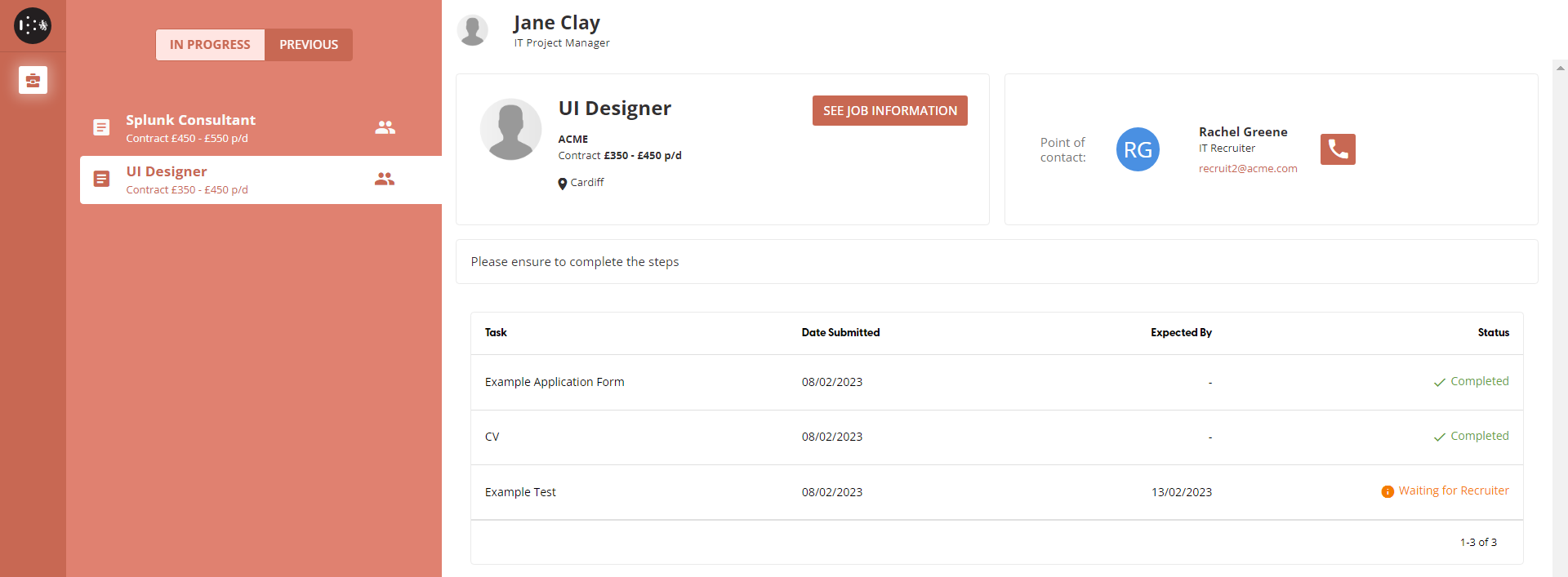
There will be stages where the applicant must have their tasks manually reviewed by a recruiter in order to progress. At this point the status “Waiting for Recruiter“ will be displayed.
When a recruiter has approved their tasks an email will be sent to the applicant, inviting them to the next stage. The applicant can then return to the portal and continue completing tasks.
Completing Assessments
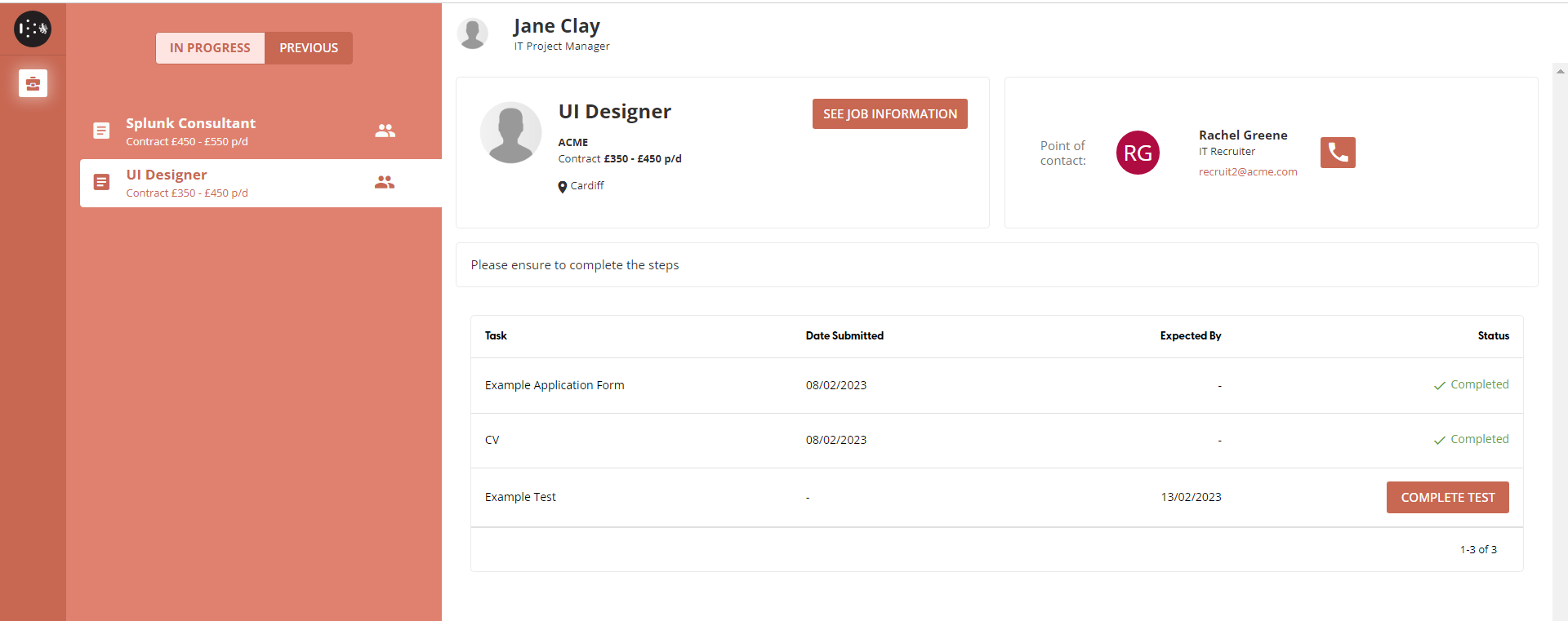
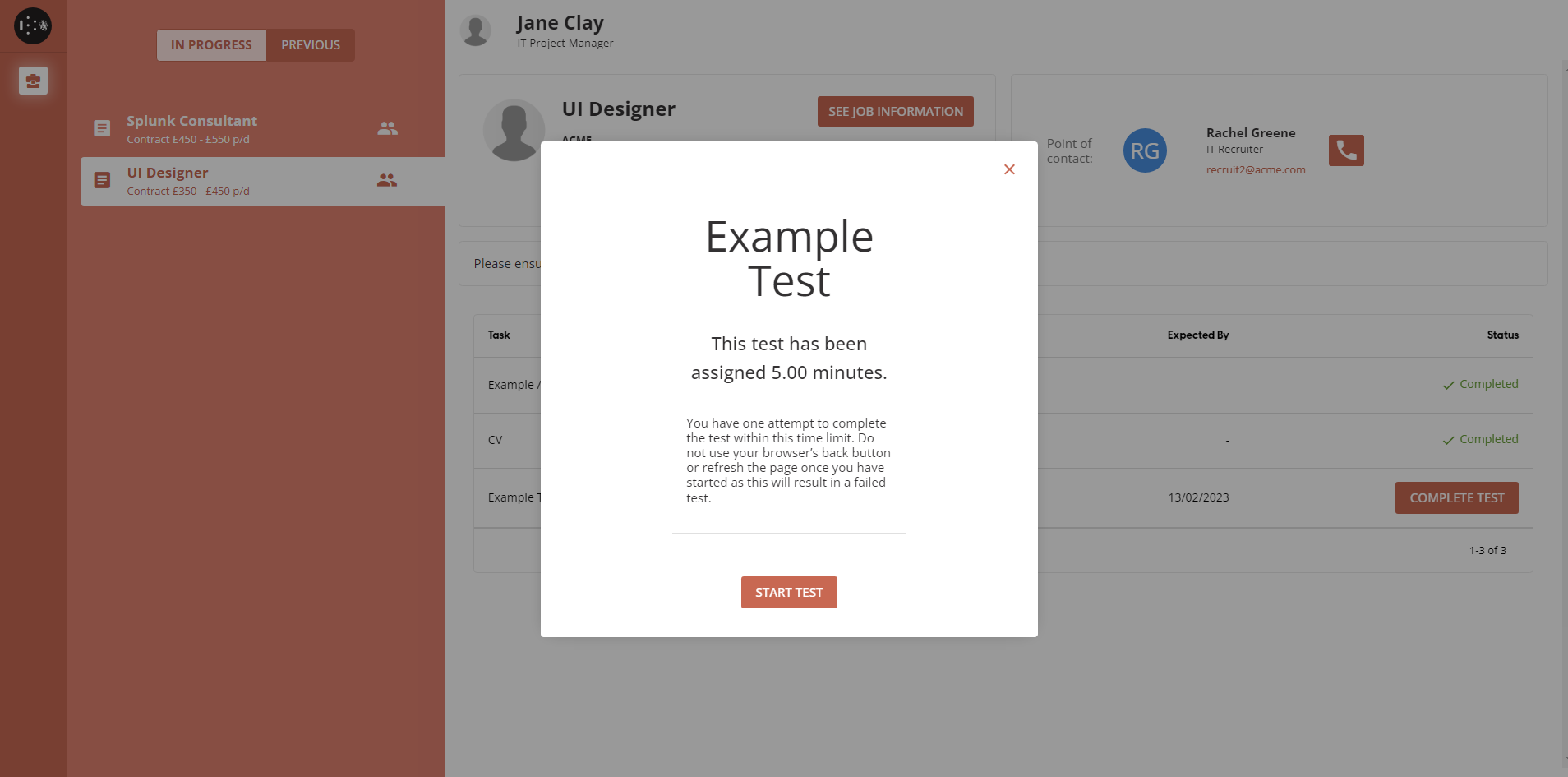
Applicants may also be required to complete assessments, and select “COMPLETE TEST“ to start the assessment. The name, amount of time available, and conditions of the assessment are shown to the applicant before they commit to starting.
The recruiter sets a time in which the test must be completed. If the applicant closes the test page, then the timer will pause until they return to the test.
Note: The applicant should not refresh the page or press their browser's back button, as this will result in a failed assessment.
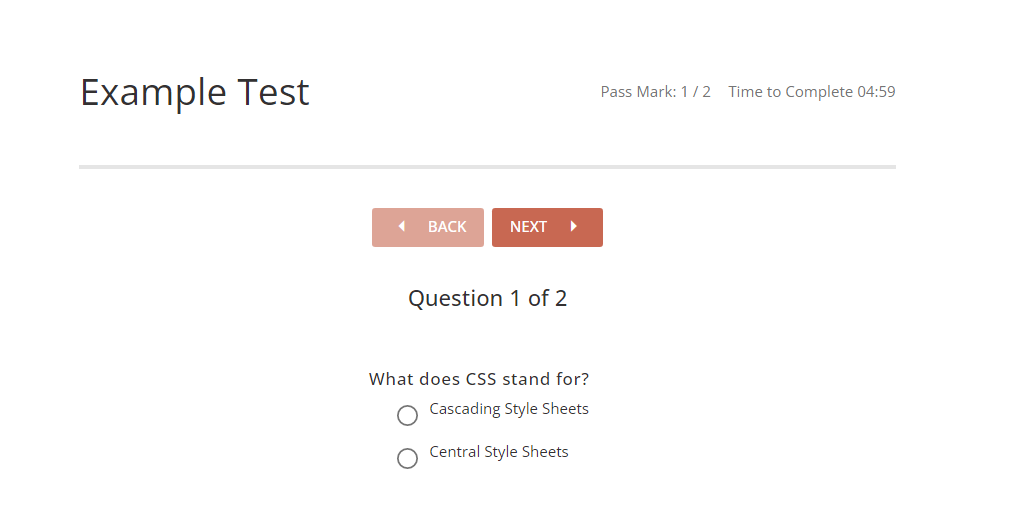
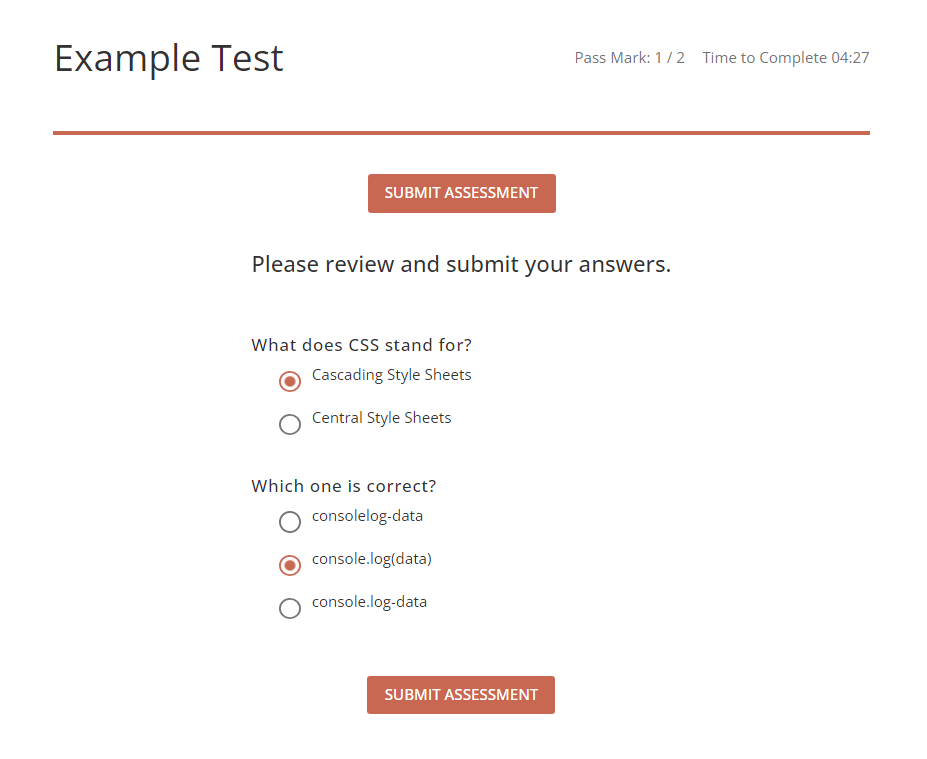
When all questions have been answered, the applicant is given a chance to review their answers before submitting the assessment providing they have time to spare. They can also revisit previous question pages if they would like to change their answer, but once they reach the review page at the end they can’t go back to a previous page.
When the “Submit Assessment” button is selected the assessment answers will be sent for review. The applicant must wait for recruiter approval before continuing with their application.