Attending an Interview
Description
As a applicant, I want to be able to join interview meetings
Applicable User Roles
List of roles that have access or can use this feature.
Applicant
Internal Applicant
How To
Invitation
Applicants will receive an email inviting them to be interviewed, this will contain an ICS appointment that can be saved to their calendar.
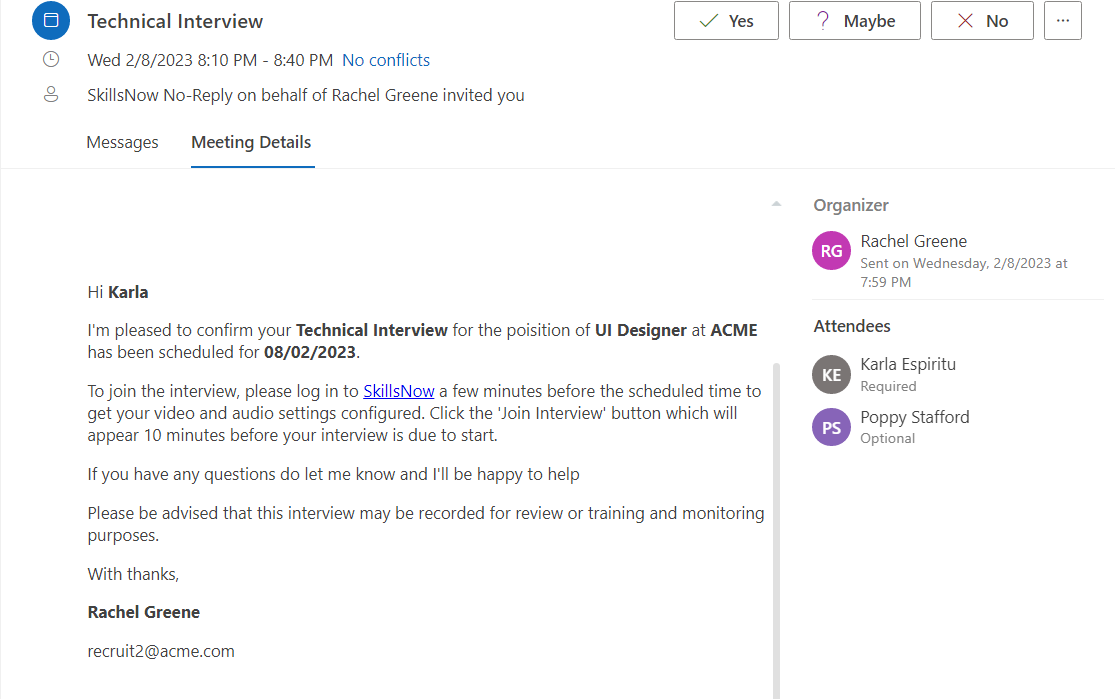
There is a link to join the interview that can be accessed 10 minutes before the scheduled interview time.
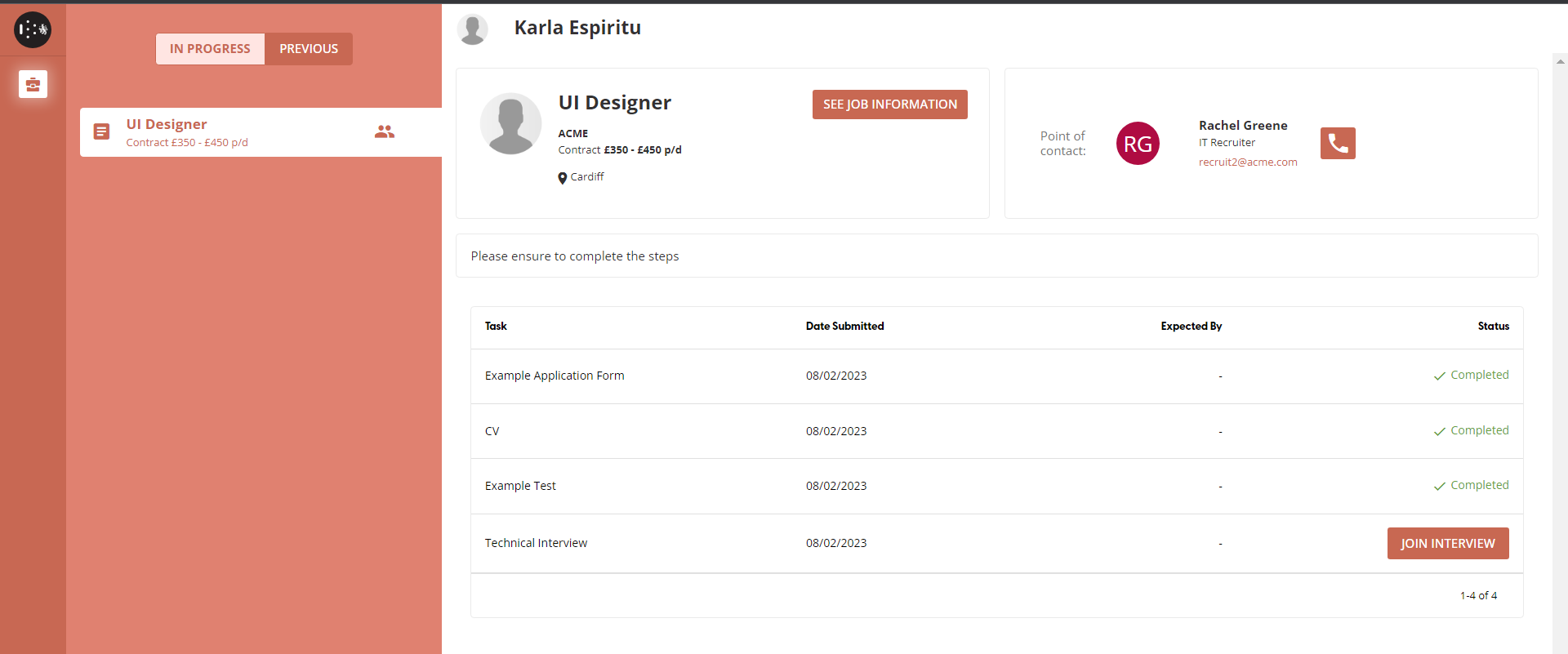
Applicants will also see a “JOIN INTERVIEW” button on the applicant portal 10 minutes before the scheduled start time.
Joining an Interview
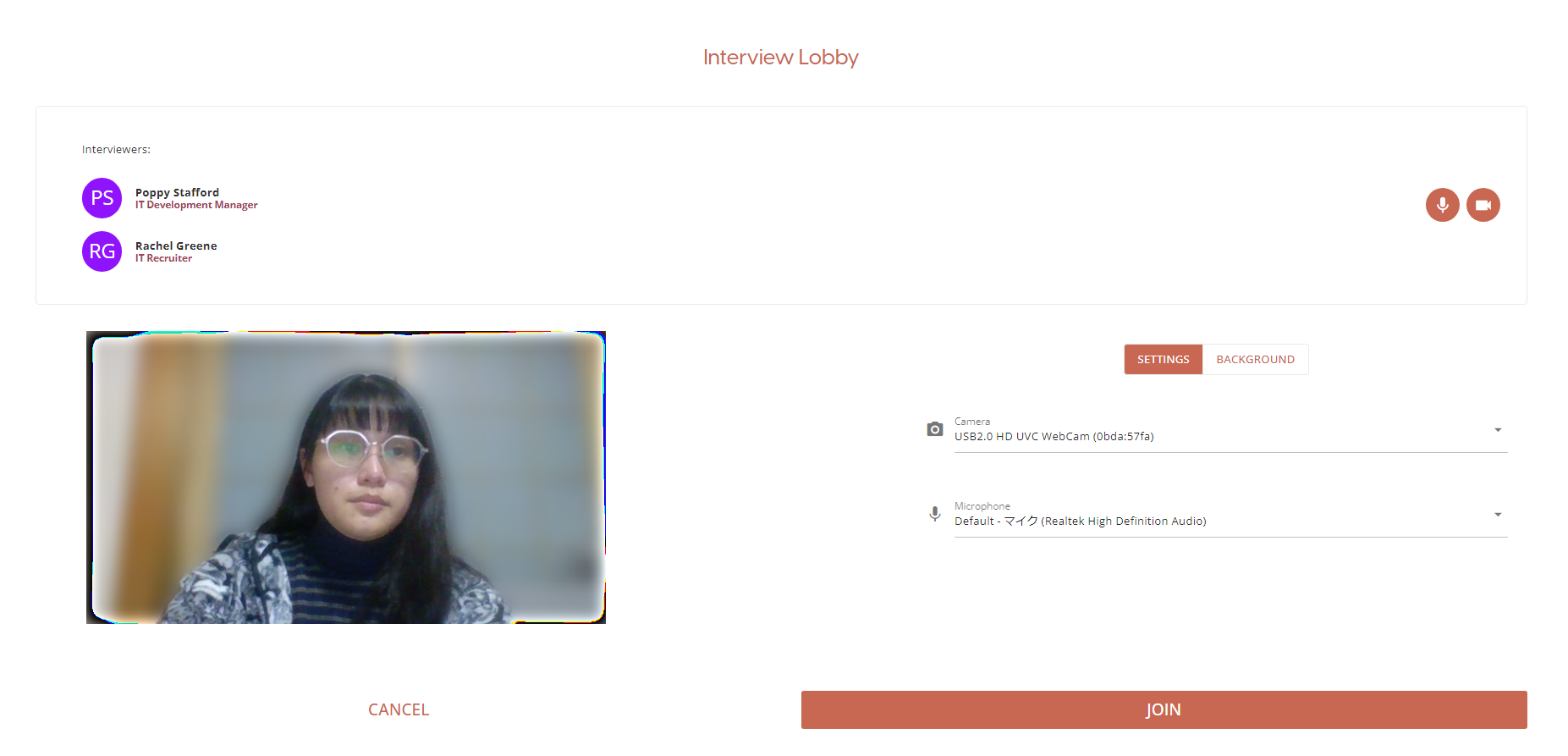
The interview lobby provides options to the participant before joining the meeting.
The participant can change the source of their video and microphone, as well as edit their video camera background by uploading their own background image or blur their background.
All options available in the lobby can also be configured during the interview.
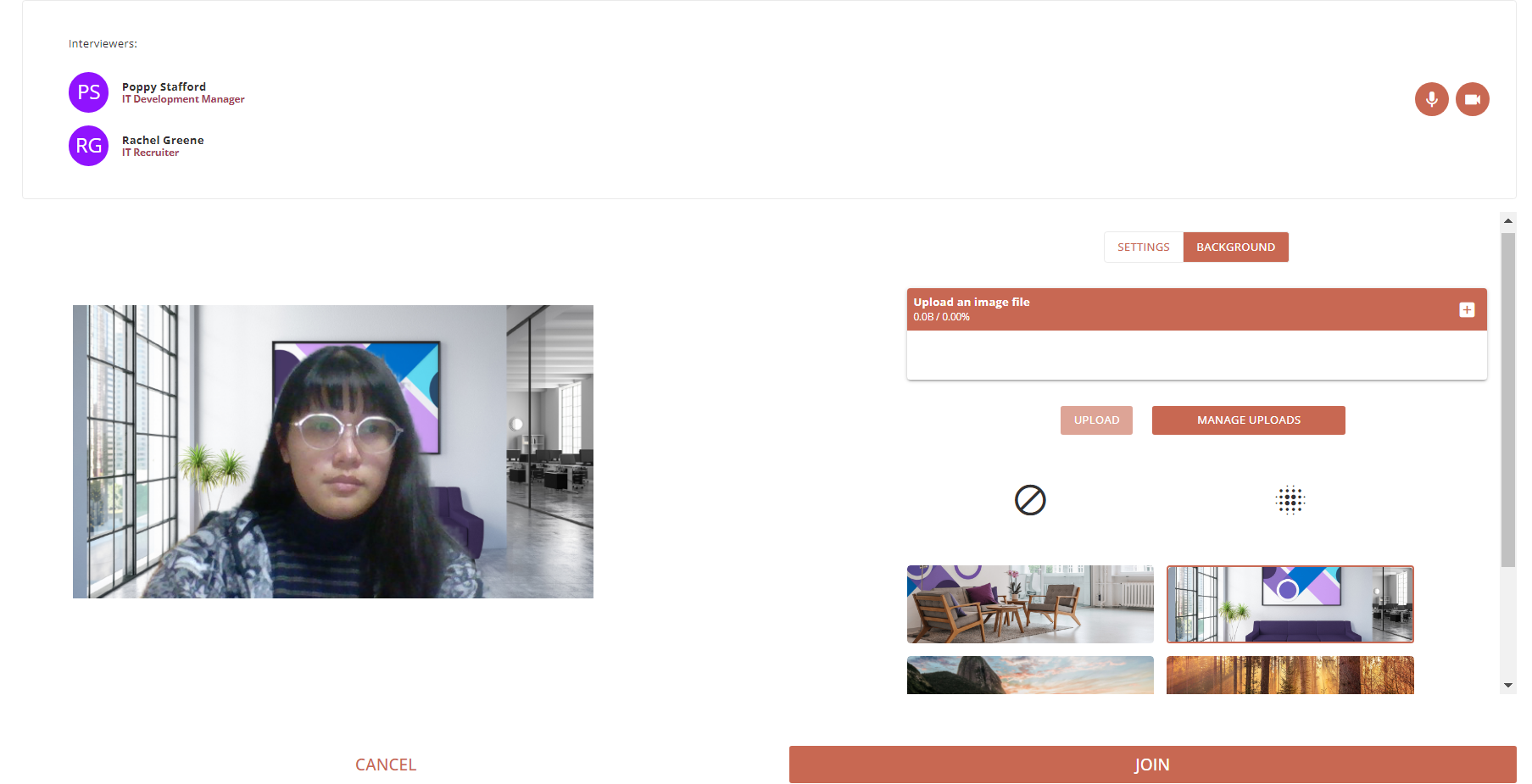
On the background tab, users can select which background option they would like to apply for their video. They can select an image from the image gallery, or they can upload their own image by selecting the ‘+' button, then clicking 'UPLOAD’. Once they are happy with their background settings, they can join the interview.
After selecting “JOIN ” the applicant must wait for the interviewer to start the interview.
Starting an Interview
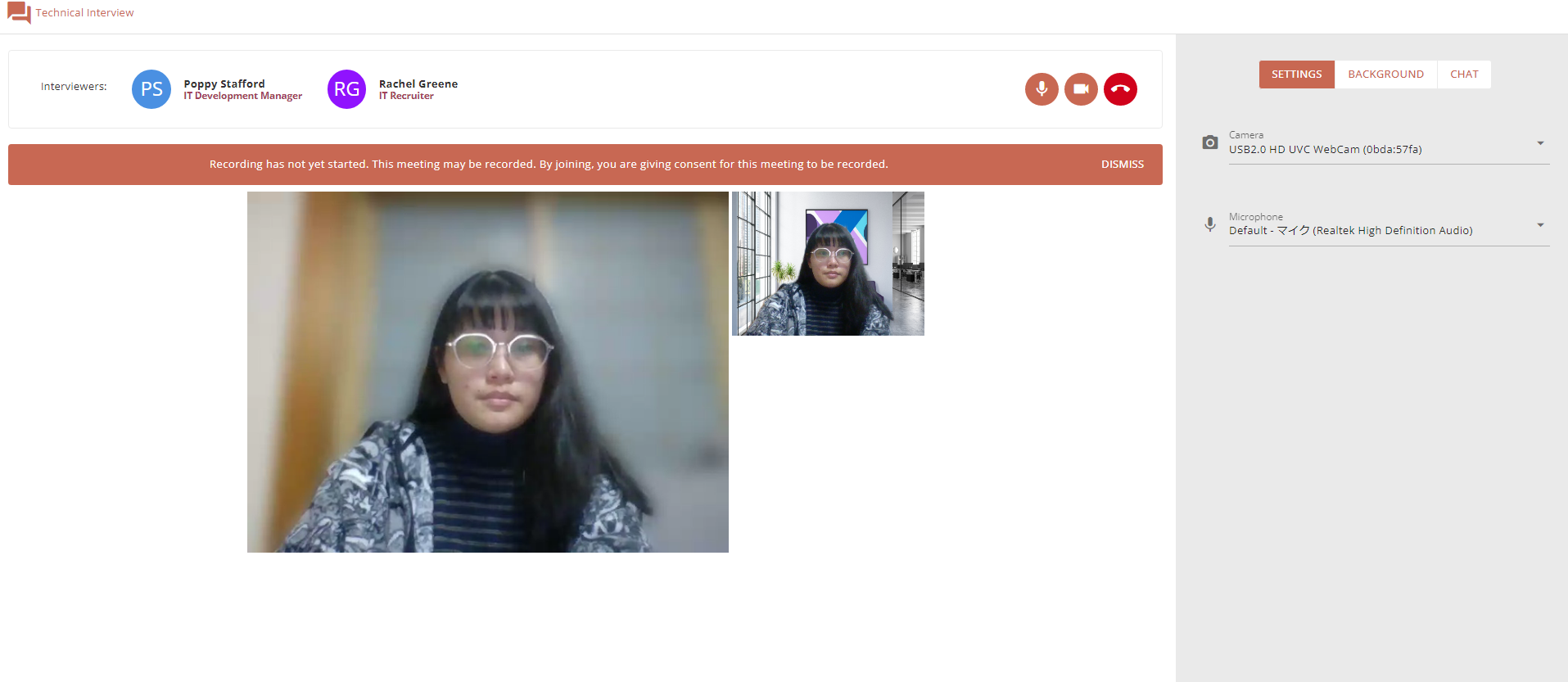
The applicant will see video from their interviewer(s) as well as their own video.
Applicants may have to give browser permission to access their video/microphone
Options to mute microphone, hide video, and leave the interview are available at the top right of this screen.
The applicant will be notified when recording has started with a message and by the appearance of a red icon next to the microphone mute button.
Chat
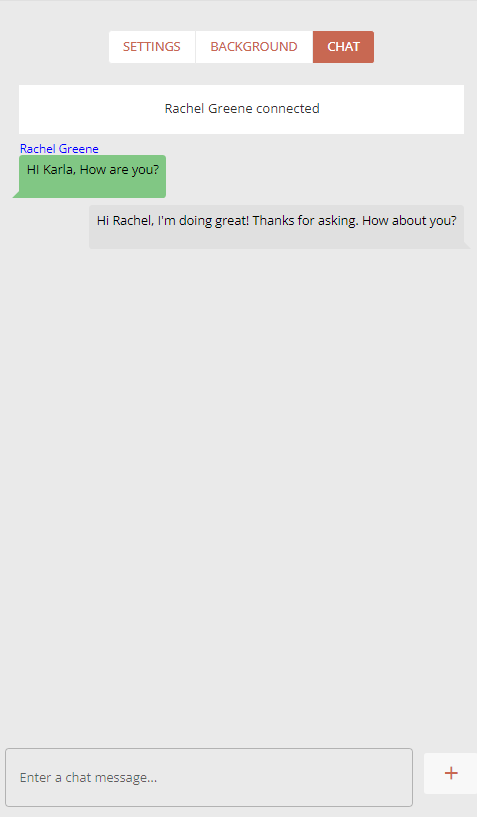
An applicant can send and receive live chat from the interviewers during an interview.
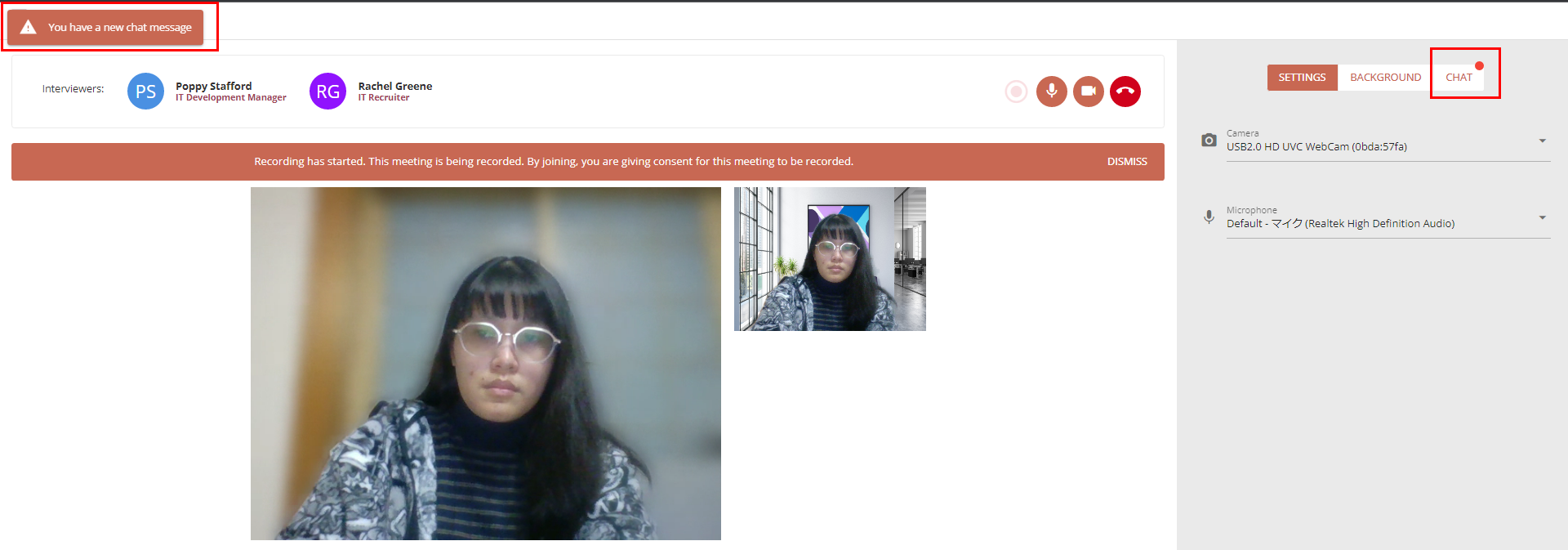
If the CHAT tab is not selected, applicant will be notified whenever a new message received.
Known Issues
Zoom Interviews. Participants using a Mozilla based browser (i.e. Firefox or Brave) will not be able to see or hear other participants. This is a browser compatibility issue with the Zoom SDK, and we will upgrade the feature once a solution has been created.
Zoom Interviews. When leaving and re-joining the same Zoom interview, the user may see one or more black screens in the interview screen. This is due to the Zoom SDK having a hard-coded timeout of 2 minutes per session. The black screens will then clear themselves after a two-minute delay.