Campaign Workflow Steps
HireNow Portal > Recruiter Form Builder
Description
As a recruiter of HireNow, I want to be able to configure the campaign workflow steps to be used on application process
Applicable User Roles
List of roles that have access or can use this feature.
Recruiter
Recruiter Admin
How To
Recruiters can change the order of a campaign workflow by selecting the upwards/downwards arrows. Recruiters can also remove a workflow step by selecting the blue bin icon. To add another Campaign Workflow Step, they can select the grey '+' button near the bottom of the page.
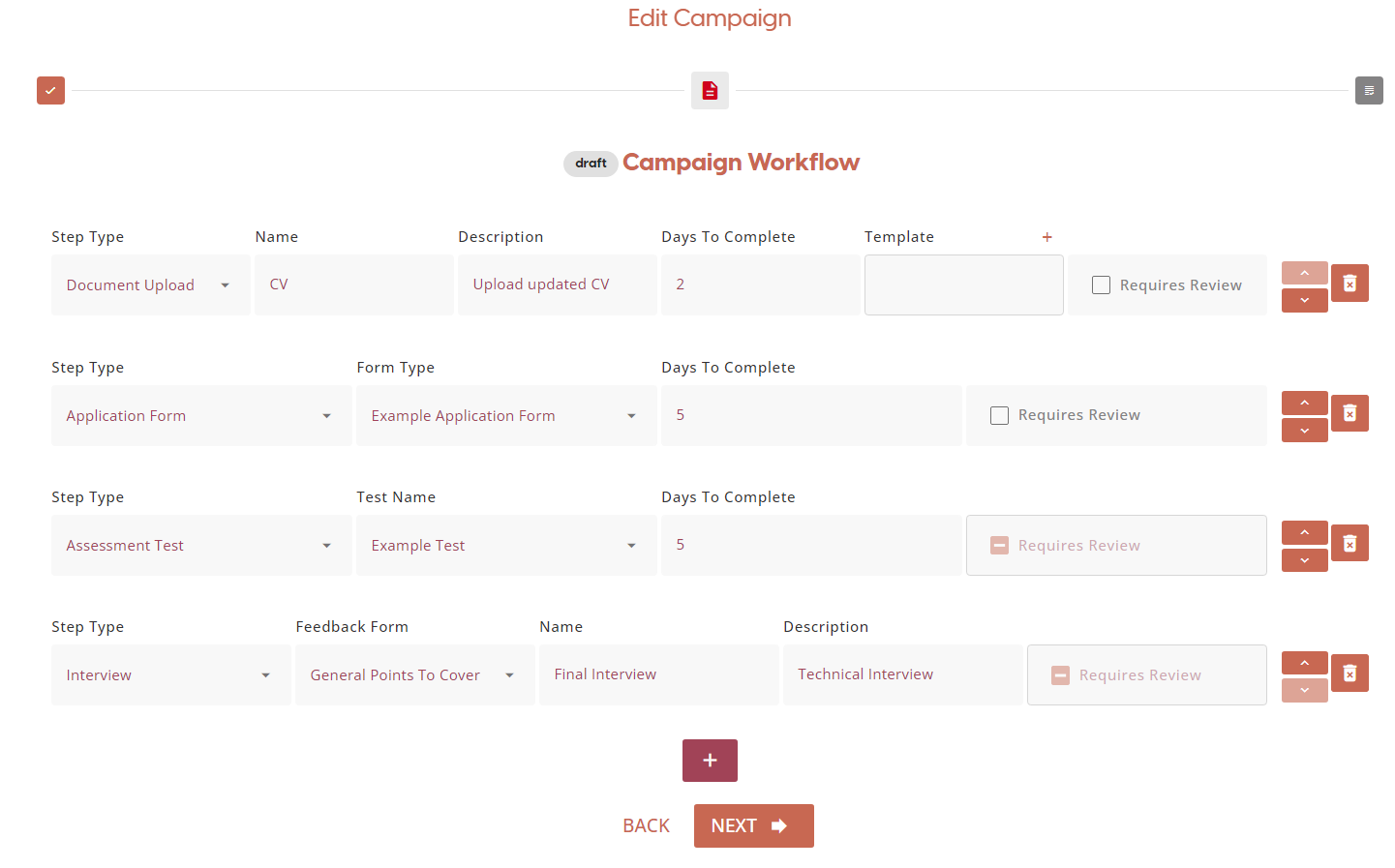
Document Upload
In this step, applicants can upload a file to be reviewed by the recruiter. Examples of documents they can upload include a CV/resume, a cover letter, or a completed document template. Once they have uploaded their document, the recruiter can review their file to see if they would like to progress the applicant to the next stage.
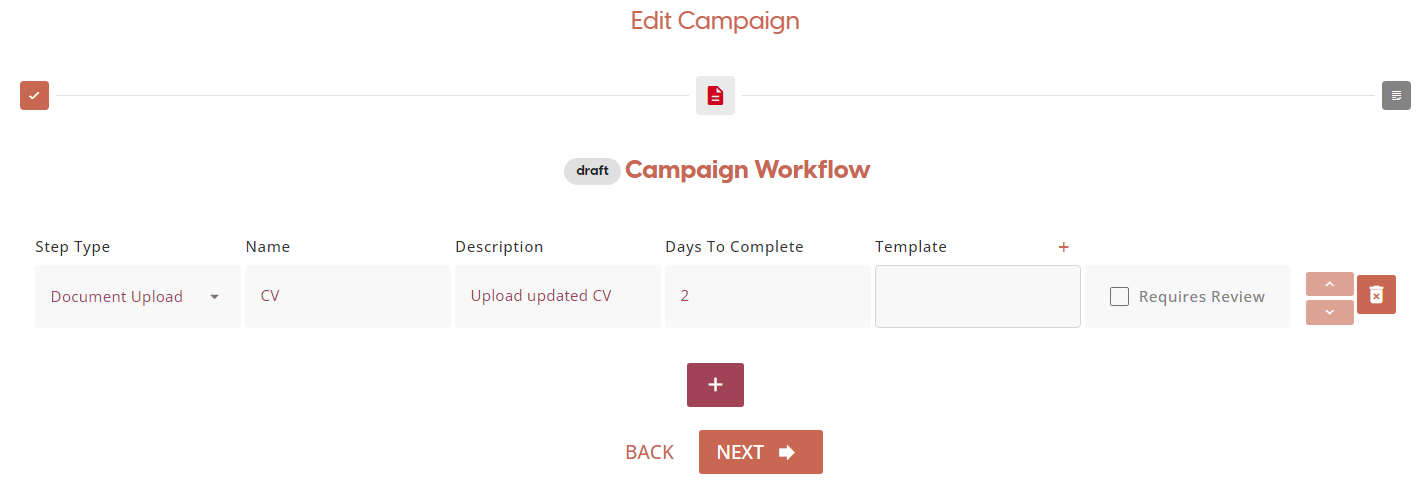
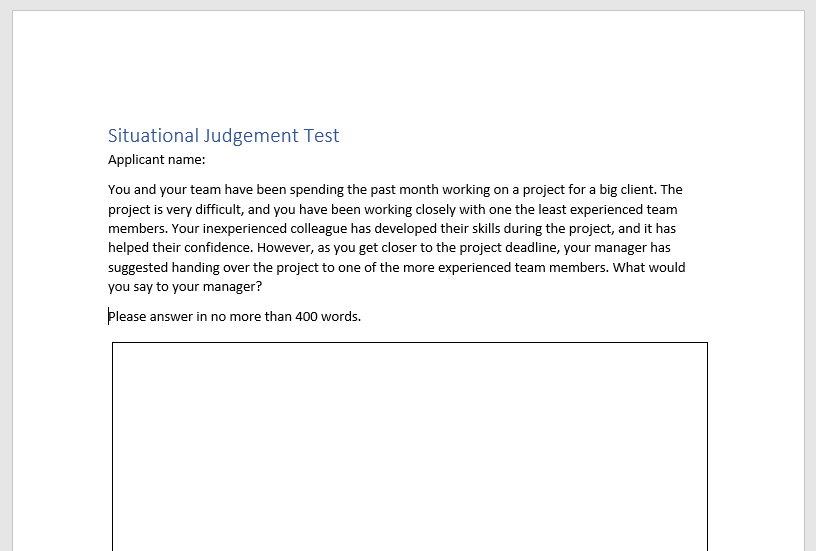
Alternatively, if the recruiter would like the applicant to fill out a form then upload it back onto SkillsNow, then they can create a document template.
Below is an example of a document template that the applicant can download from the platform to complete:
Fill out the Document Upload workflow details, then select the '+' in the Template box.

Once you select the '+', a new window will appear for you to upload a document from your device.
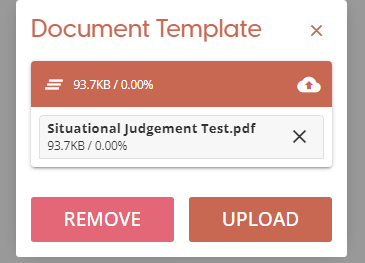
Press ‘UPLOAD’ to upload the document to the workflow step. The applicant will be able to see the document available to download onto their own device to complete. Once they have completed it, they have the option to upload the document back onto the platform for the recruiter to review their answers.
We suggest providing some instructions for the applicant in the workflow description box, such as “Please download the template to complete. Once you have finished, please upload your answers in a document.”
Application Form
The second type of a campaign workflow step includes an Application Form. Here, the recruiter can select which application form they would like the candidate to complete as part of their application. Recruiters can create the application form on the Form Building page.
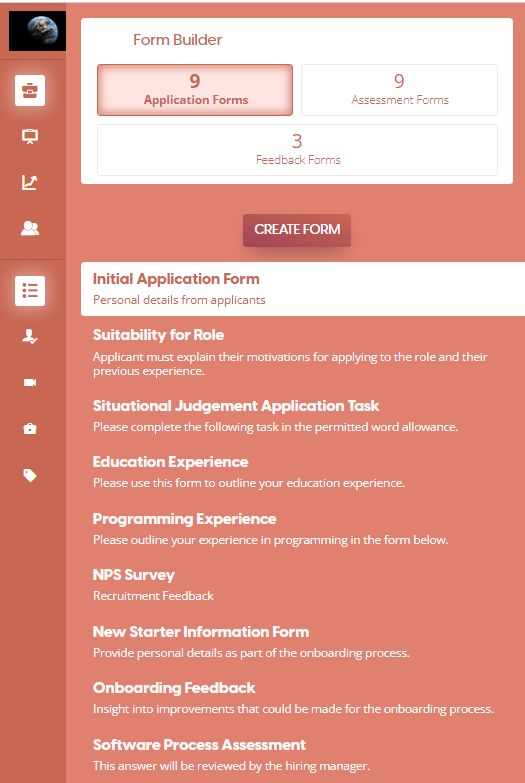
On the Application Forms tab in the Form Builder page, the recruiter can click on ‘CREATE FORM’ to build a new application form for the campaign.
In the form builder, recruiters can add fields for the candidate to fill in.
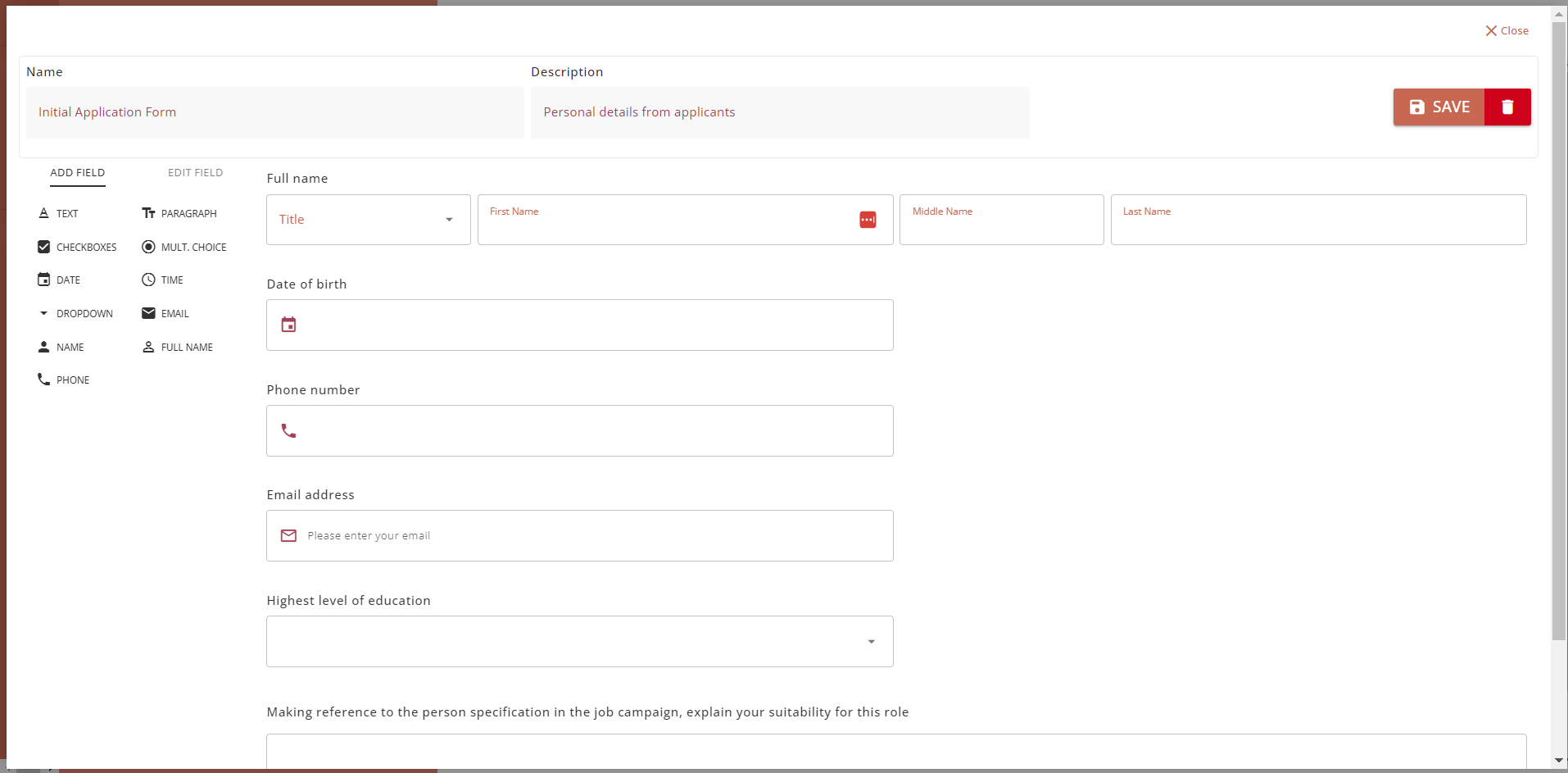
If they want to edit the details of a field or duplicate or delete a field, they can click on ‘EDIT FIELD’.
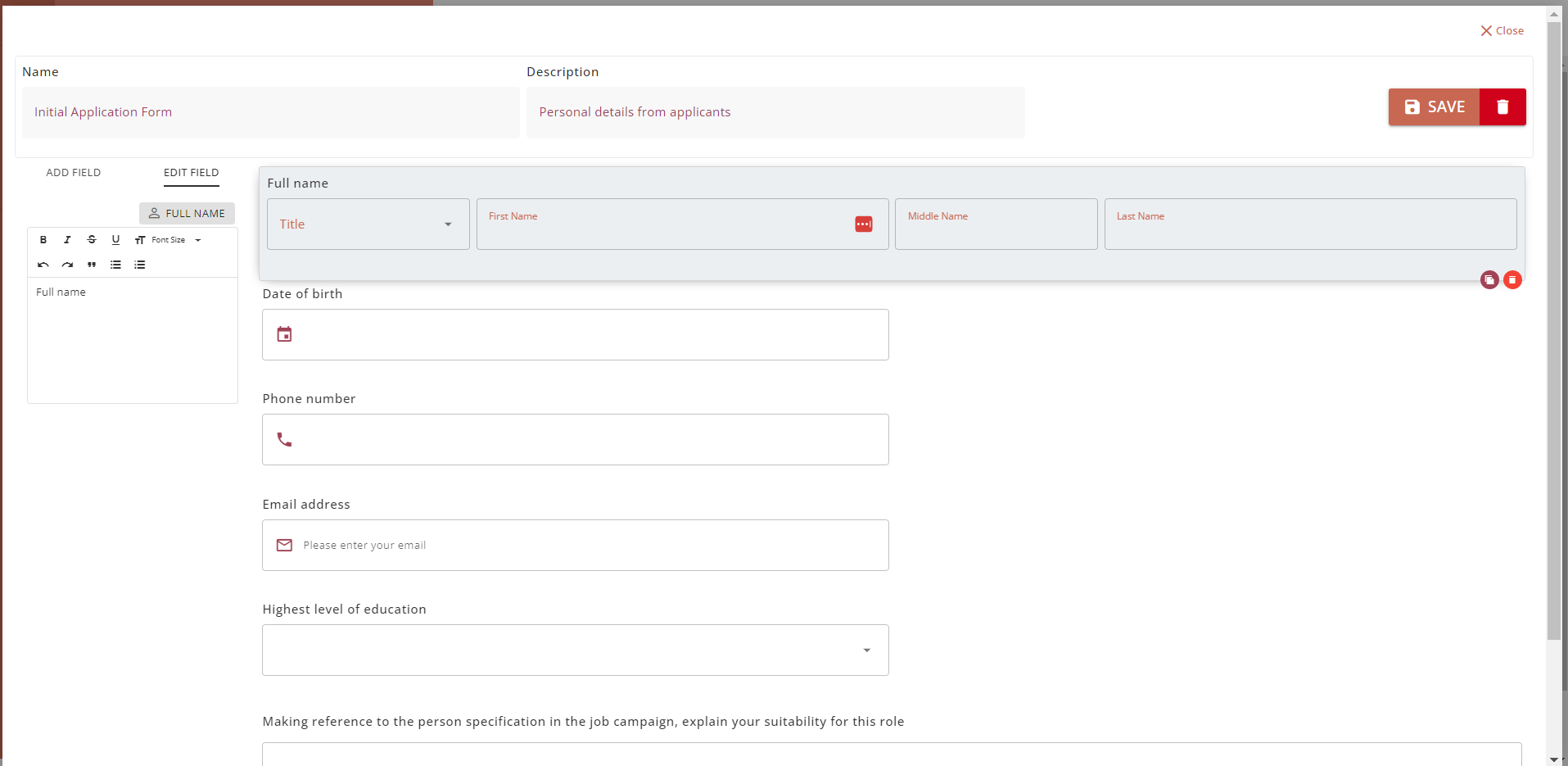

Once the application form is completed, click on the ‘SAVE’ button and the application form will be ready for selection in the Campaign Workflow builder page.
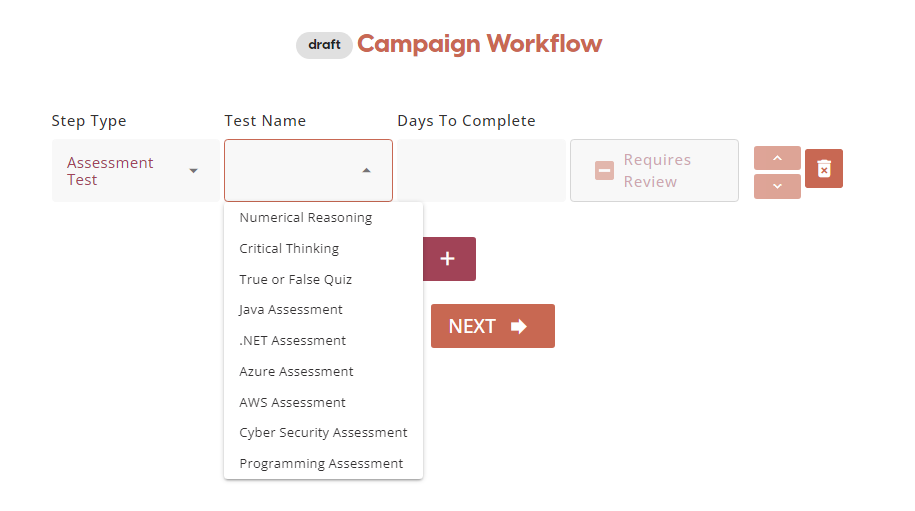
Assessment Test
The recruiter can include a timed Assessment Test as one of the campaign workflow steps. Just like the application forms, the assessment tests can be created in the Recruitment Form Builder page.
To create a new assessment test or edit an existing assessment test, click on the Assessment Forms tab on the Recruitment Form Builder page.
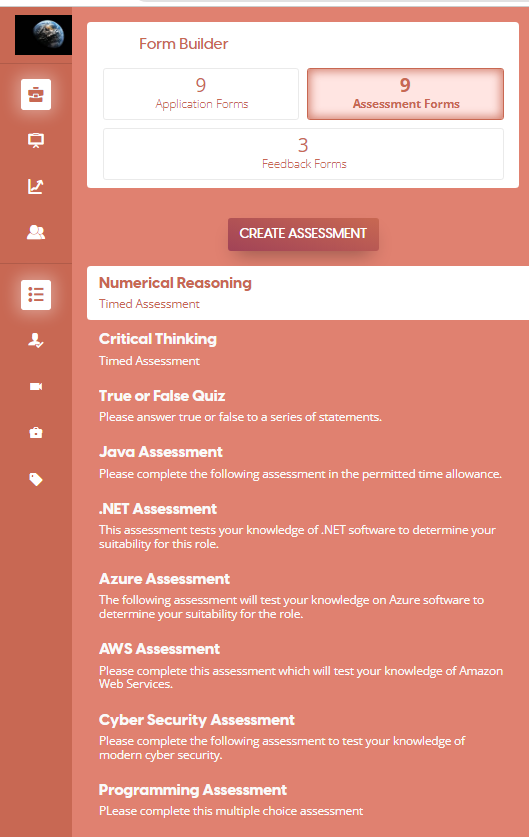
Click on ‘CREATE ASSESSMENT’ to create a new assessment form. The assessment forms contained timed assessments for multiple choice tests.

Here, recruiters can set the name and description of the assessment. They can also set the amount of time allowed in minutes and the pass mark needed for applicants to progress onto the next stage in the application process.
If the recruiter would like to set some instructions for the applicant to follow, then they can write them in the Pre Assessment Advice box that appears when they click on the ‘+ advice’ button
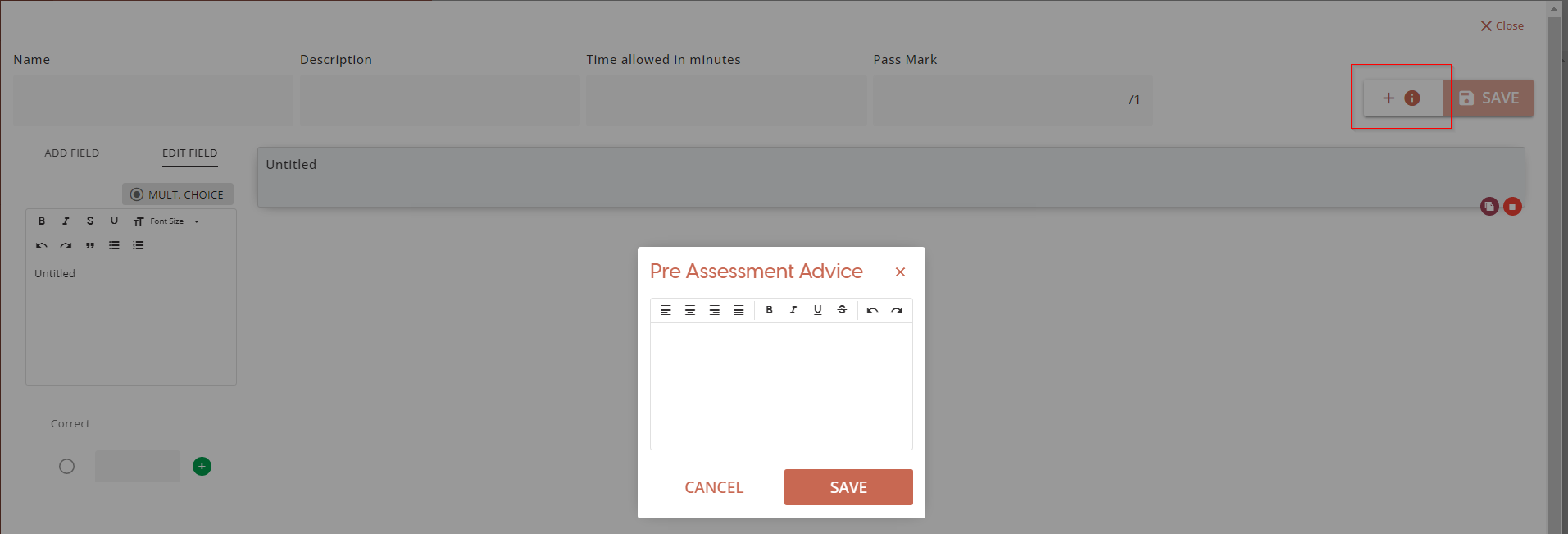
To add a field in the assessment form, select ‘ADD FIELD’ and enter in the text box a test question you would like to include.
To add an answer box, click on the green ‘+' button. The answer boxes can also be deleted by clicking on the red bin icon next to the box. After you enter an answer in a box, click on the green '+' to confirm you want to add it to the assessment.
To select one of the answer boxes as the correct answer, click on the empty circle next to the correct answer.
Note: The SAVE button is disabled if the correct answer is not set.
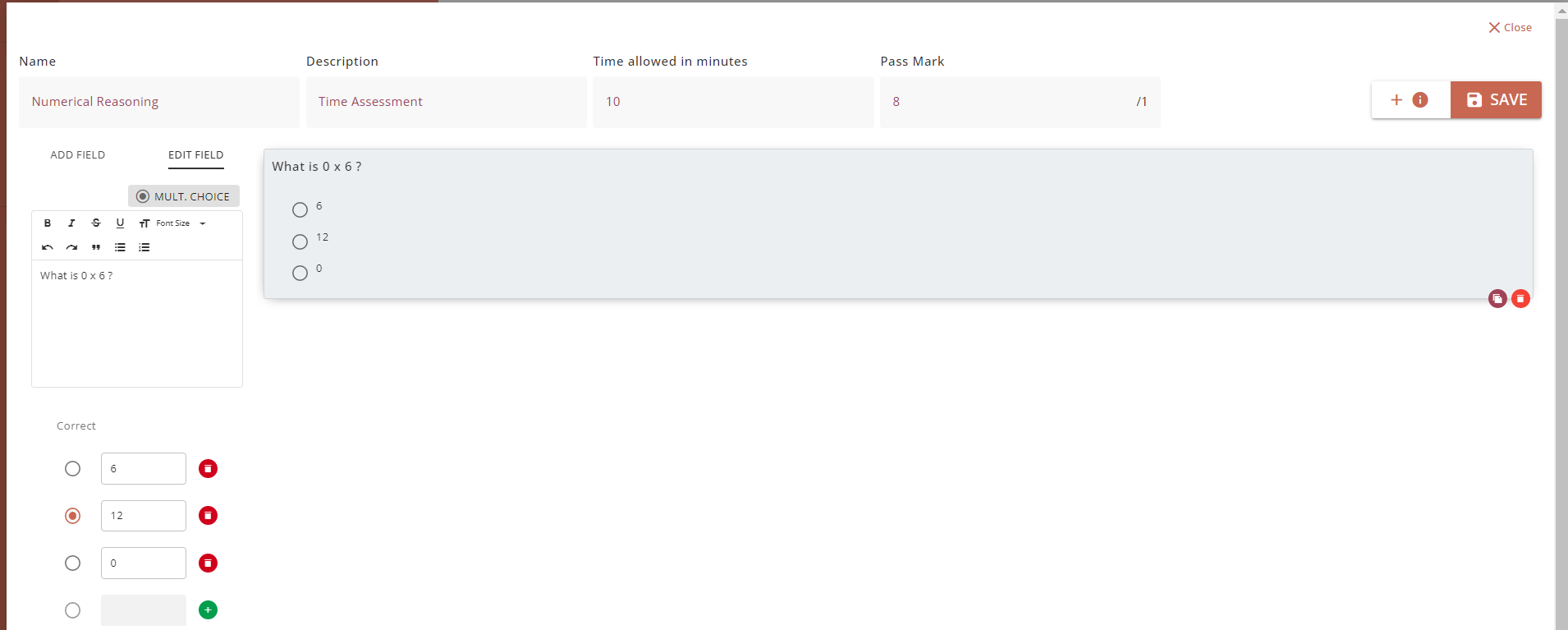
Below is an example of a completed assessment form.
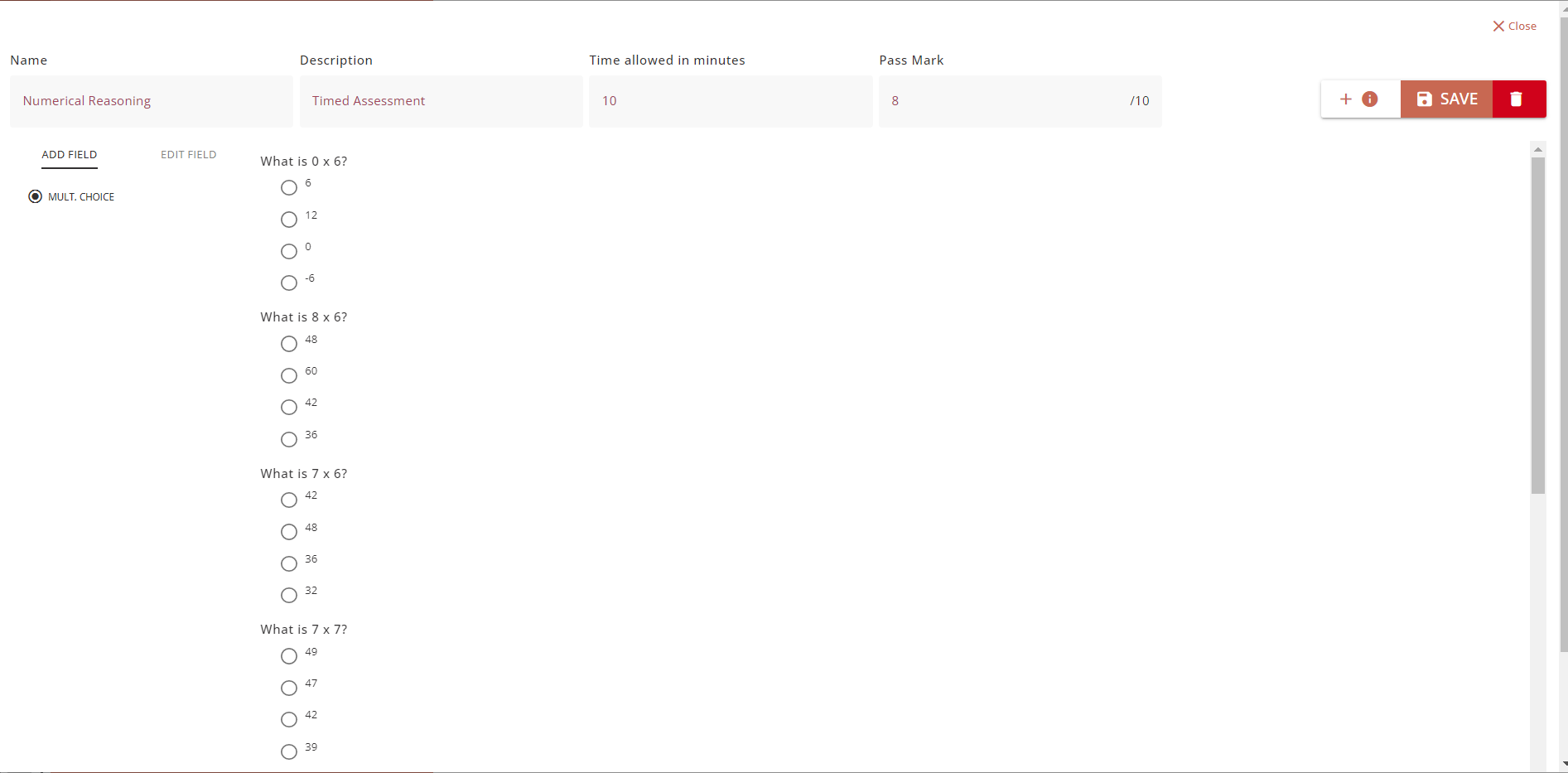
Once the assessment form has been completed, click on the blue ‘SAVE’ button.
The assessment test will now be available to be selected on the Campaign Workflow page in the Campaign Builder.
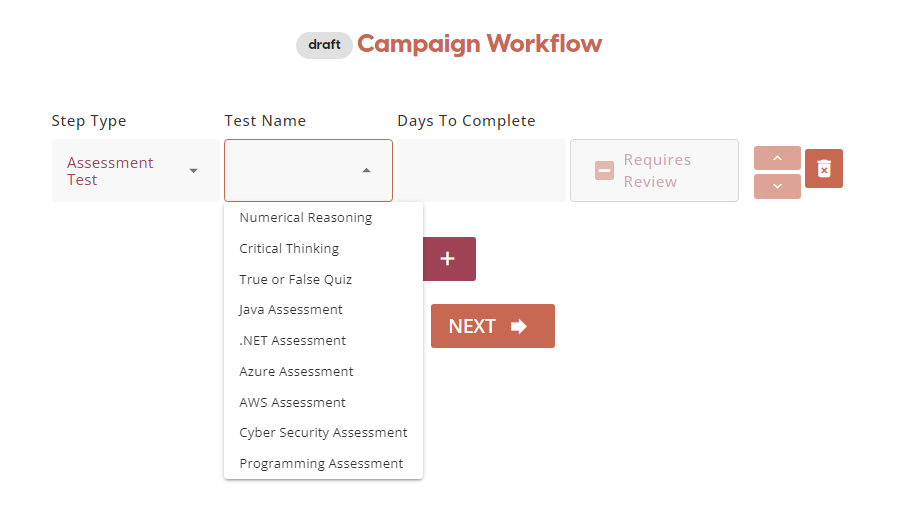
Interview
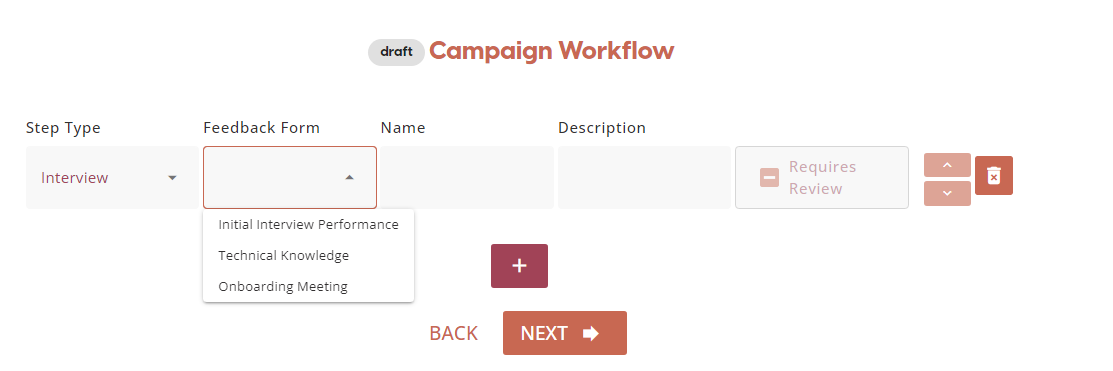
The final workflow step that can be added by a recruiter is an interview. The recruiter can fill out the name of the interview and a description of what will be covered during the interview. All interviews require review for the applicants to progress in their application. Depending on the campaign and the type of interview the recruiter would like to organise, they can create a feedback form to be completed in the interview.
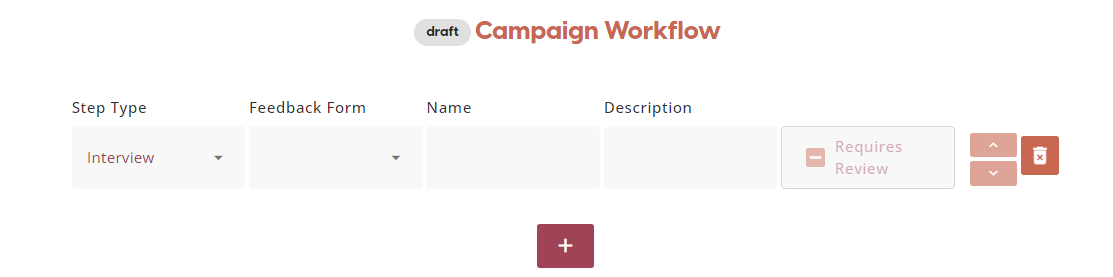
To create an interview feedback form or to edit an existing feedback form, the recruiter can go onto the Recruitment Form Builder page, then select the Feedback Forms tab.
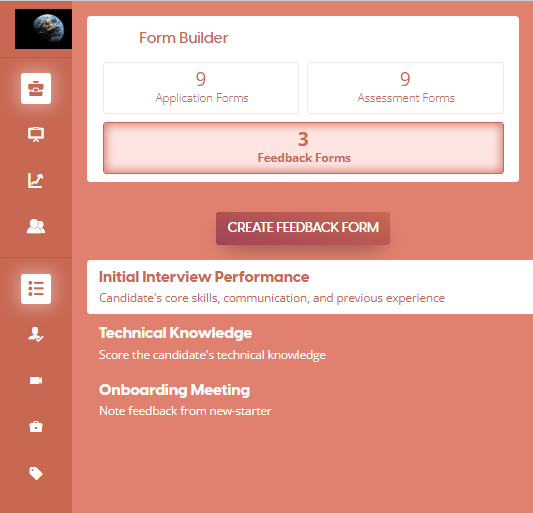
To create a new feedback form, click on the ‘CREATE FEEDBACK FORM’ button. Here, recruiters can enter the name of the feedback form and a description of what it will contain.

They can add fields for the feedback form by selecting ‘ADD FIELD’. All of the fields for a feedback form include a feedback slider where they can provide a numerical score for the candidate.
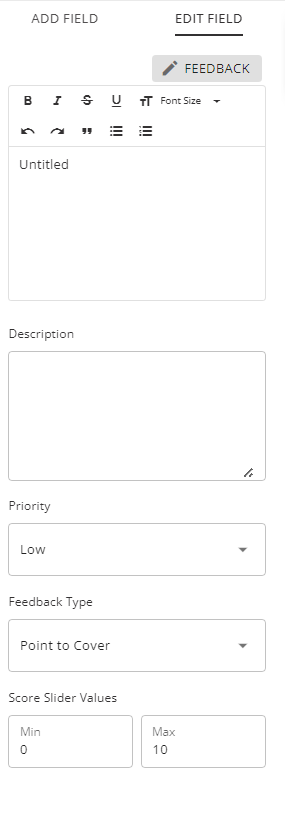
In the first text box, the recruiter can enter what they want to test the candidate on during the interview e.g., their experience or skills. In the second text box, they can provide an explanation of the criteria e.g., which specific skills or specific experience. They can then set the priority of that field as low, medium, or high. Lastly, they can set what feedback type the field contains:
-
Points to Cover - These feedback fields appear during the interview on a sidebar, so the interviewer can answer them during the interview.
-
Feedback Score - These feedback fields appear after the interview has finished.
The order of feedback fields can be changed by dragging the box into the desired order. The recruiter can also set the scale that the candidate will be scored on the feedback slider.
See below an example of a completed feedback form to be used during an interview:
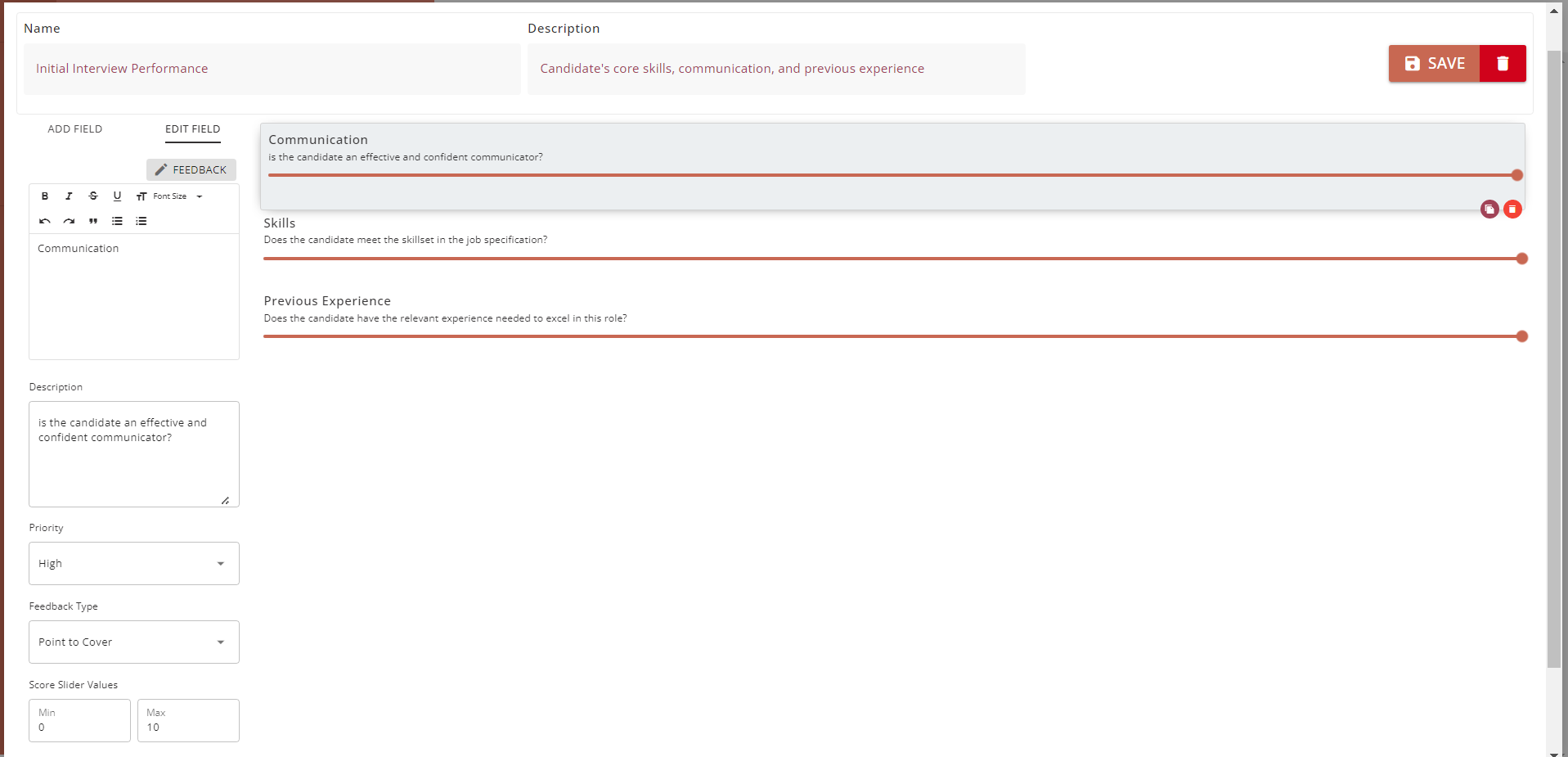
Once the feedback form has been saved by the recruiter, it will be ready for selection in the Campaign Workflow page in the Campaign Builder.