Campaign Configuration
HireNow Portal > Recruitment Campaigns
Description
As a recruiter of HireNow, I want to be able to create campaigns and configure the workflow of the application process
Applicable User Roles
List of roles that have access or can use this feature.
Recruiter
Recruiter Admin
How To
Create a Campaign
A campaign is used to track applicants for a given role and configure the workflow of an applicant through the application process.
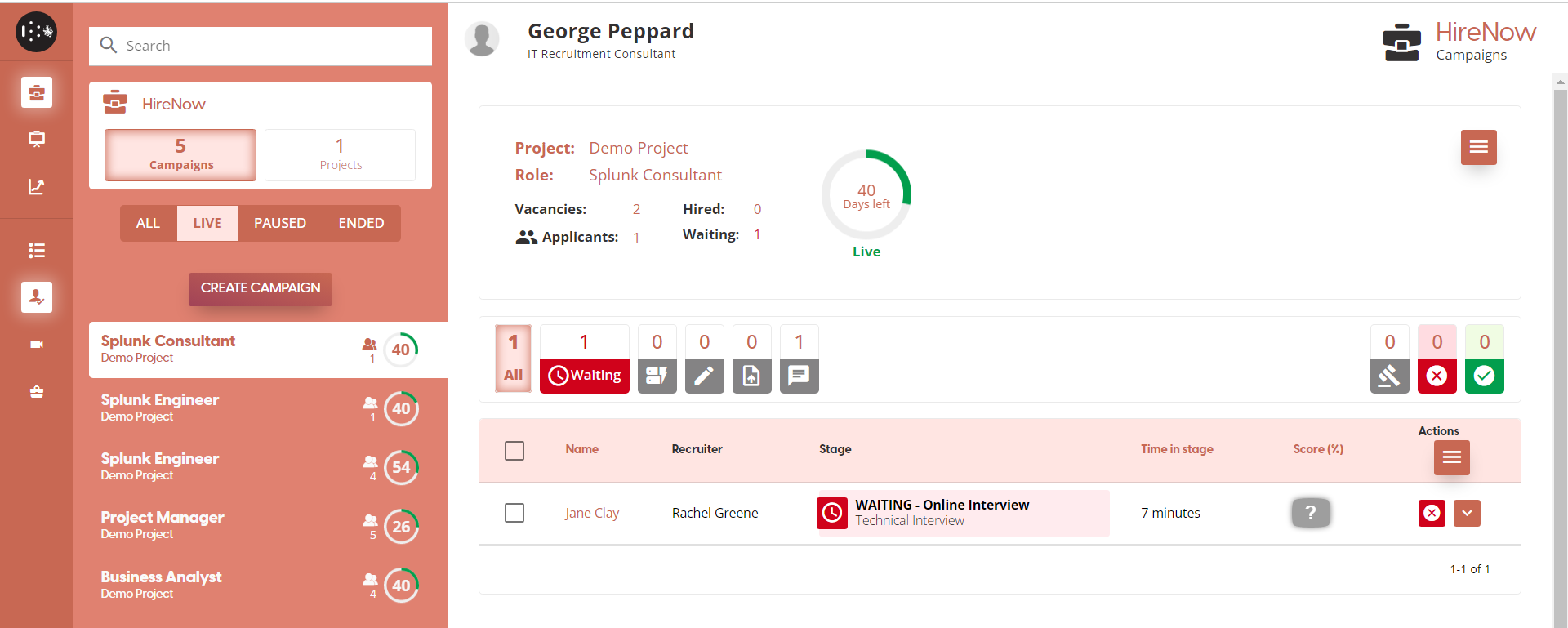
Within the Recruitment portal, select campaigns. On Campaign list in the left panel and select the “Create Campaign” button.
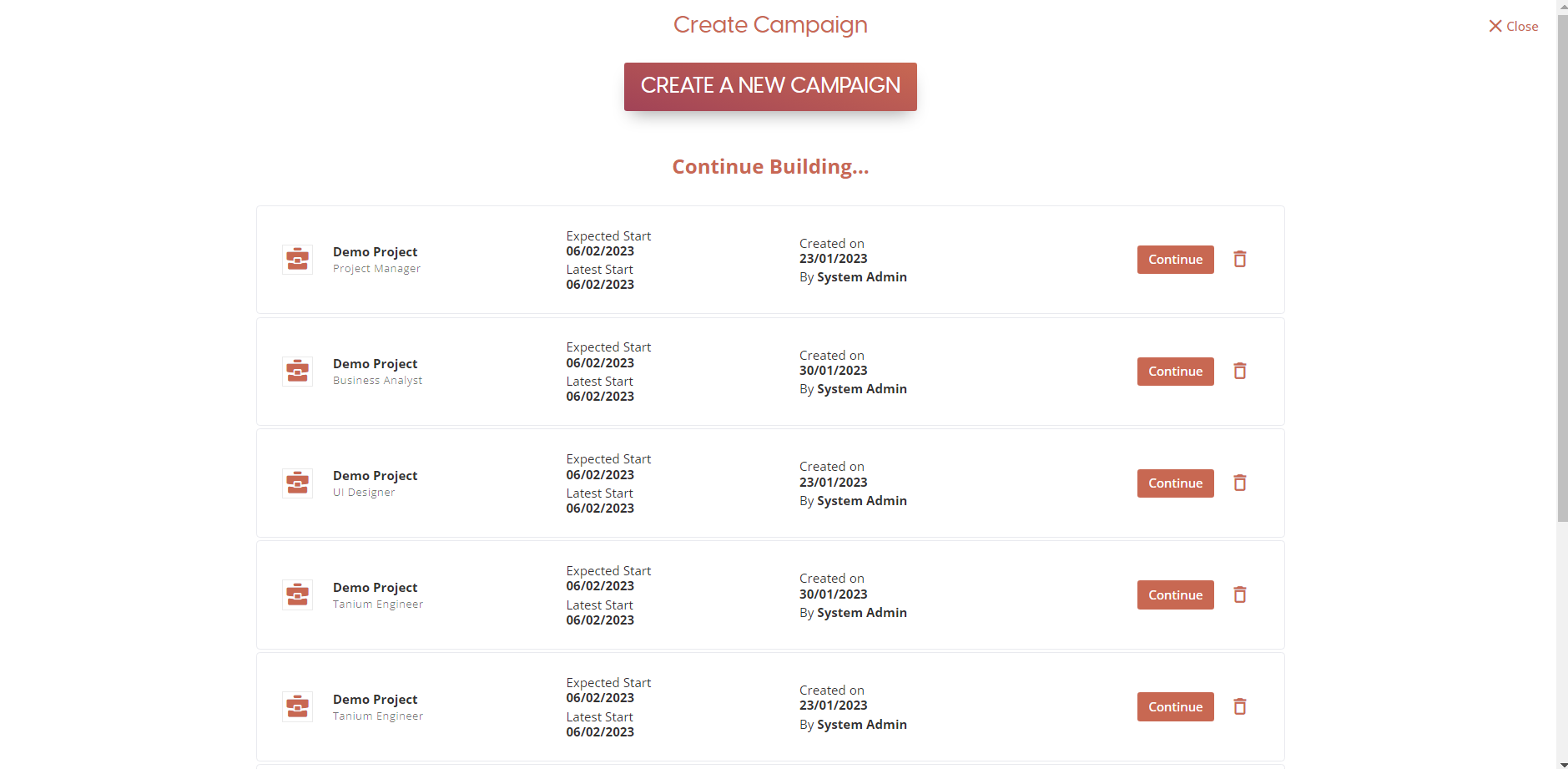
This will open the Create Campaign modal. You can view other campaigns that have not gone live yet or select “Create a new Campaign” button at the top of the page.
Campaign Settings
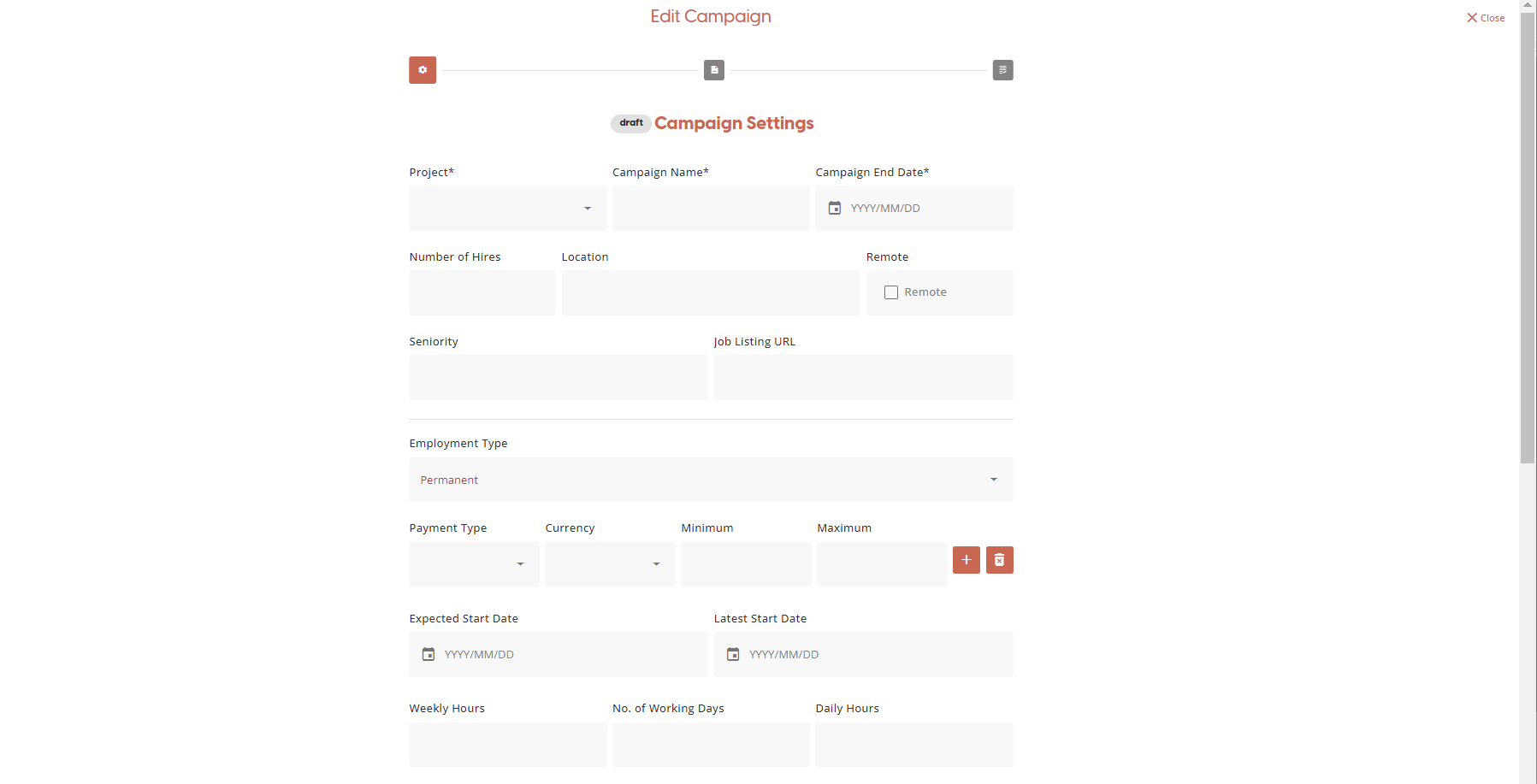
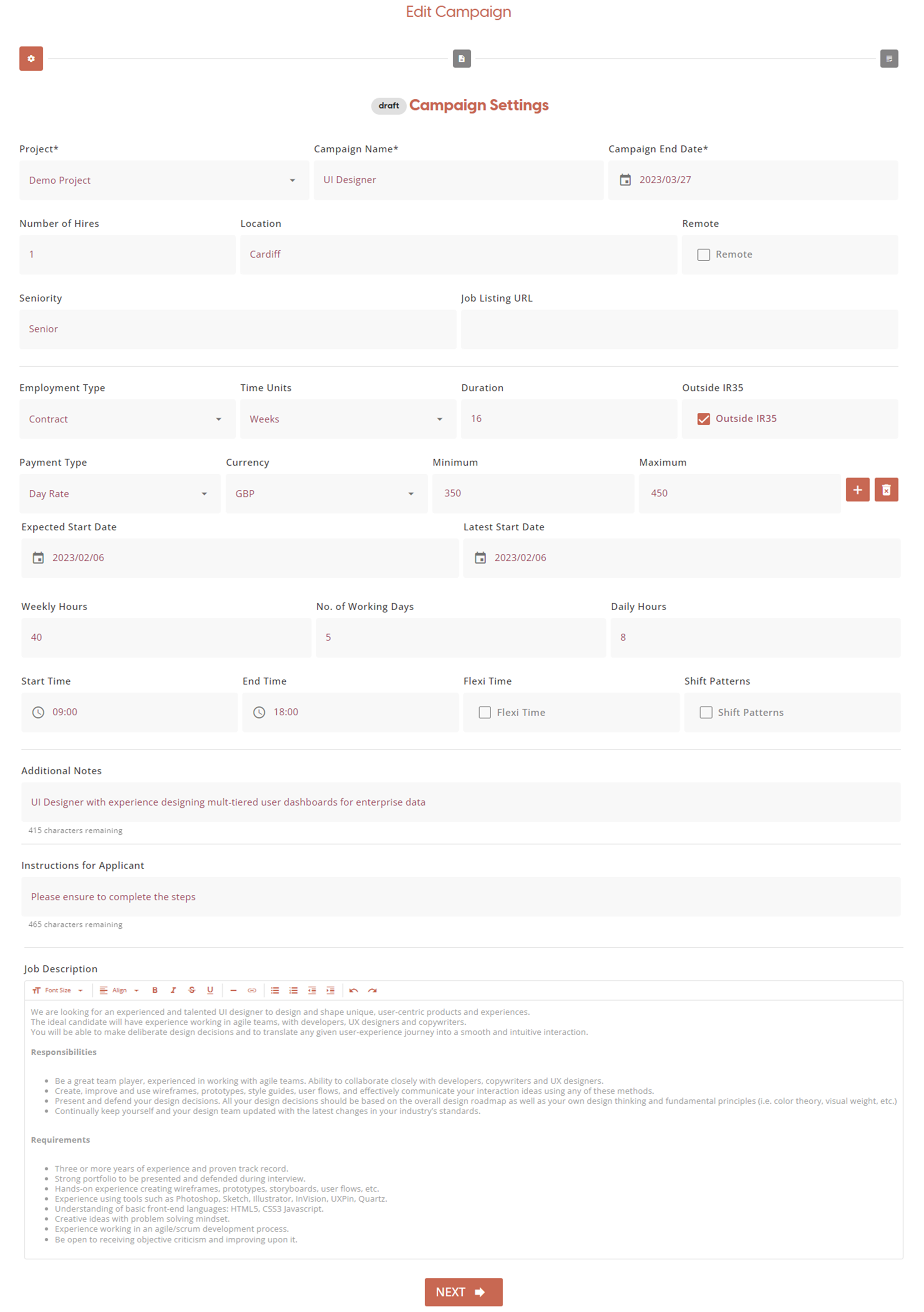
On the Campaign Settings form you can enter a range of details relating to the job listing you are configuring for applicants to apply for.
Only the first 3 fields are mandatory but the more detail you provide here, the richer the experience will be for your applicants.
Currently, the all campaigns are captured as part of a set of default Projects, provided by the system.
Coming Soon: Project management functionality. This will allow users with the correct permissions to create, update, delete and view projects and their associated campaigns (job listings).
Most of the fields here are self-explanatory.
Empty Form
Example Completed Form
Applicant Instructions
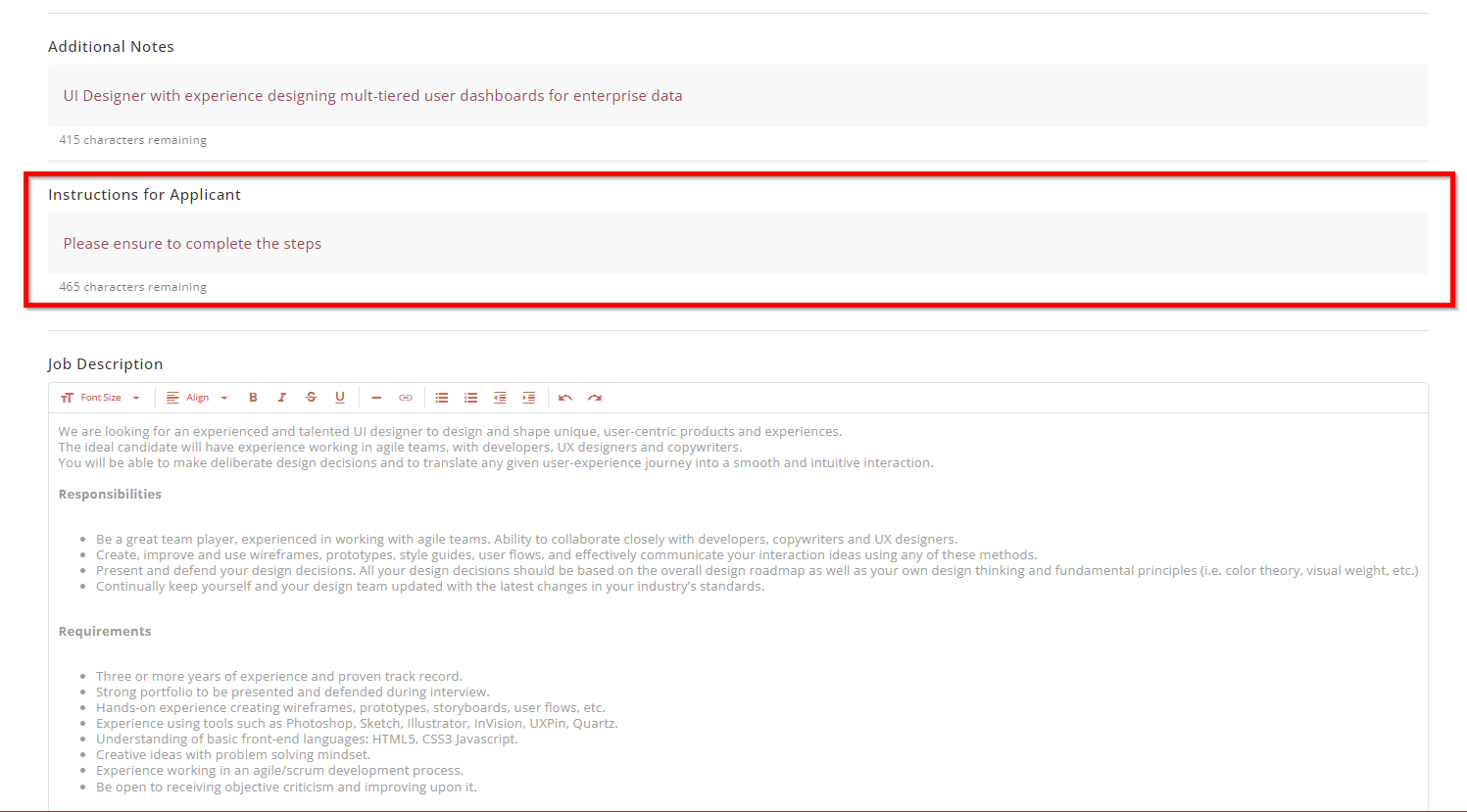
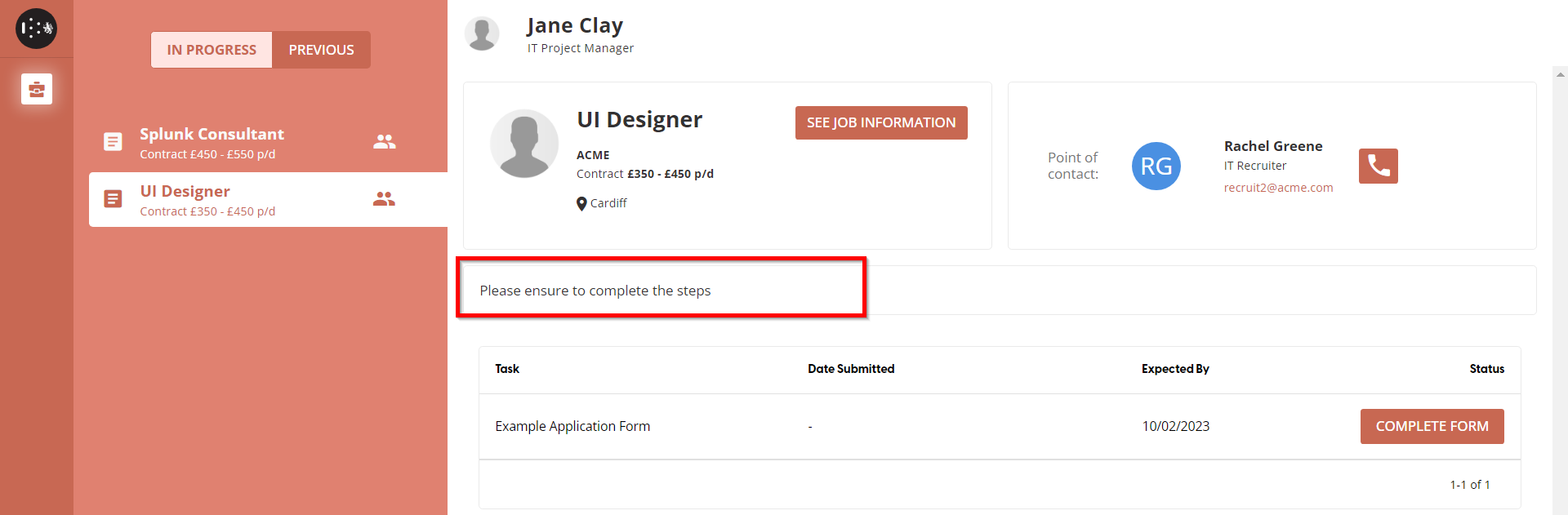
To provide guidance to an applicant on the applicant dashboard, there is an option to configure Applicant Instructions on a per campaign basis. This can be set on the campaign configuration screen.
Applicant Instructions - Campaign Configuration - Recruiter View
Applicant Instructions - Applicant Dashboard - Applicant View
Job Description
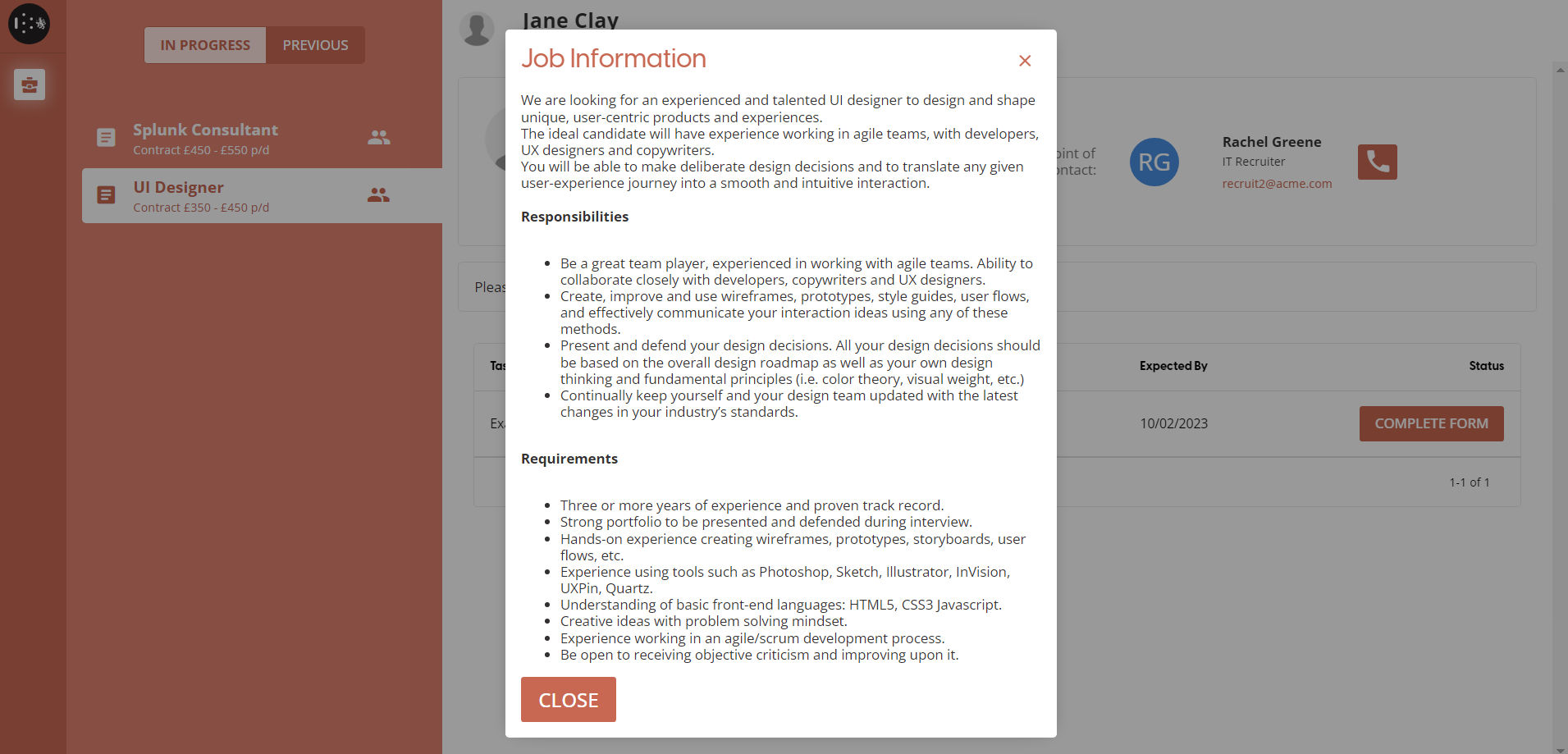
This rich text field can be used to provide full details of the job description for this campaign. It is displayed to both the applicant and the recruiter through the Applicant Dashboard.
Job Description - Campaign Configuration - Recruiter View
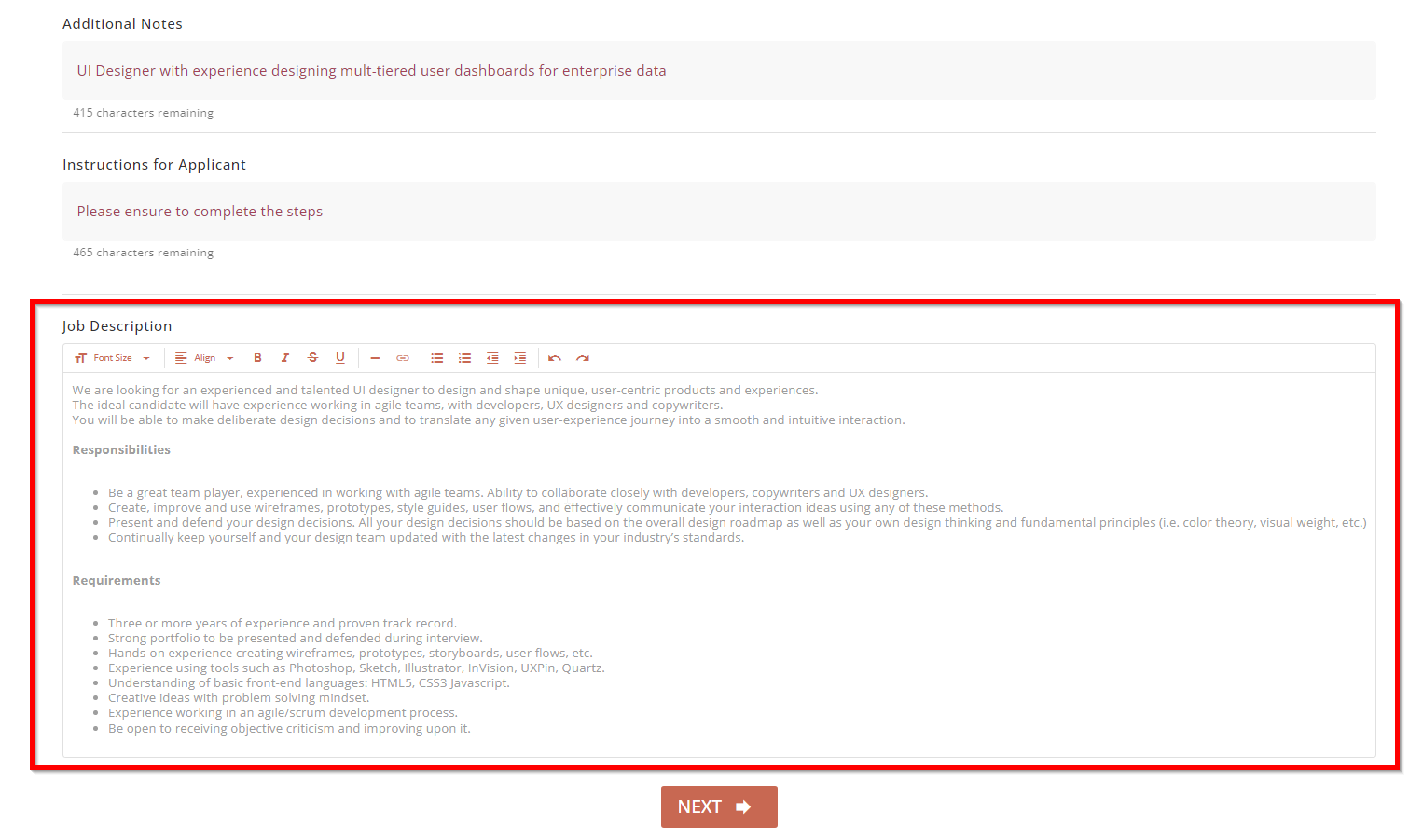
Job Description - Applicant Dashboard - ApplicantView
Campaign Workflow
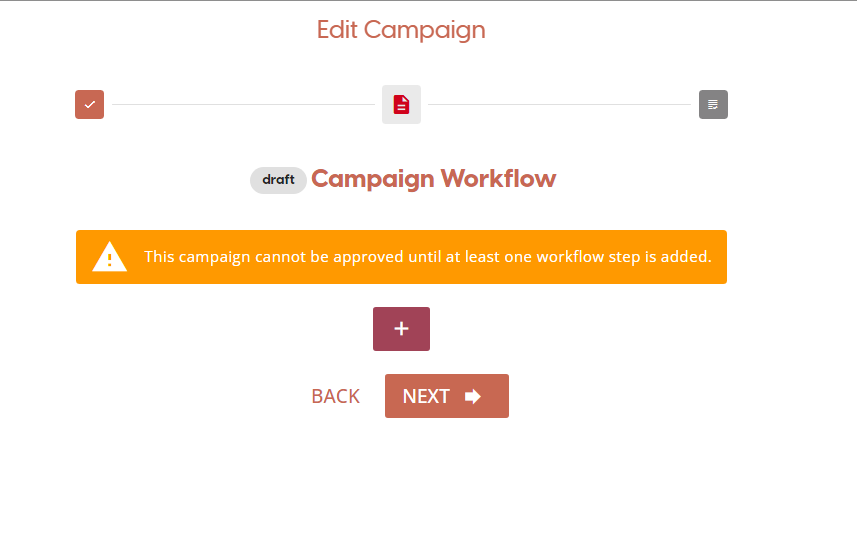
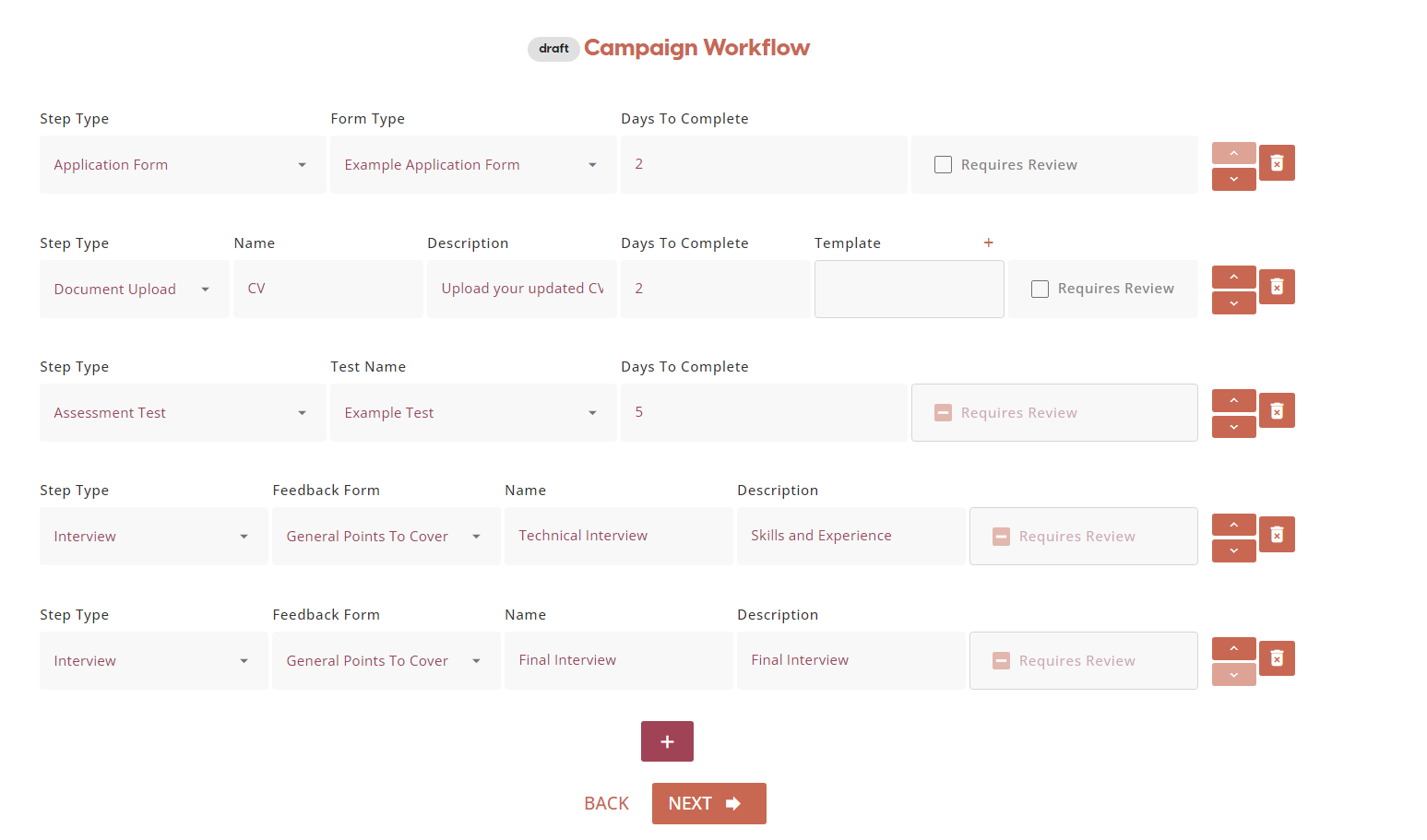
You can add workflow steps to a Campaign Workflow in this screen. Current step types available are listed below:
-
Document Upload
-
Application Form
-
Assessment Test
-
Interview
Example Workflow Configuration
Please ensure you choose relevant names and descriptions as these will give the applicants guidance on what they need to provide during each step of the application process.
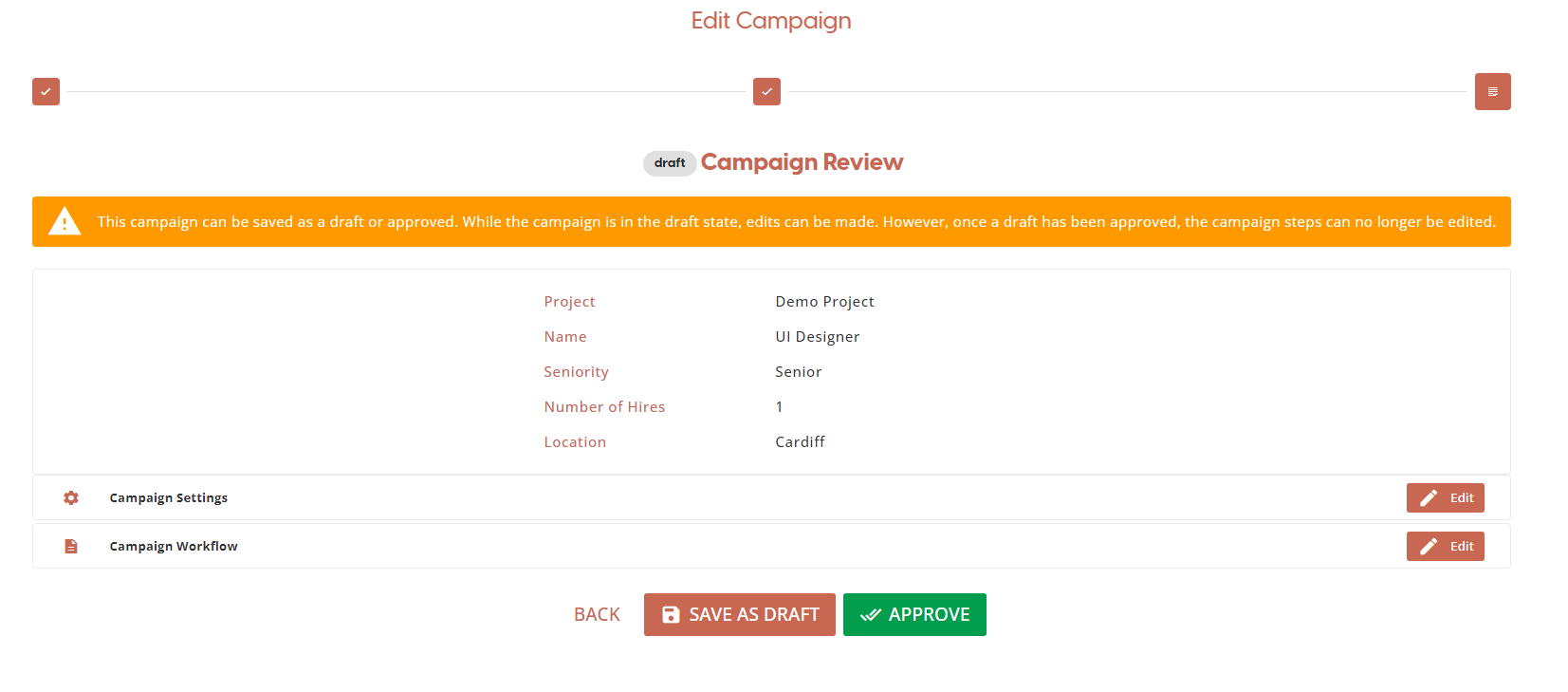
Campaign Review
At the review stage you can edit any of the previous configuration steps and choose to “Save as Draft” or “Approve” the current campaign. Approving the campaign will make the job listing live and allow the recruiter to share a link with prospective candidates to enable them to start the process.