Managing Interviews
(Recruiter) HireNow Portal > Recruitment Campaigns > (select a campaign) > (Click an Applicant on main table) (Interviewer/Reviewer) HireNow Portal > Interviews
Description
As a interviewer of HireNow, I want to be able to conduct external interviews and upload external recordings
Applicable User Roles
List of roles that have access or can use this feature.
Recruiter
Interviewer
Reviewer
How To
Initial Interview Configuration
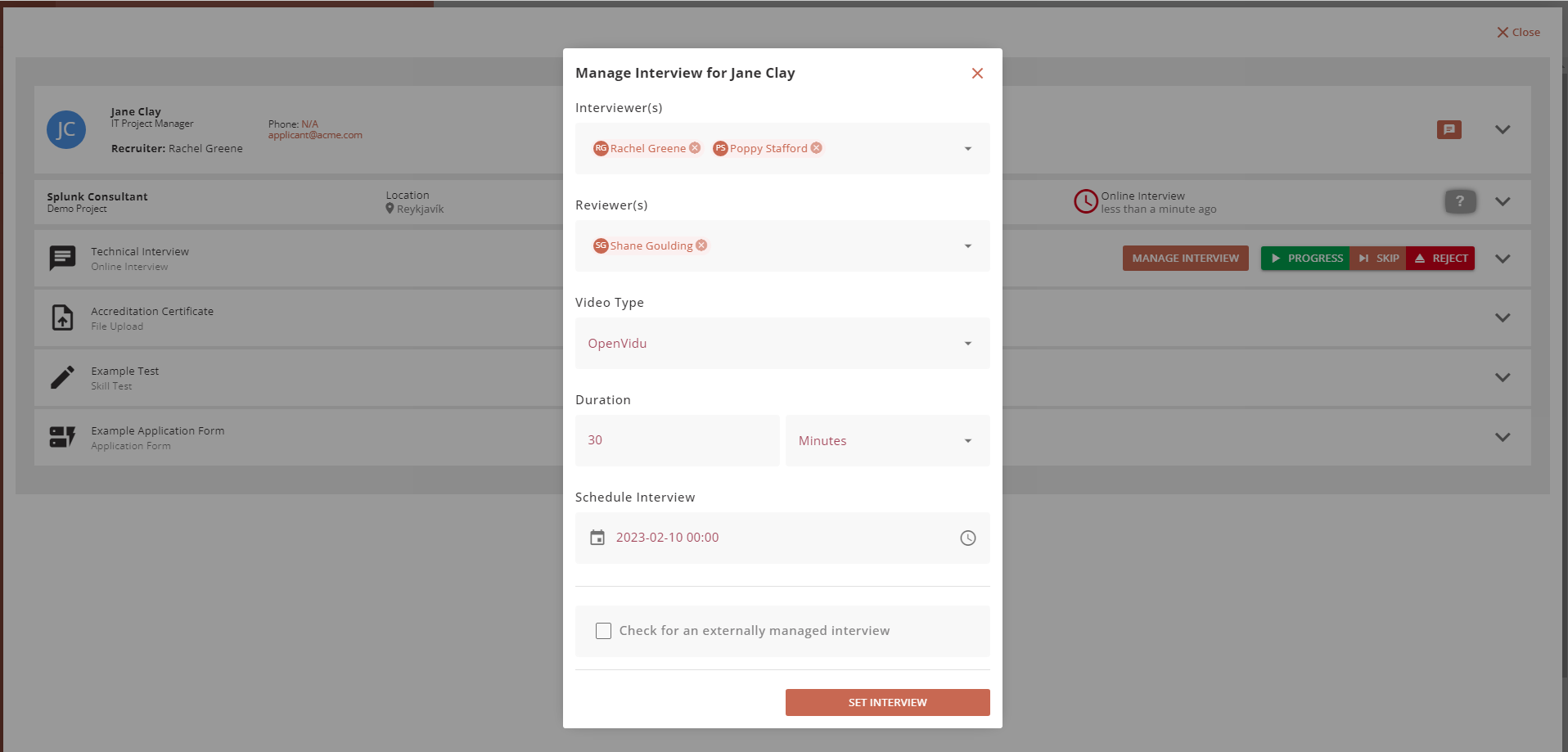
To initially schedule an interview, select “MANAGE INTERVIEW” on an application in the recruitment portal. Specify the interviewer(s) and reviewer(s); then enter the duration and scheduled time of the interview.
Select “SET INTERVIEW“ to invite the applicant; this will send an email inviting them to the interview.
Modifying or Cancelling a Scheduled Interview
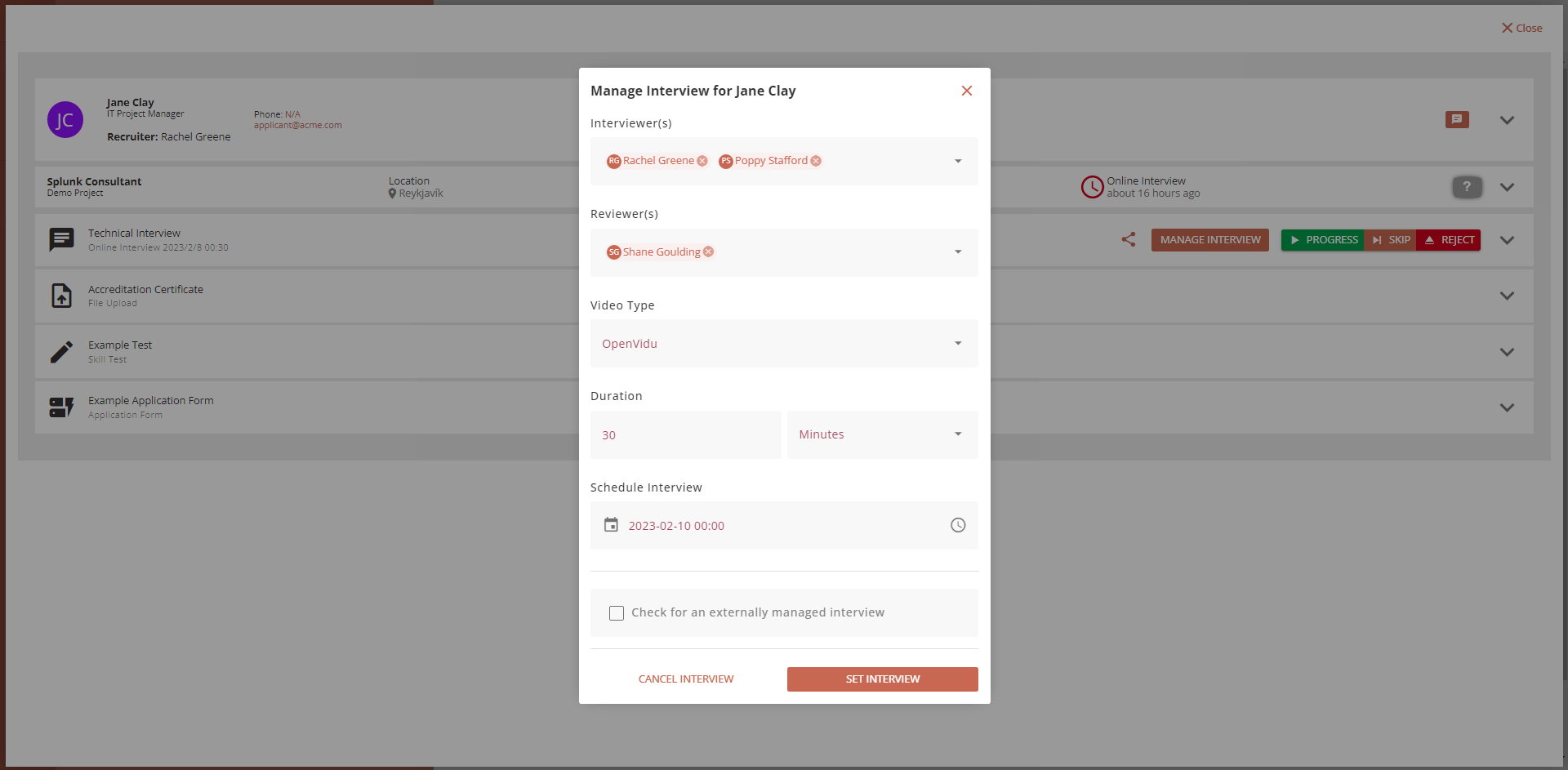
To edit a scheduled interview, select “MANAGE INTERVIEW” as before and modify any fields. Save changes by selecting “SET INTERVIEW”. If changes to the scheduled time are made, the applicant will be notified via email.
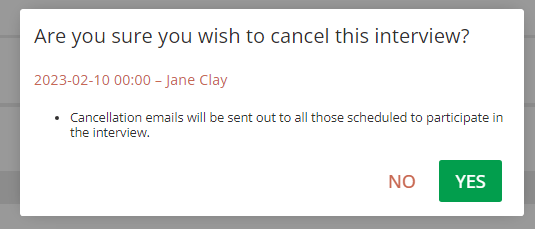
To Cancel the interview, select “CANCEL INTERVIEW”; this will notify the applicant via email.
To exit without saving, select “X” in the top right of the pop-up.
Joining an Interview
Ten minutes before the scheduled interview start time, a “JOIN INTERVIEW” button will be available on the application page.
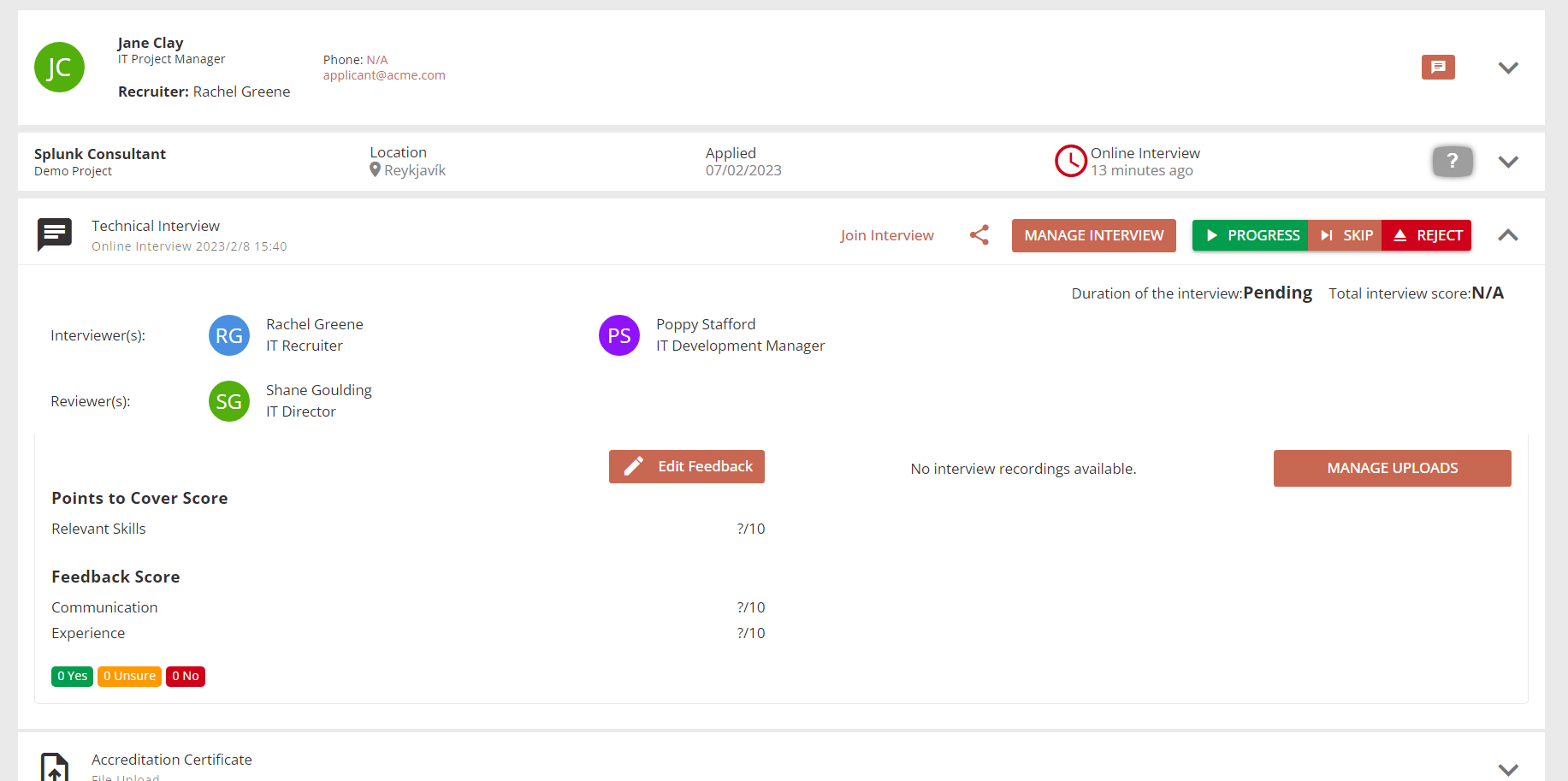
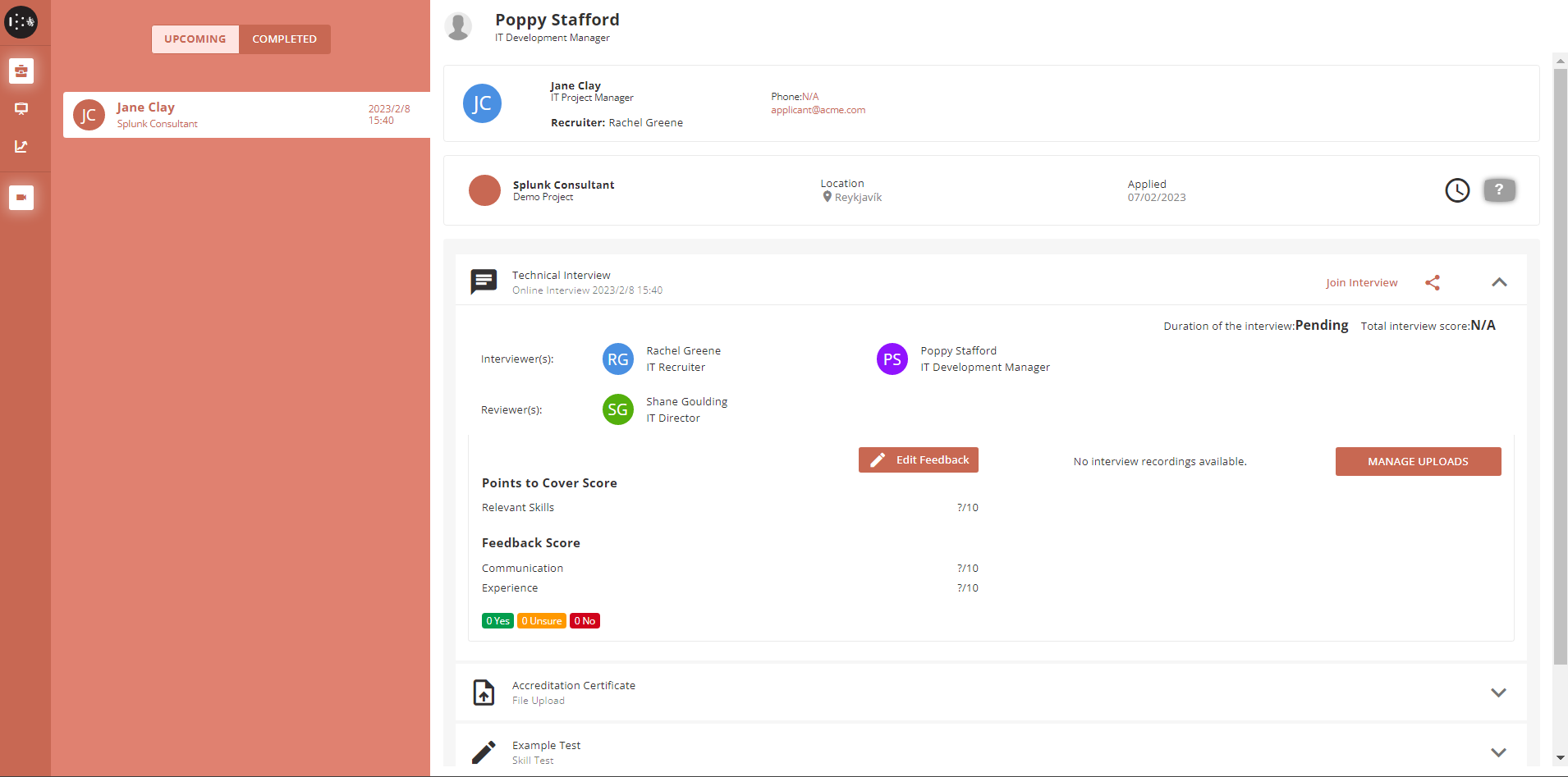
The interview can also be joined from the interviews page. Select an upcoming interview from the list, then select the “START INTERVIEW” button.
See interviewer for information on running an interview.
Zoom Interviews
Zoom Inteviews. Recruiters have the ability to select Zoom as their video provider in HireNow.
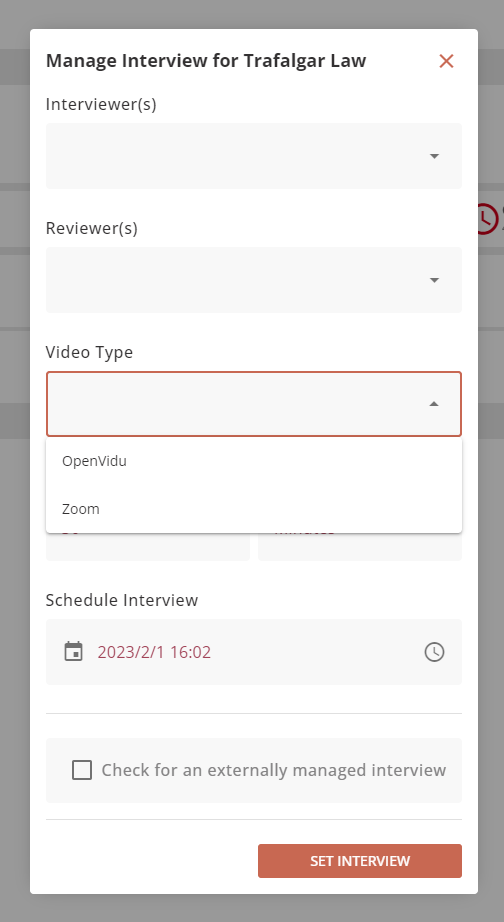
When scheduling an interview, there is now a new field to allow the recruiter to select the video type. They will have the option to select between OpenVidu or Zoom. This does not affect any other part of the scheduling process.
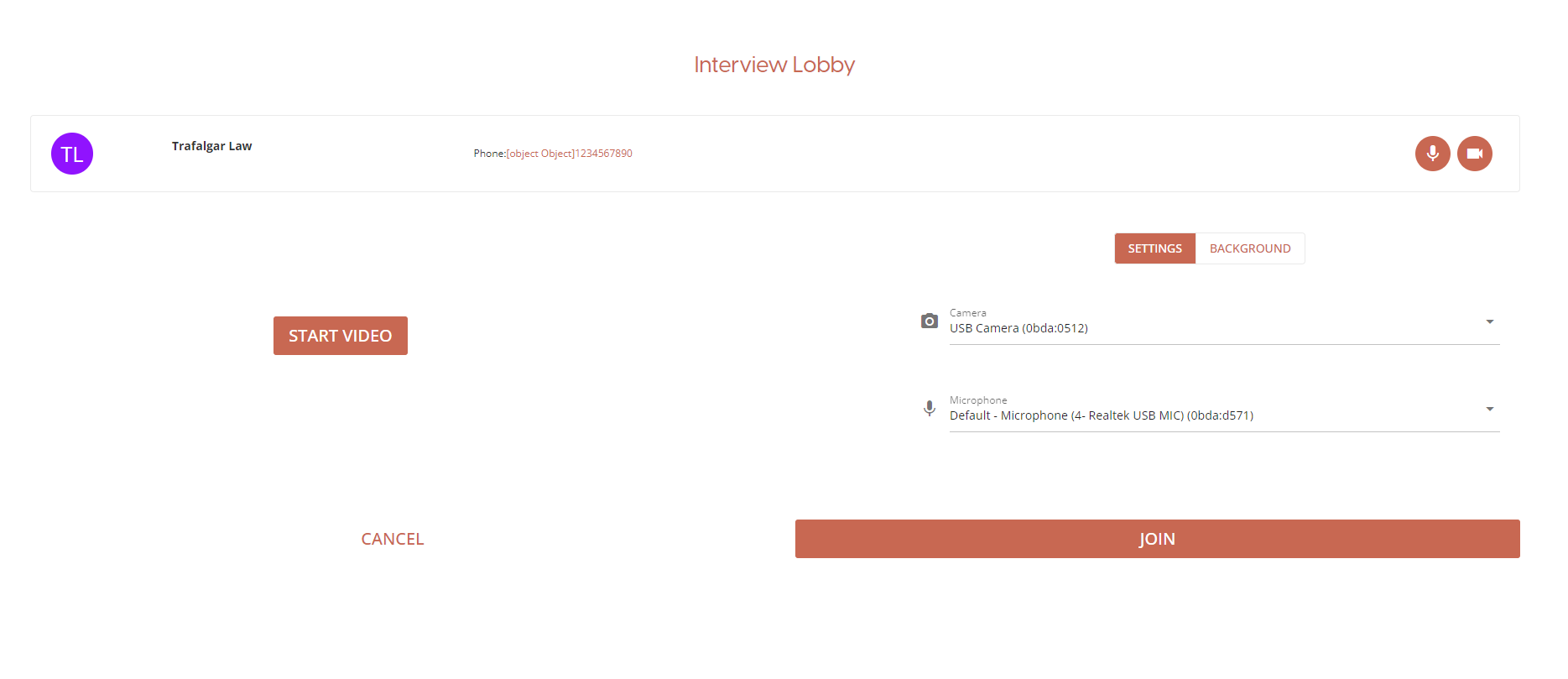
When joining a zoom interview, you must ensure that your camera is connected before joining the interview. You must click on the ‘Start Video’ button in the interview lobby to connect your video device to the interview session.
The rest of the interview process is unaffected by choosing Zoom, and will function as before in all other areas.
Known Issue
Participants using a Mozilla based browser (i.e. Firefox or Brave) will not be able to see or hear other participants. This is a browser compatibility issue with the Zoom SDK, and we will upgrade the feature once a solution has been created.
When leaving and re-joining the same Zoom interview, the user may see one or more black screens in the interview screen. This is due to the Zoom SDK having a hard-coded timeout of 2 minutes per session. The black screens will then clear themselves after a two-minute delay.