Custom Field
User Management Portal > Custom Fields
Description
As company admin, I want to be able to facilitate systems integration (with e.g. a 3rd party HR system), and be able to define custom fields and field sets for data import via CSV file formats.
Applicable User Roles
List of roles that have access or can use this feature.
Companny Admin
How To
Configure Custom fields
-
Login to User Management Portal
-
On the Burger Menu (≡) select “Edit Custom Fields”
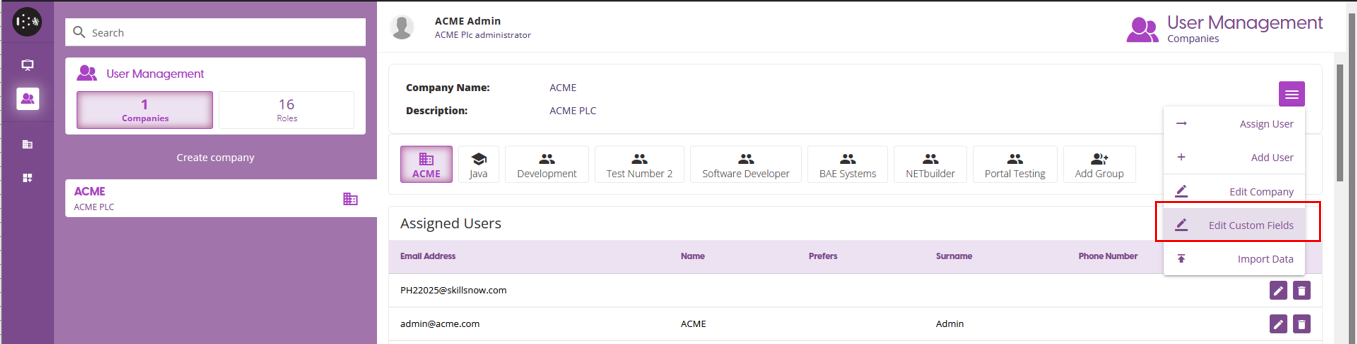
The Field Sets page displays a table with columns showing how the different data types correlate to the data types in the imported document.
Existing Fields can be updated or deleted by clicking burger menu (≡) on the right side of the Page.
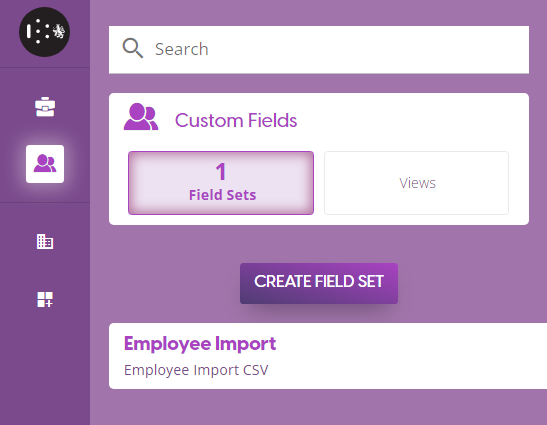
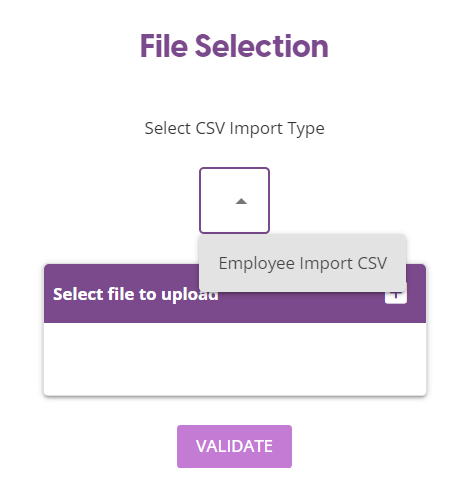
Note : Created Field Set labels will be displayed as list during import
To import data Import Data
To create new field set, click “Create Field Set”.
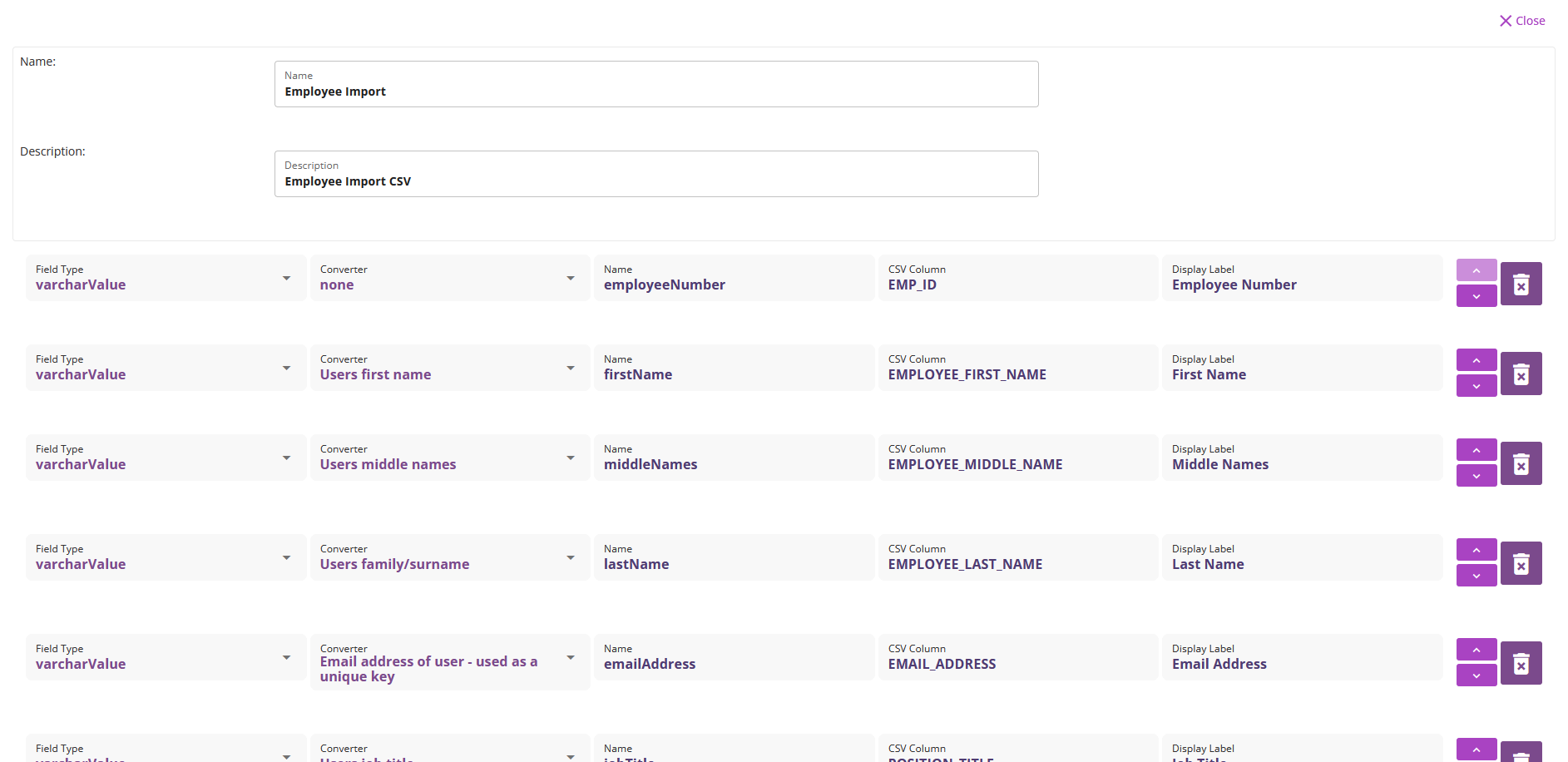
Setup the Custom Field Set of the import data:
-
Field Type : data type of the field
-
Converter : This is used to indicate that the field imported should be imported into the main user record itself.
-
Name : The column in the database
-
CSV Column : the csv column names used to import the data
-
Display Label : the display label to be used when viewing the imported data
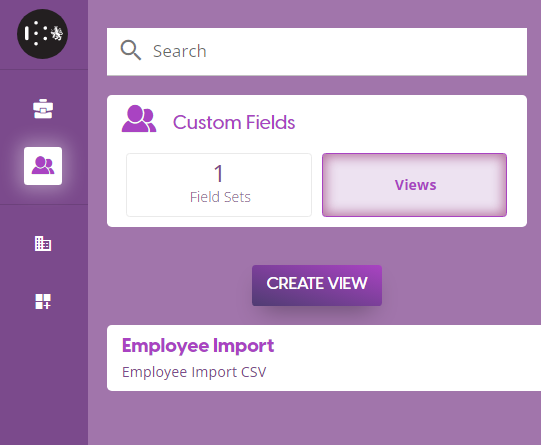
To setup the access and permission of the created field set, go to “Views” Tab then select the Field Set you want to add or update field views.
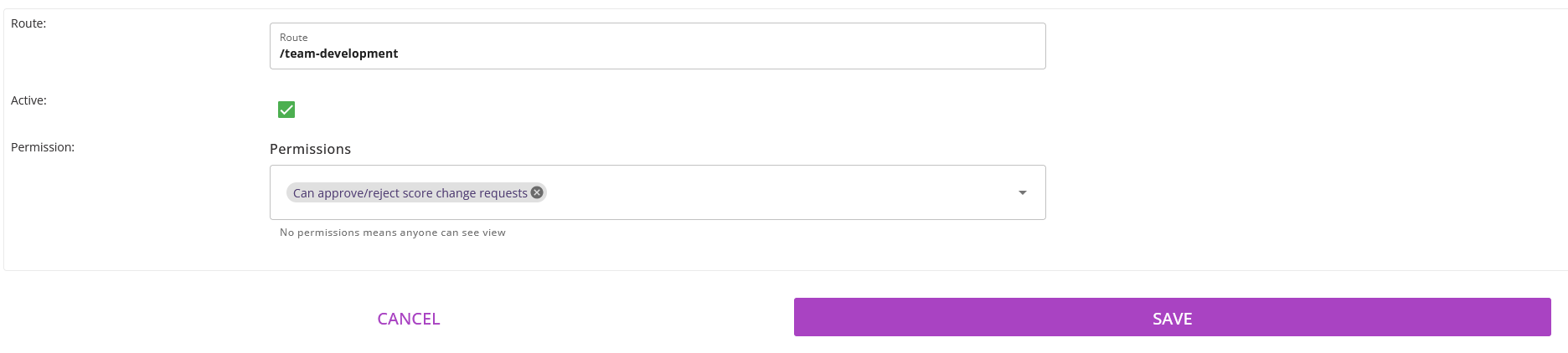
Route : The path to access the custom field
Active : When checkbox is ticked the custom field will be viewable on the set route
Permission : User access role who can access the Custom field
Custom Fields are accessible on Burger Menu. Since Review Meetings do not have a burger menu, it can be accessed by clicking “Custom Fields” button on the top right corner of the Review Meeting Screen.
If the user has the permission to view custom fields, the user can see the Custom Field label on the burger menu.
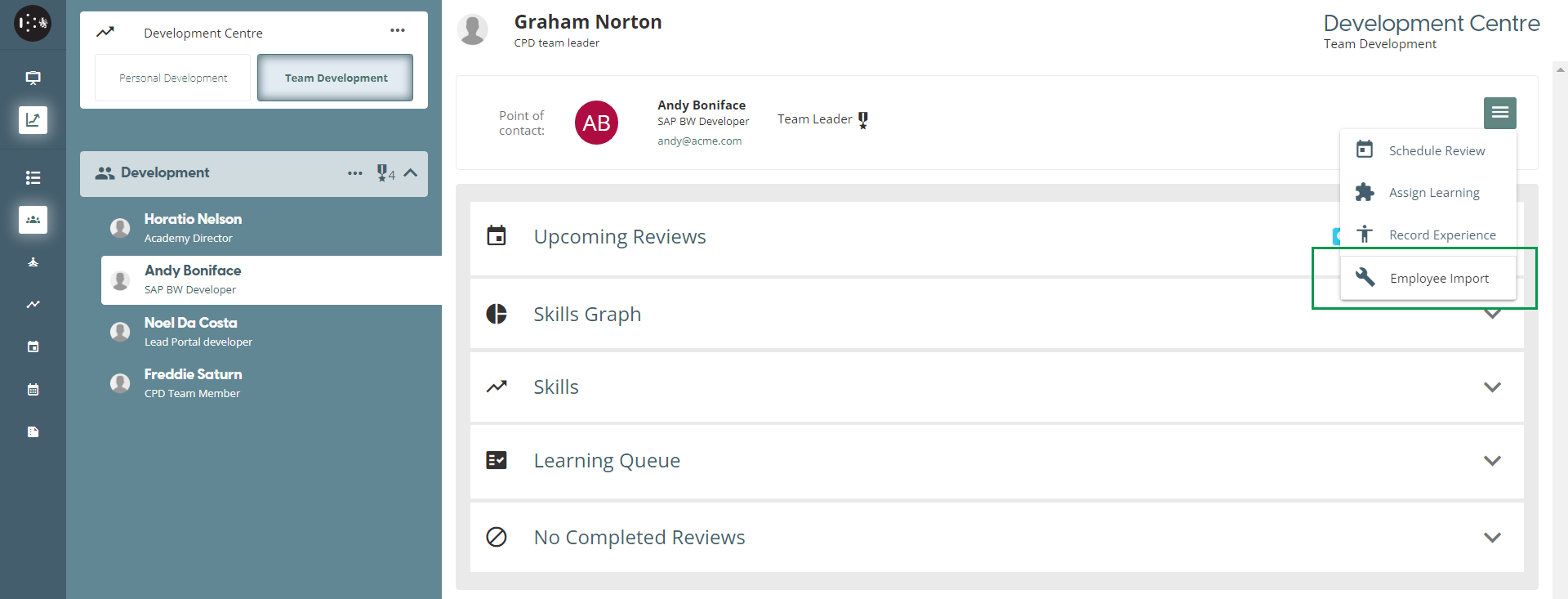
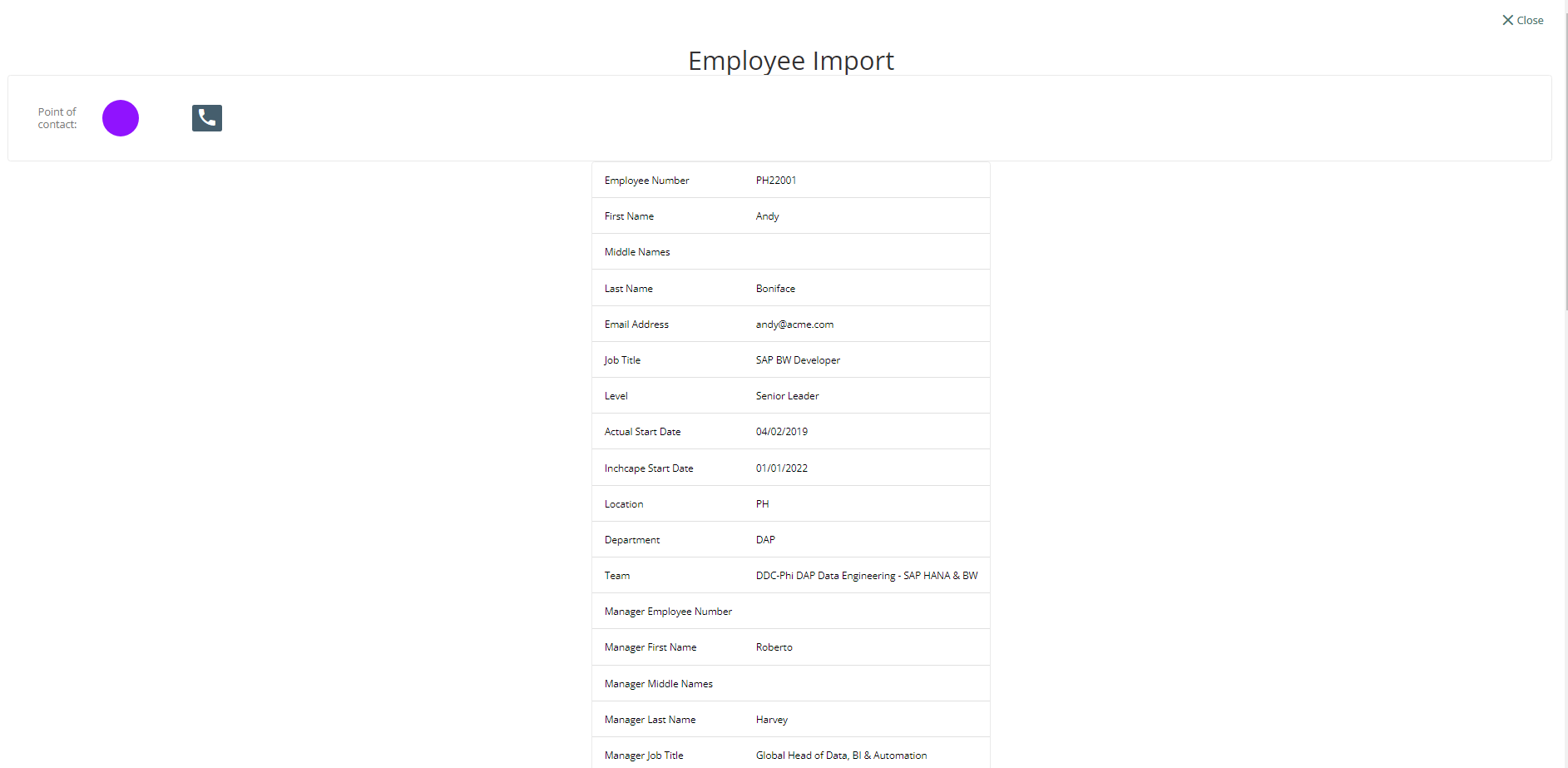
If a team member’s email address matches a record in the imported document, the values of that record will be displayed on the Employee Import page.