Login Page Configuration
User Management Portal > Companies
Description
As a company admin, I want to be able to configure and customize the companie's login page.
Applicable User Roles
List of roles that have access or can use this feature.
Company Admin
How To
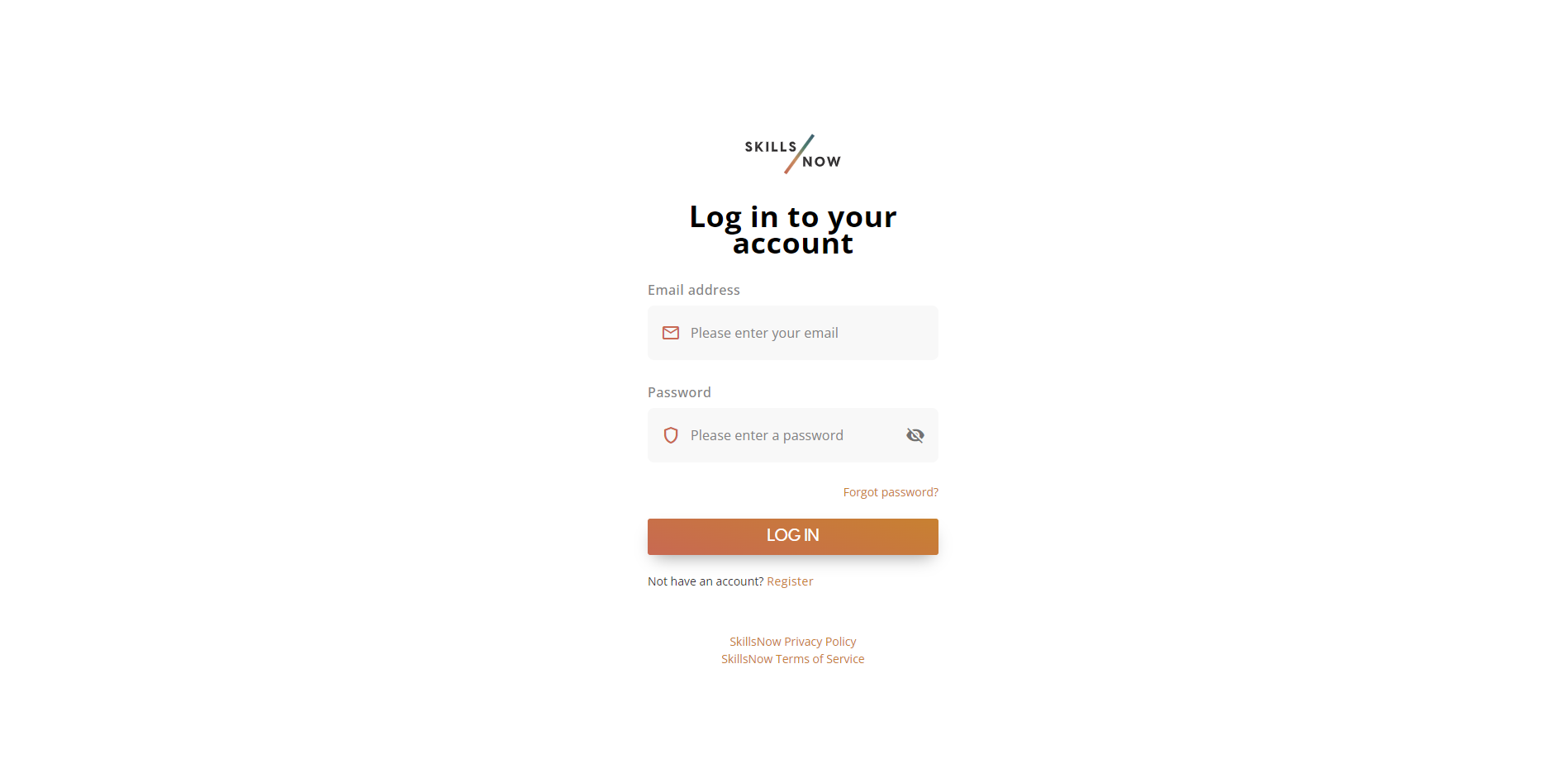
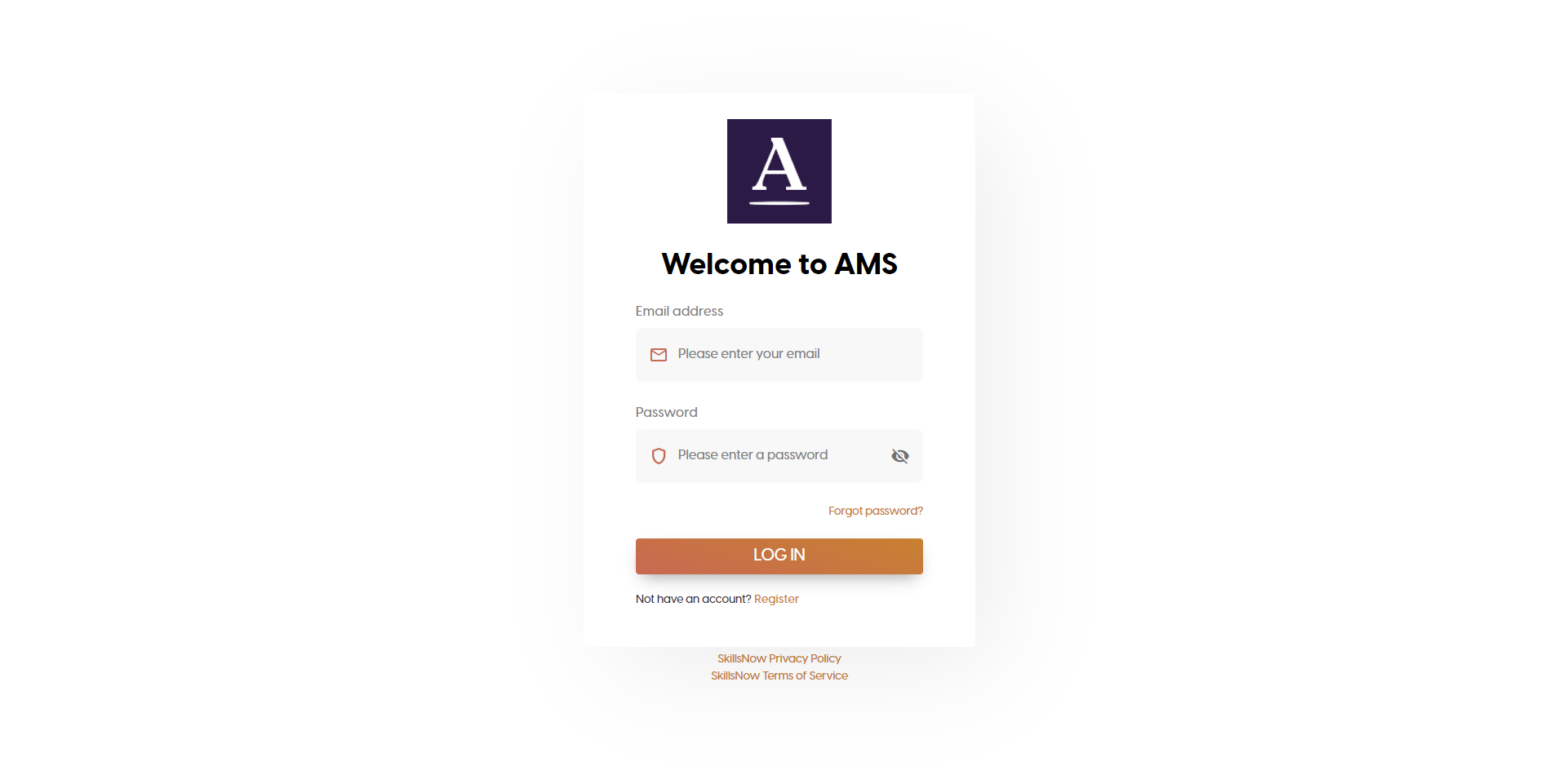
The login page for the SkillsNow portal can be customised to allow enterprise users to add their own company logo and instructions on the login form.
Default Login Page
Example Custom Login Page
Company Admin Configuration Steps
To customise the login page, there are a number of steps required. The steps are listed below.
These configuration steps must be carried out by the company administrator and will only take effect when configuration is completed by the SkillsNow support team.
Company Logo
-
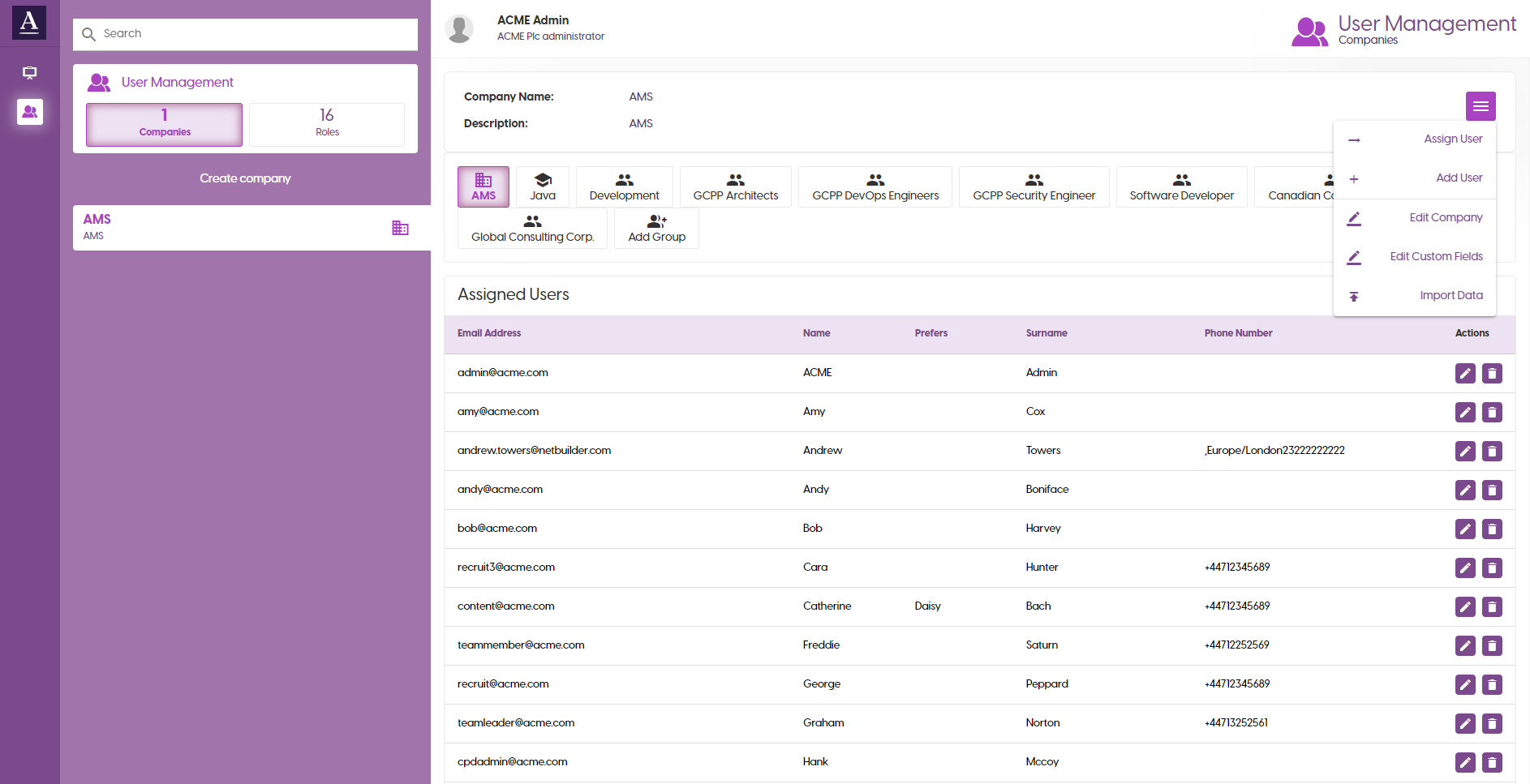
Login to the User Management portal as the company admin.
-
Ensure your company is selected in the left-hand Companies list.
-
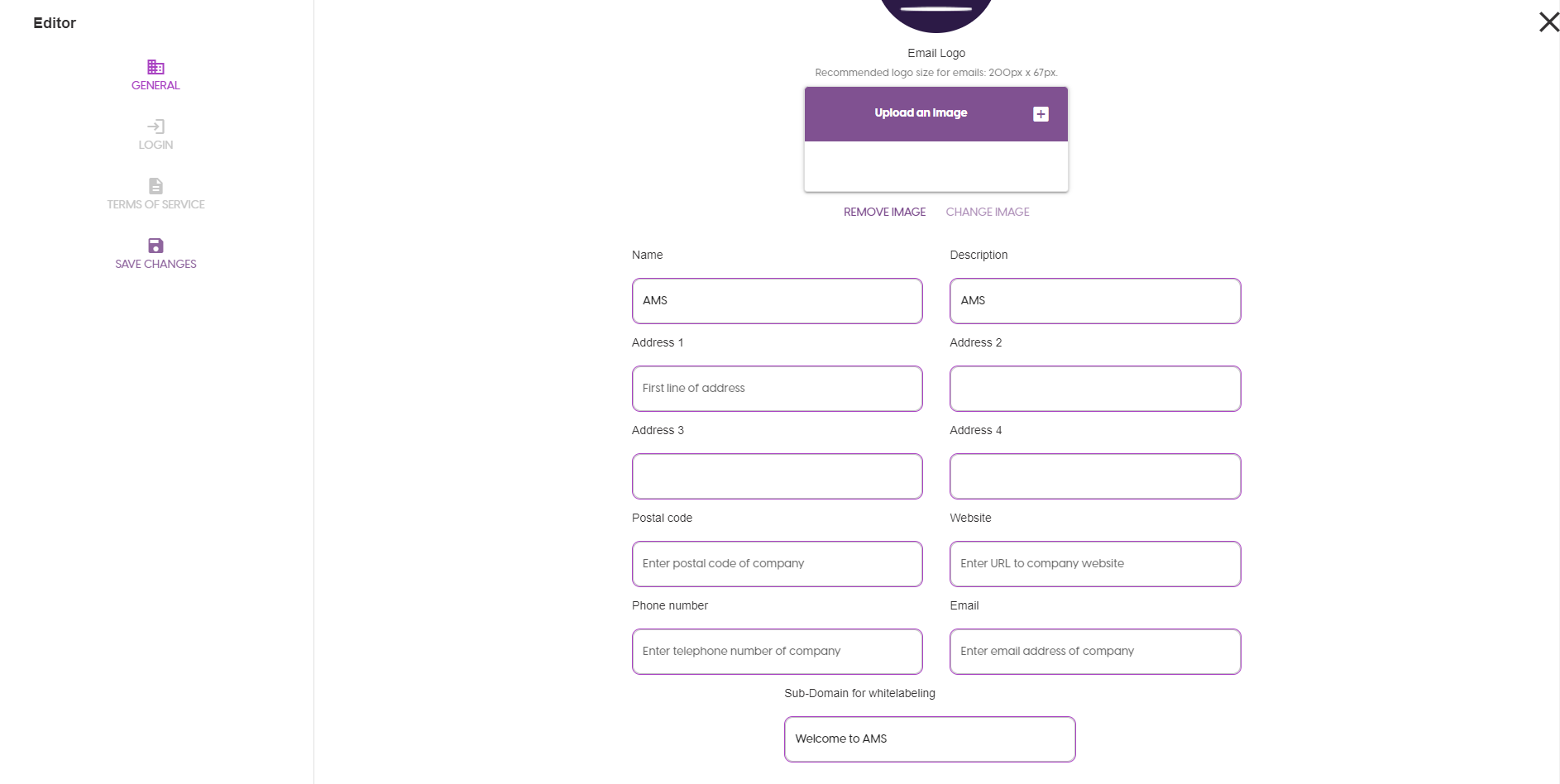
Click the burger menu at the top right of the screen and select Edit Company.
-
If you have not previously configured a logo, the clickable user shadow image will be displayed. Click on the user shadow.
-
Then click the '+' to the right of the Upload an image text.
-
Select a company logo from your file directories. Note: The logo image should be square for best results.
-
Once your company logo image, click CHANGE IMAGE.
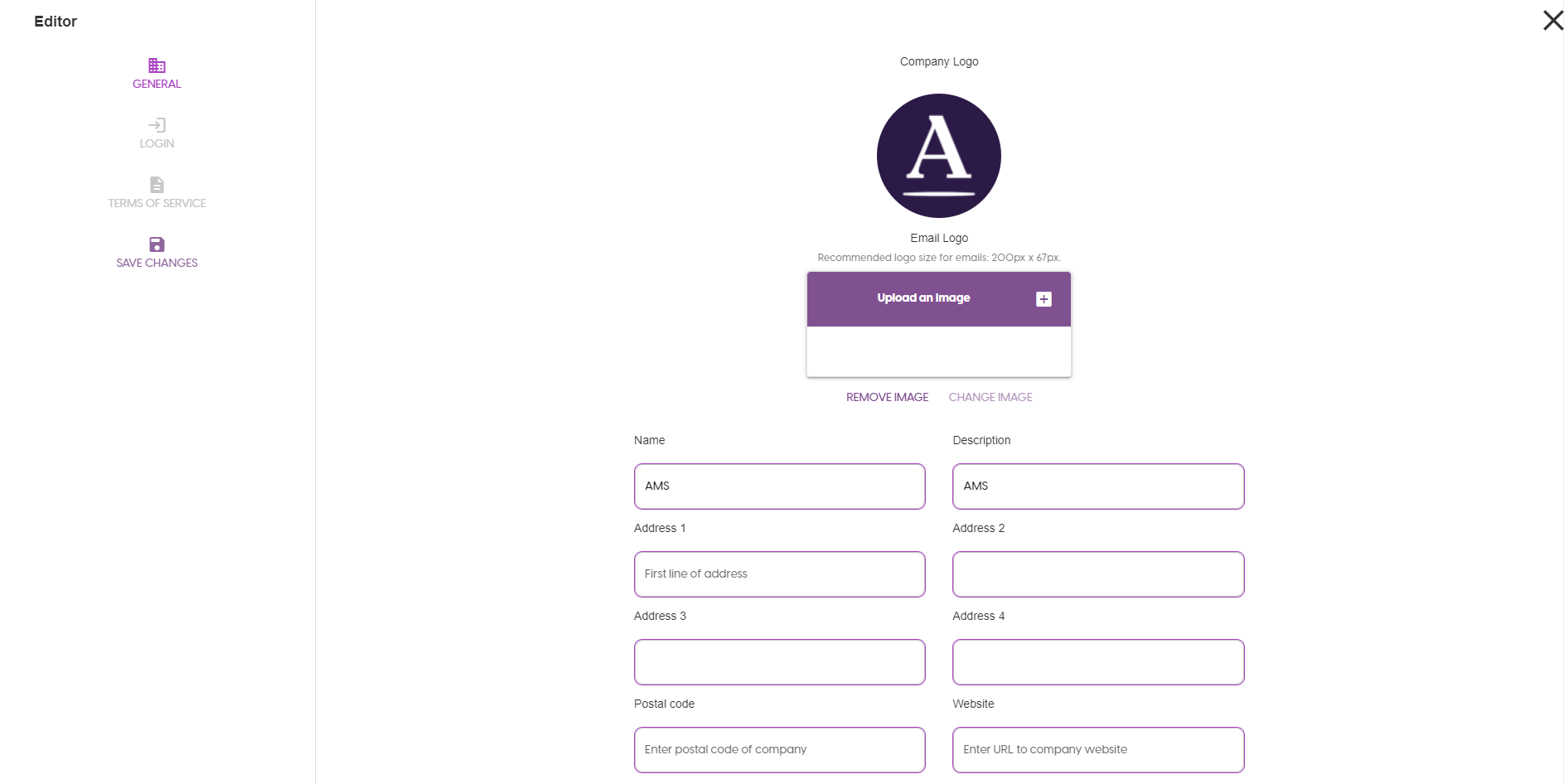
-
The changes to your company logo will be saved.
Login Screen Text
-
Follow steps 1 to 3 from the Company Logo configuration steps above.
-
Click LOGIN PROMPT from the menu items on the left.
-
Type in your desired text to appear above the login form fields.
-
Click SAVE CHANGES in the menu list on the left.
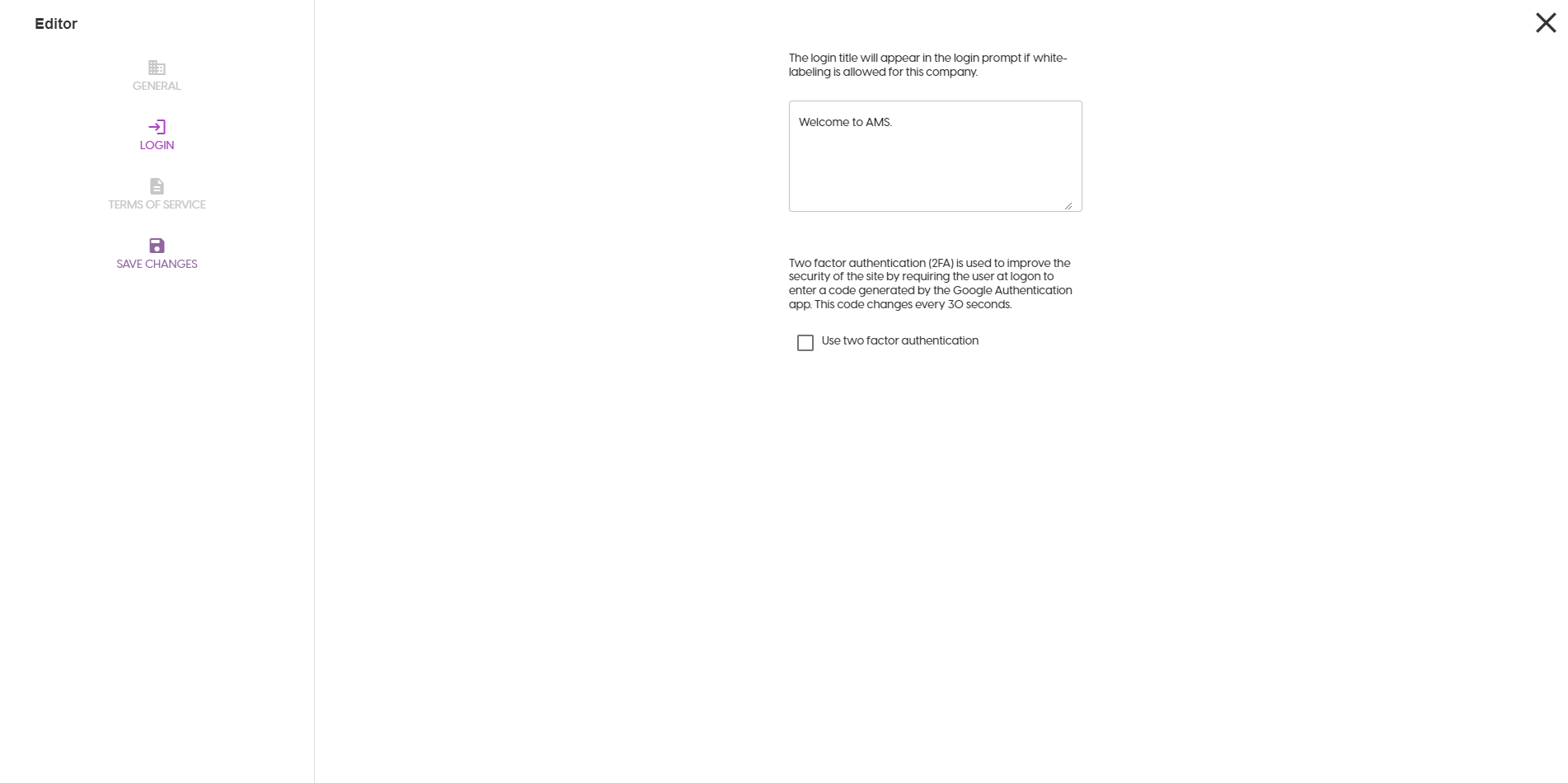
Company Terms of Service
-
Follow steps 1 to 3 from the Company Logo configuration steps above.
-
Click TERMS OF SERVICE from the menu items on the left.
-
Input your company’s terms of service in the rich text editor field.
-
Click SAVE CHANGES in the menu list on the left.
System Admin (SkillsNow Support) Configuration Steps
Configure White-labeling Sub-domain
-
Follow steps 1 to 3 from the Company Logo configuration steps above.
-
On the GENERAL menu item, you can set the sub-domain associated with the company you are enabling login page customisation for.
-
Once this sub-domain is set correctly, any customisation will take effect when navigating to that company’s login form.