Application Tags
HireNow Portal > Application Tag Management
Description
As a recruiter of HireNow, I want to be able to view and review campaign applications and applicant's submissions
Applicable User Roles
List of roles that have access or can use this feature.
Recruiter
Recruiter Admin
How To
Creating Tags
One of the major new features introduced in this release is the ability to attach Tags to an application.
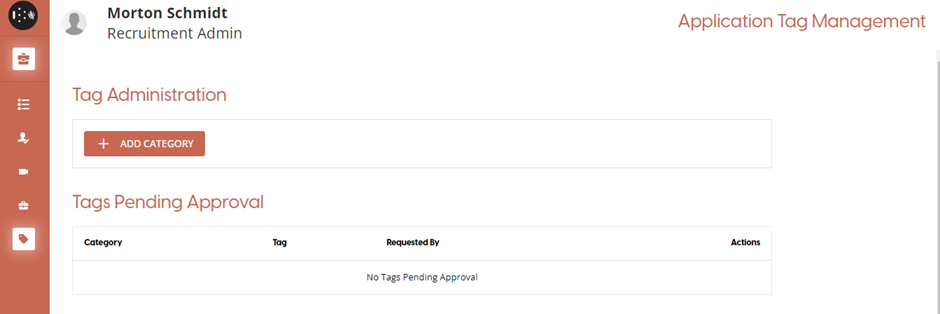
The first step in being able to add Tags to an application involves the recruitment admin creating categories. These allow for tags to be grouped up for better searching and filtering. The recruitment admin will have a new Icon in HireNow that will take them to the Application Tag Management page.

Once on this page, there are several actions the recruitment admin can take. In the Tag Administration section, the user can create a category by clicking on the ‘+ Add Category’ button
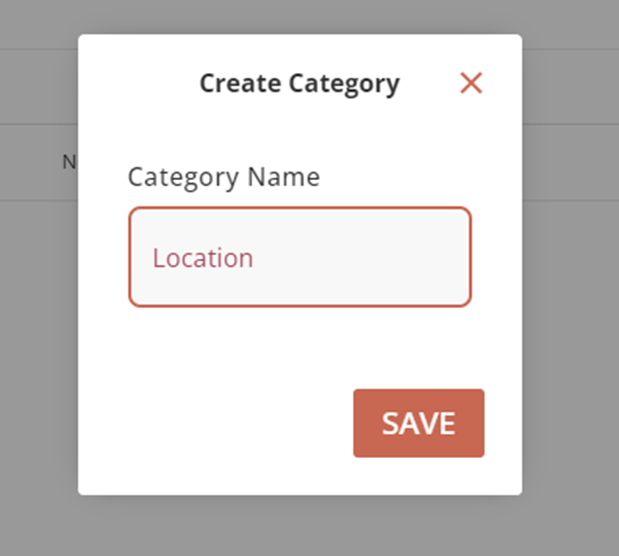
Clicking on the button will open a dialog which will allow the user to give the category a name. A category name must contain at least 2 characters and must be unique.
Once the user clicks save, the tag category will be put into the Tag Administration section. Once there is a category the recruitment admin will have several options available for each category. Clicking on the pencil icon will bring up a dialog which lets the user re-name the category, while the bin icon will delete the category. However, a tag category can only be deleted if there are no tags associated with that category, and the bin icon will remain disabled until this condition is met.
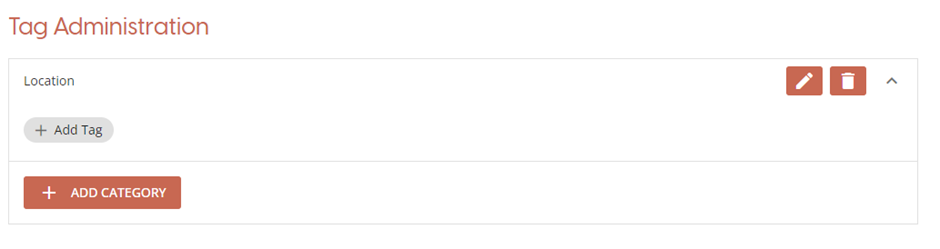
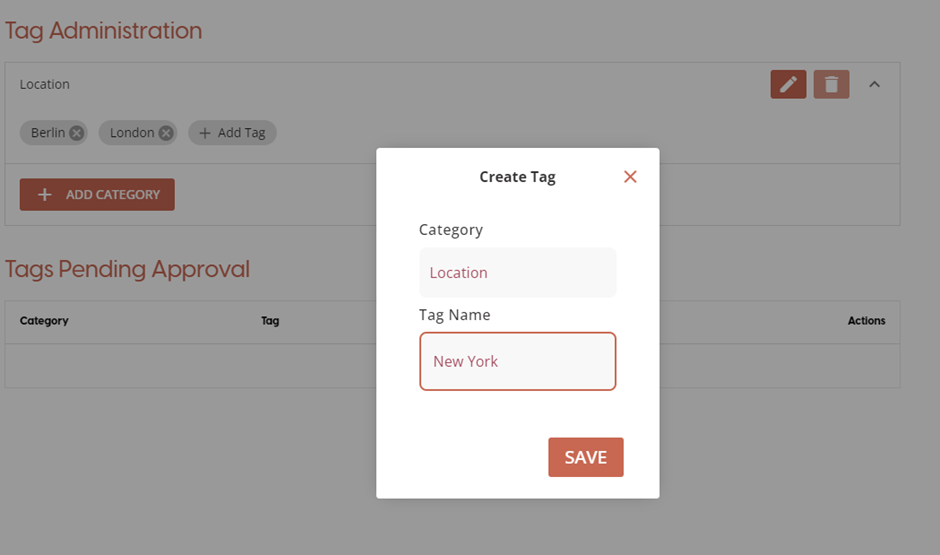
Clicking on the ‘+ Add Tag’ button will open a dialog which allows the user to then creating tags. Once pressing ‘Save’ in the dialog the tag will then be created and associated with that tag category.
Requested Tags
Tags can also be created by other users with the recruiter role, but those tags must be approved by the recruitment admin. Once a tag has been requested by a recruiter it will appear in the Tags Pending Approval section.
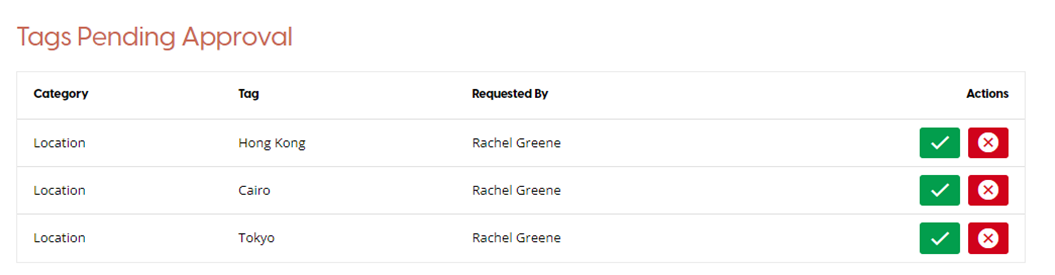
From here the recruitment admin can approve or reject items using the buttons in the ‘Actions’ column.
Approving a tag will not automatically apply the tag to the application it was requested from. Recruiter must login and attach the tag to the application after approval.
Tagging Applications
Once tags have been created or approved, they can then be attached to applications. All applications now have an additional option in the ‘Actions’ column. Clicking on the ‘Expand’ option will expand the item in the table to show a ‘Tags’ section.


In this section there is a ‘+ Add Tag’ button which opens a new pop-up window. In this window the recruiter will first have to pick a category from the dropdown menu.
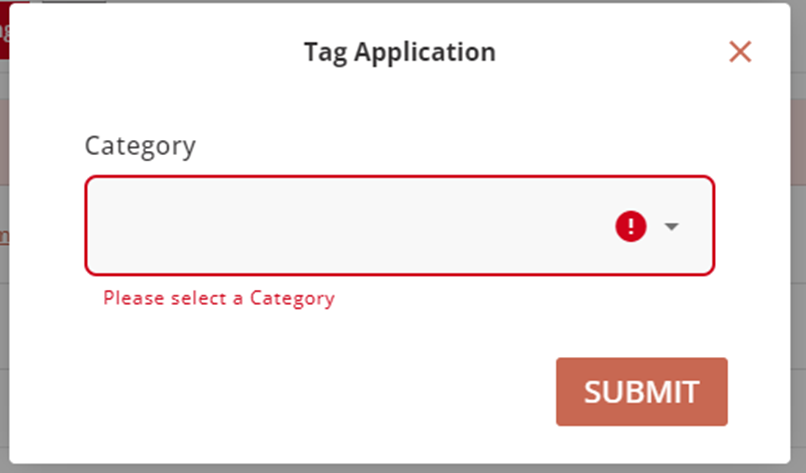
After selecting a category, two new options will appear in the window. The ‘Tag’ dropdown list will provide a list of available tags to the user. Selecting one from the list and pressing the ‘Submit’ button will attach the selected tag to the application.
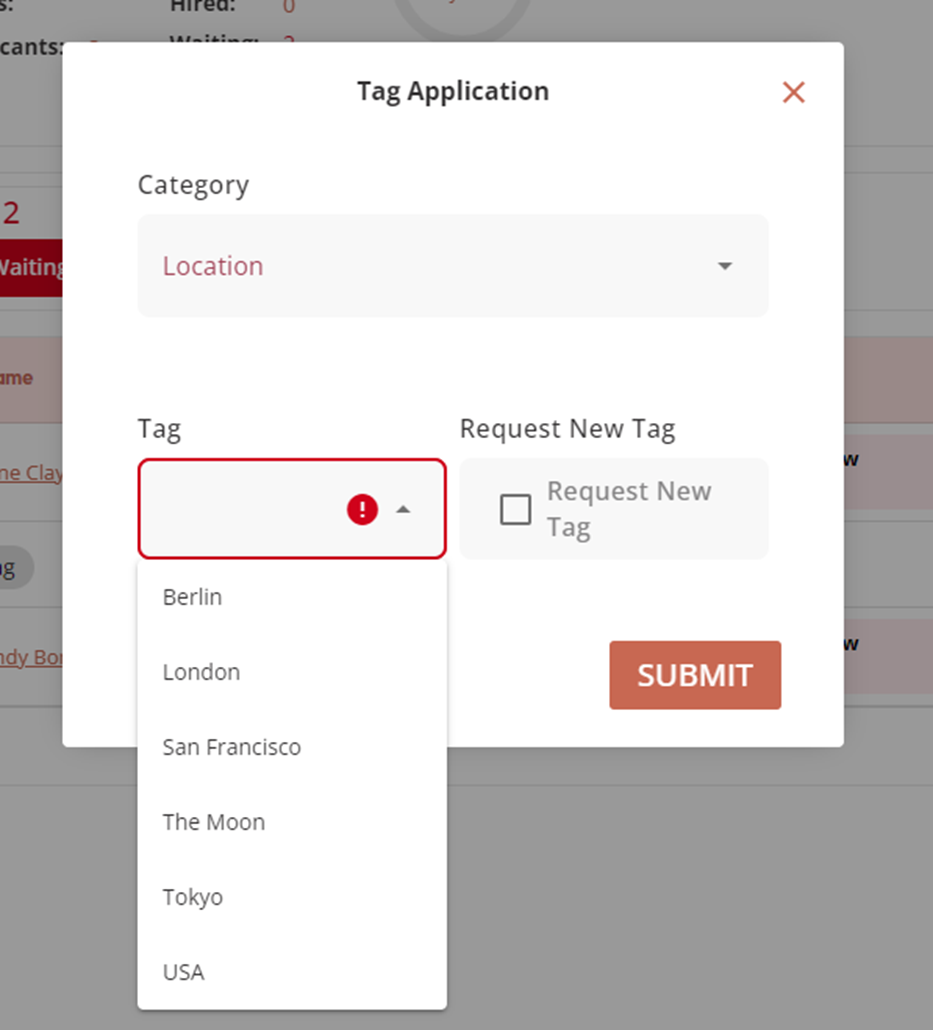
If the user wants to add a new tag, they can do this by checking the ‘Request New Tag’ checkbox. This will change the ‘Tag’ field from a dropdown list into a text field. The user can then enter the tag name they wish to add to the selected tag category. This tag will require approval from the recruitment admin.
Approving a tag will not automatically apply the tag to the application it was requested from. Recruiter must manually attach the tag to the application after approval.
Once a tag has been associated with an application, it can then be viewed by clicking on the application to expand the item. This also allows for tags to be removed by clicking the ‘x’ on each tag item.
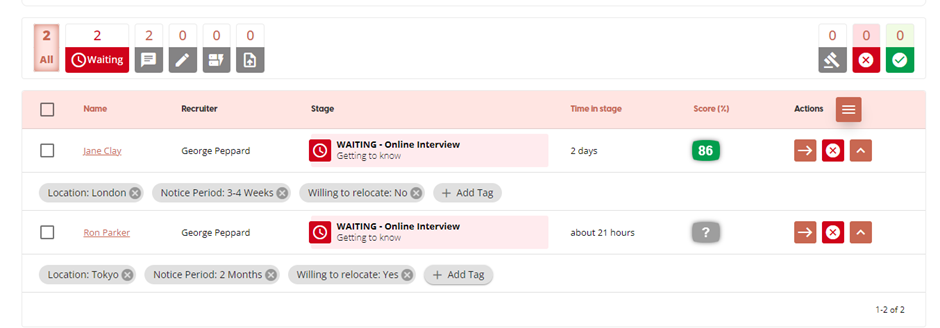
Additional Tag Features:
With the addition of the application tag feature, we have also included some extra functionality to simplify bulk processes and allow for applications to be filtered by tags.
Bulk Operations
Two of the new features available in the applications table include the ability to select multiple applications with a checkbox and a burger menu which gives context specific options.
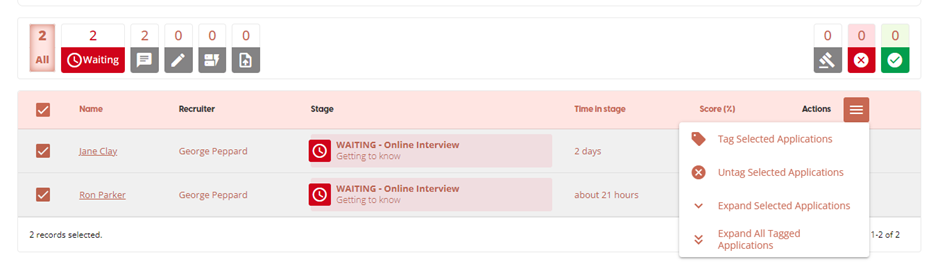
The checkbox is the first new addition and allows users to select multiple applications to edit. Once multiple applications have been selected, then there are several actions that can be taken via the burger menu:
-
Tag Selected Applications: Opens the Tag application window, which will then apply the chosen tag to all selected applications
-
Untag Selected Applications: This will remove all tags from the selected applications. A pop up window will appear to ask the user to confirm their choice.
-
Expand Selected Applications: Expands any selected applications so that the tag section is visible
-
Expand All Tagged Applications: Expands all applications in the campaign that have application tags.
Tag Search Feature
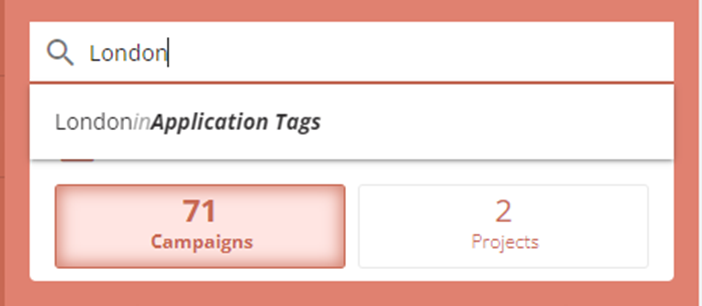
The search bar in HireNow will also filter applications based on tags. Typing in a tag name into the search bar will provide an option to filter applications to only show applications that have that tag associated with it. Tag categories can also be searched for, showing all the applications that have a tag associated with the category entered.
Tag and Tag Category retrieval
As a recruitment admin, when deleting a tag via tag administration that the tag will be removed from all tagged applications.
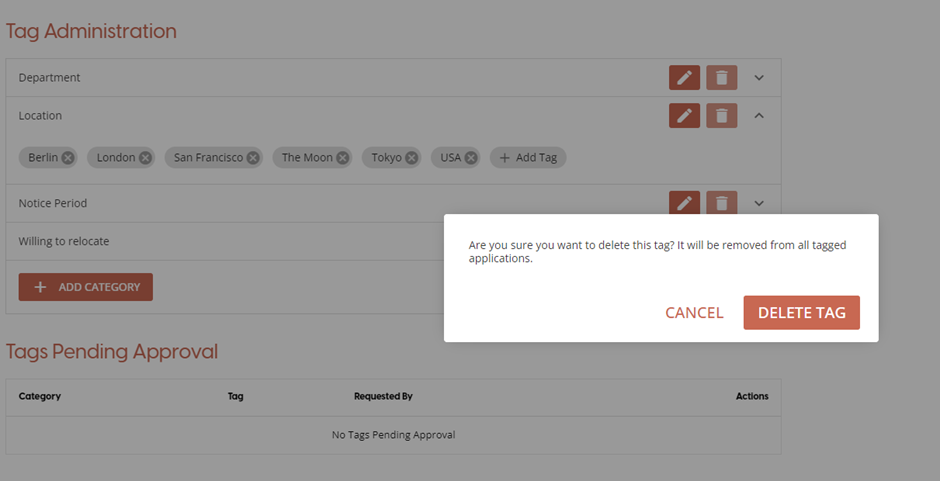
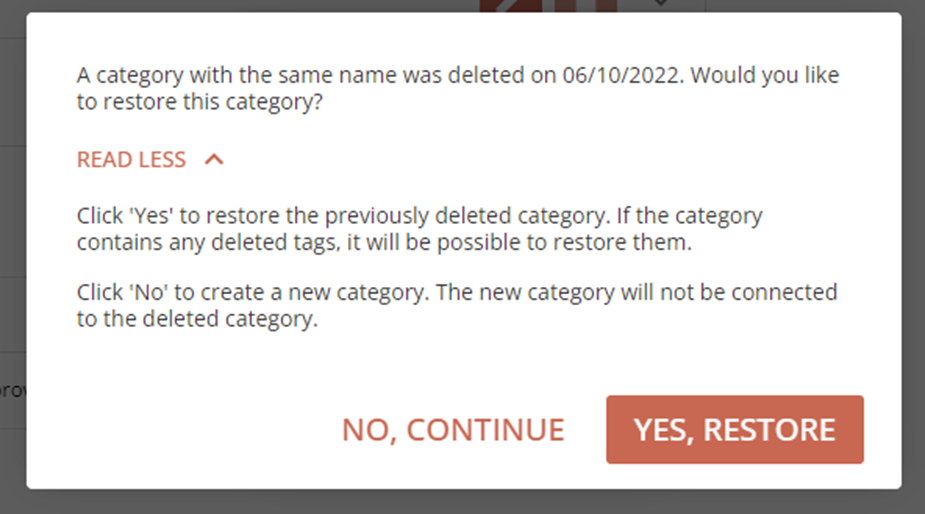
When adding a tag that has an identical name to the same category, the platform will give the user an option to restore the tag to its previous status before deletion. A pop-up window will appear giving the user details of each choice and what it means for applications.
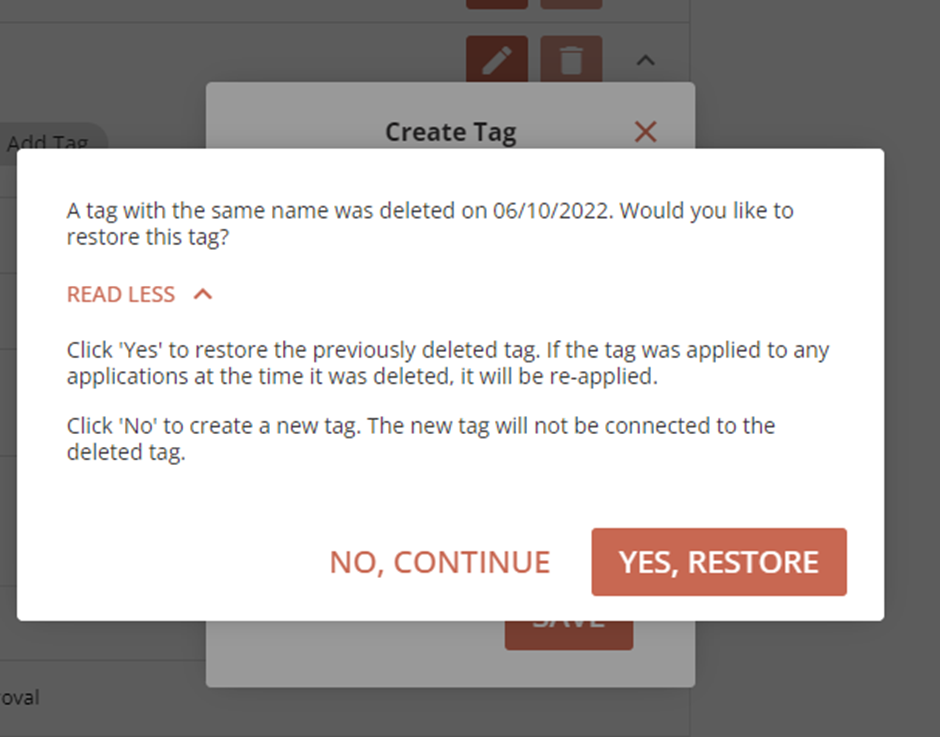
The same process also applies to tag categories, where creating a tag category with the same name as a previously deleted one will allow the old category to be revived. Any tags that were originally associated with that category need to be replaced manually by the user.