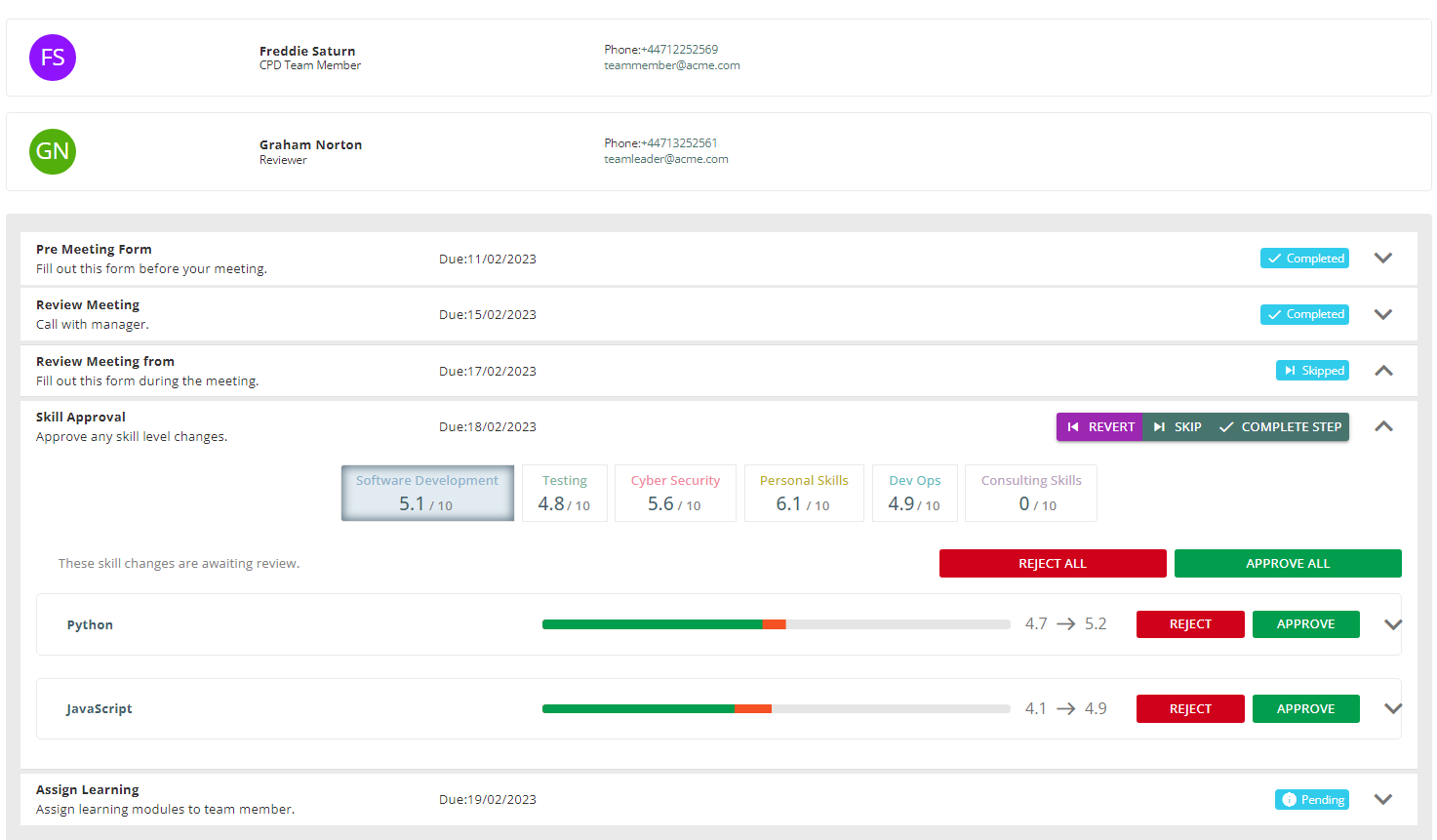
Conducting Review Process
DevelopNow Portal > Team Development
Description
As a team leader, I want to be able to schedule and conduct a review process to a team member.
Applicable User Roles
List of roles that have access or can use this feature.
Team Leader
How To
A team leader is responsible for starting the review processes of other team members. Only team leaders have the option to schedule a review process.
CPD Portal > Team Development > Burger Menu > Schedule Review
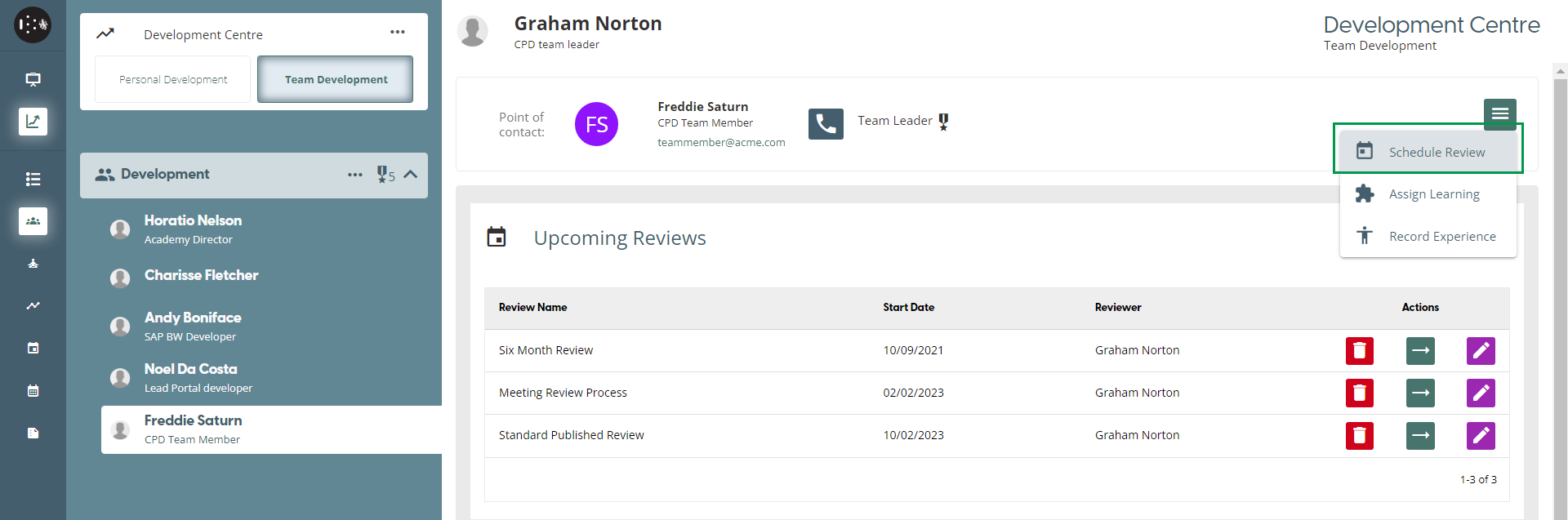
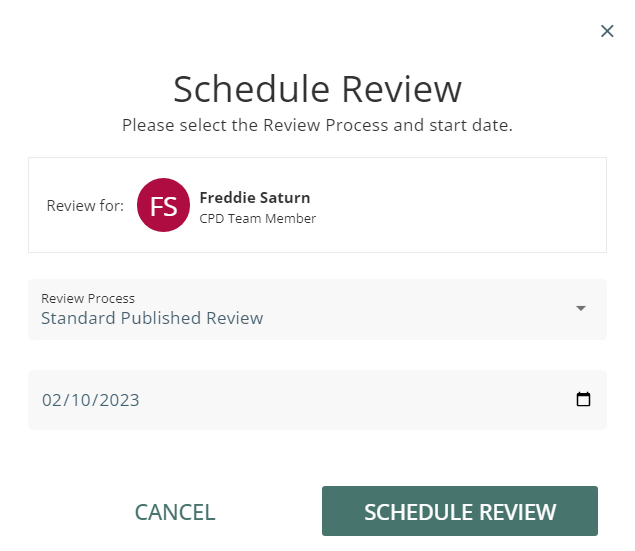
Clicking on the schedule review button will open a dialog. In this dialog, the team leader can select the review process they want to assign and the start date for the process.
To create a review process: Review Process Creation
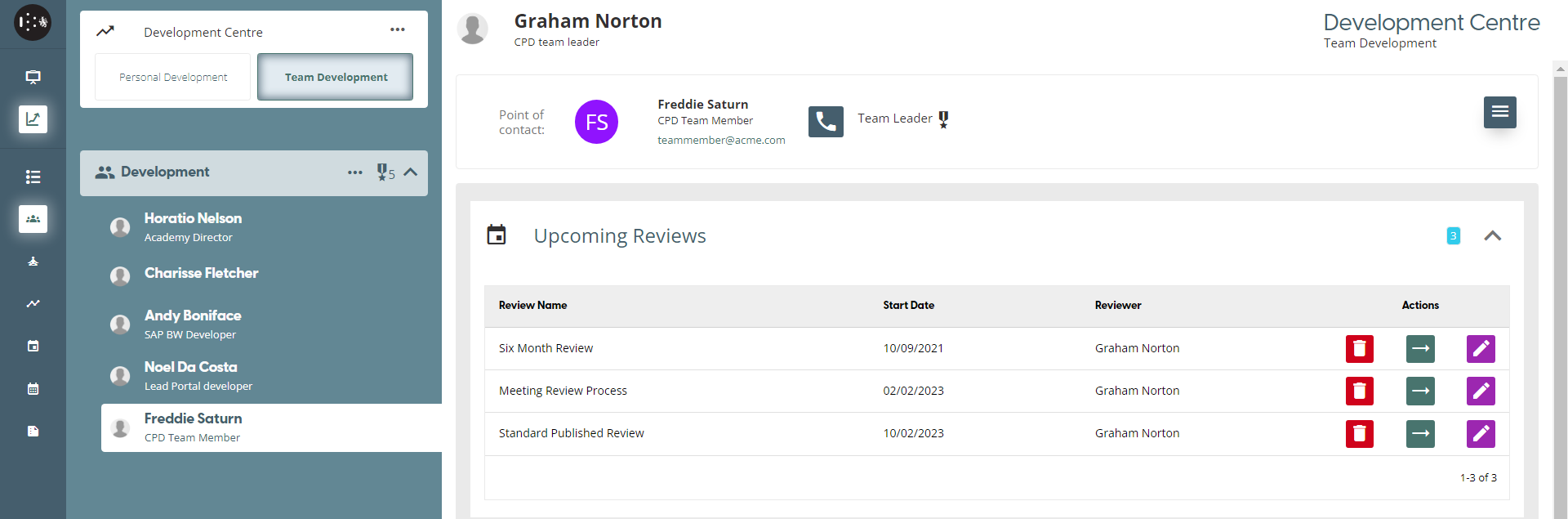
After the schedule has been set, it will be listed on the Upcoming Reviews table.
Team Leader View
-
Delete Bin Icon - deleting the review process
-
Blue Arrow Icon - opens the review process workflow steps
-
Purple Pencil Icon - re-assign the reviewer for the review process
Review Process Step Type
To Access the Review Process
- CPD Portal > Team Development
The Review Process Step is set from Review Process Workflow Review Process Creation
Review Form Submission
When the Reviewee receives the submitted Form, details will also be displayed on the review screen
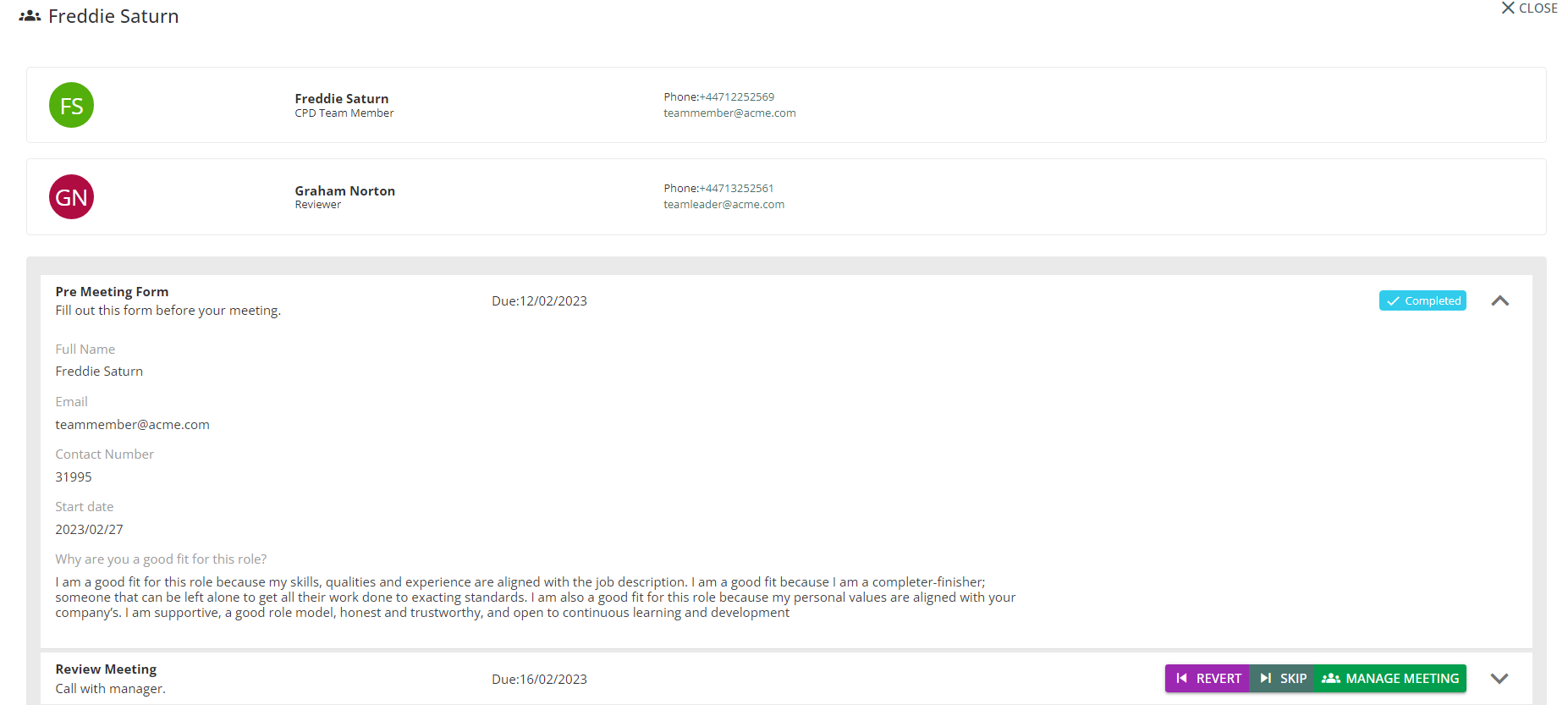
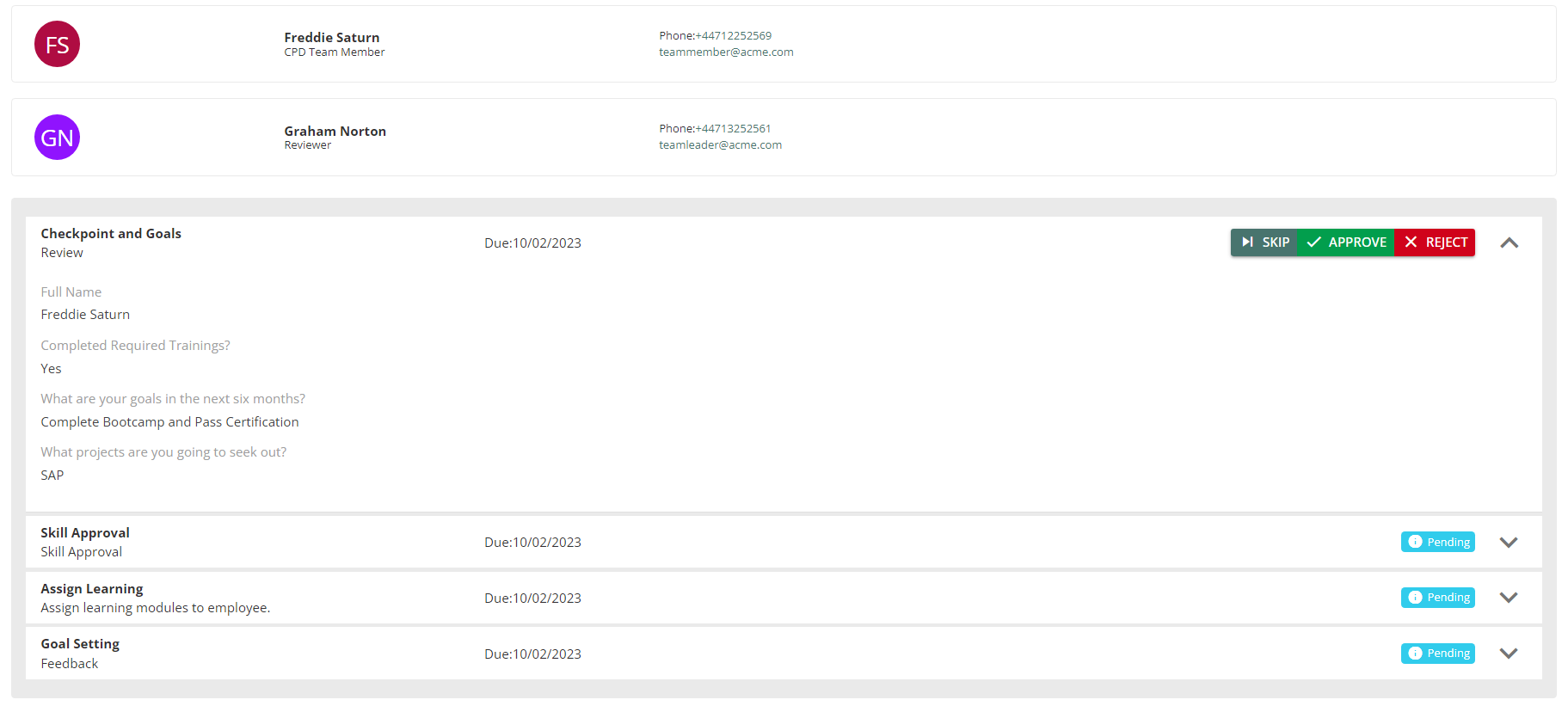
When a Form Step requires review, the Team leader has the option to skip the submission and proceed to the next Step, Reject the submission which allows for the team member to make a new submissions, or approve the submission which marks the step as complete.
Review Meeting
When the review process step is a Meeting, the meeting must first be scheduled by a team leader. While any team leader can schedule the review meeting, only the Reviewer assigned to the review process can join.
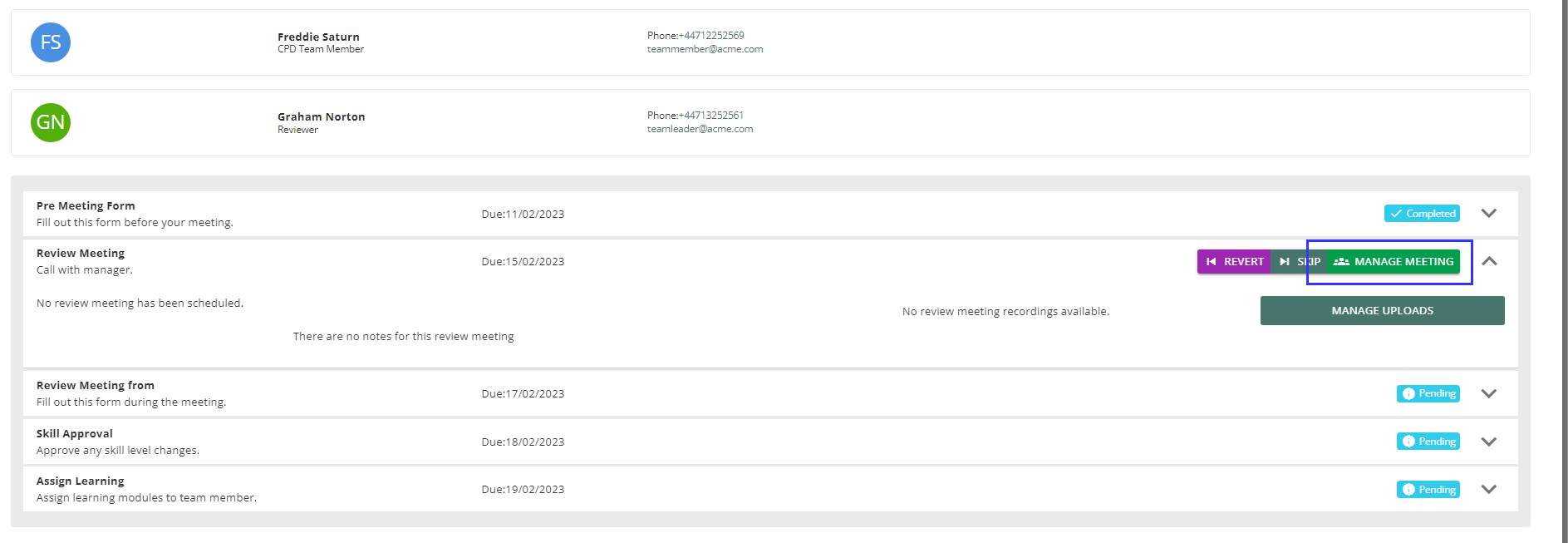
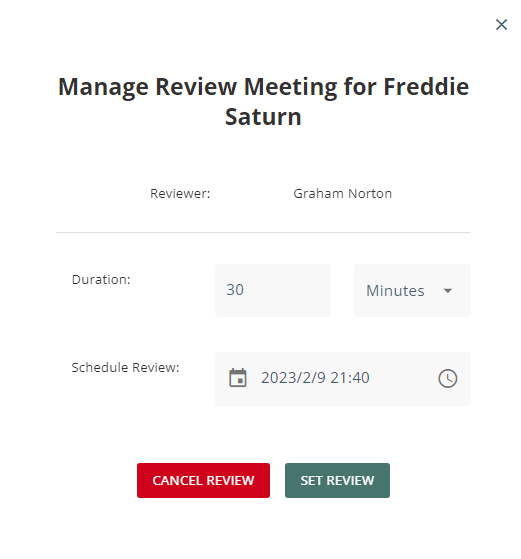
To set the Review Meeting schedule, the team leader will set the meeting by clicking the “Manage Meeting“ on the Review Screen
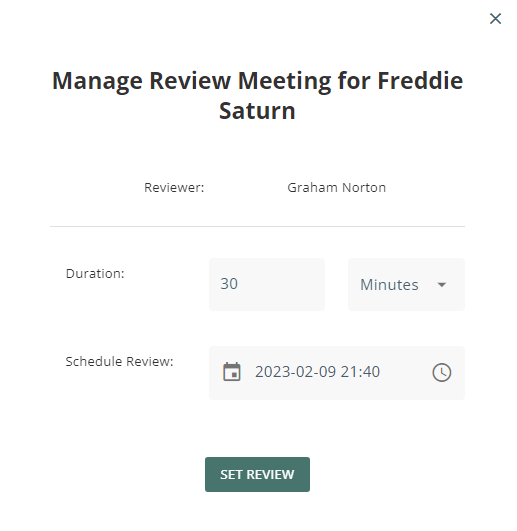
The Team Leader can cancel an already scheduled review meeting by clicking ‘Manage Meeting’, then selecting ‘Cancel Review’.
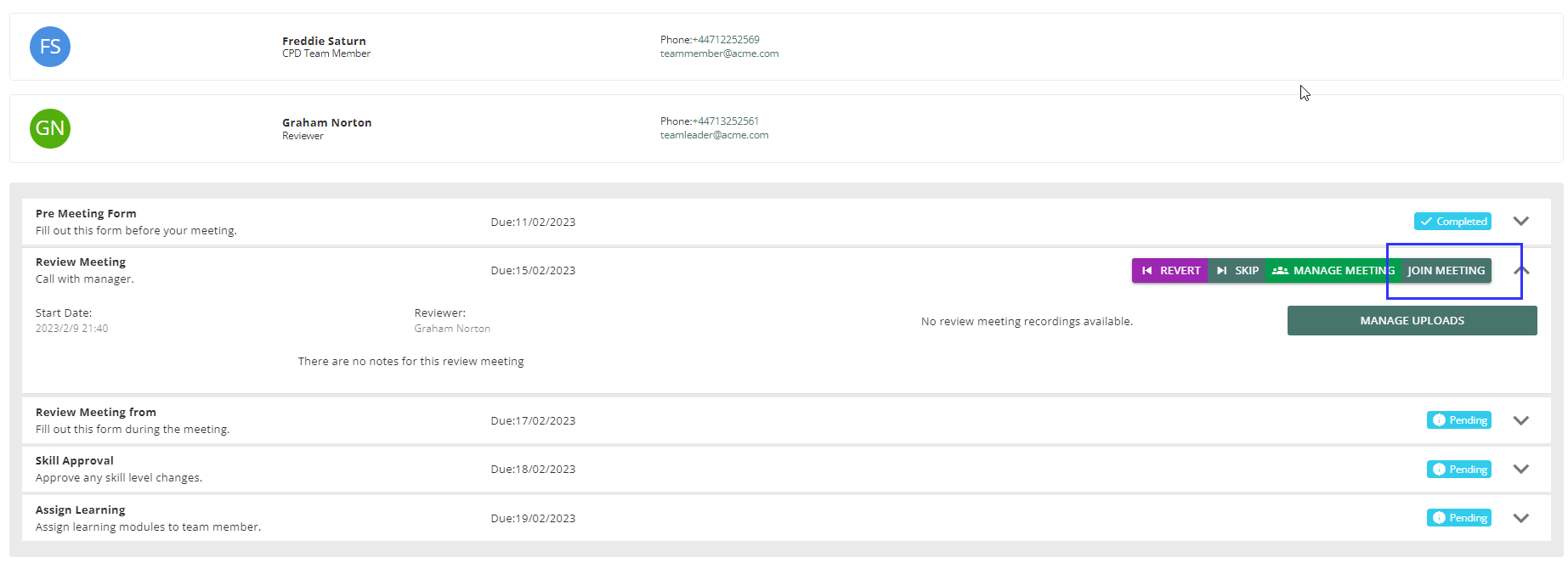
The team leader and the team member can join the meeting up to ten minutes before the scheduled start time by selecting the ‘Join Meeting’ button.
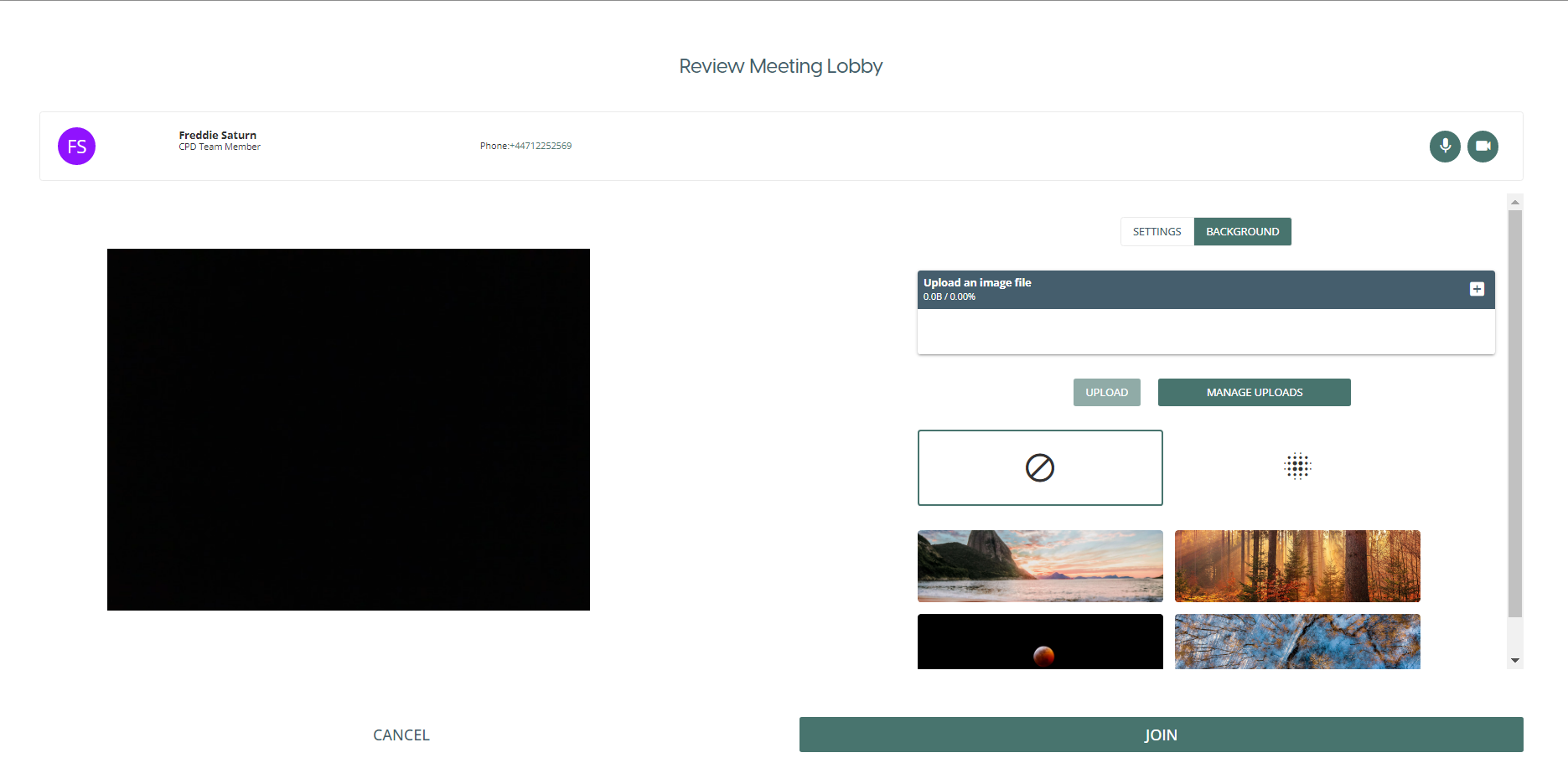
Review Meeting Lobby
The review meeting lobby provides options to the participant before joining the meeting.
The participant can change the video and audio sources in the Settings tab, as well as edit their video camera background by uploading their own background image or blur their background in the Background tab.
All options available in the lobby can also be configured during the meeting.
Review Meeting Screen
When the team member joins the review meeting session, a pop-up will be displayed prompting the team leader to admit team member. Select “START MEETING” to allow the team member to join and start the review meeting.
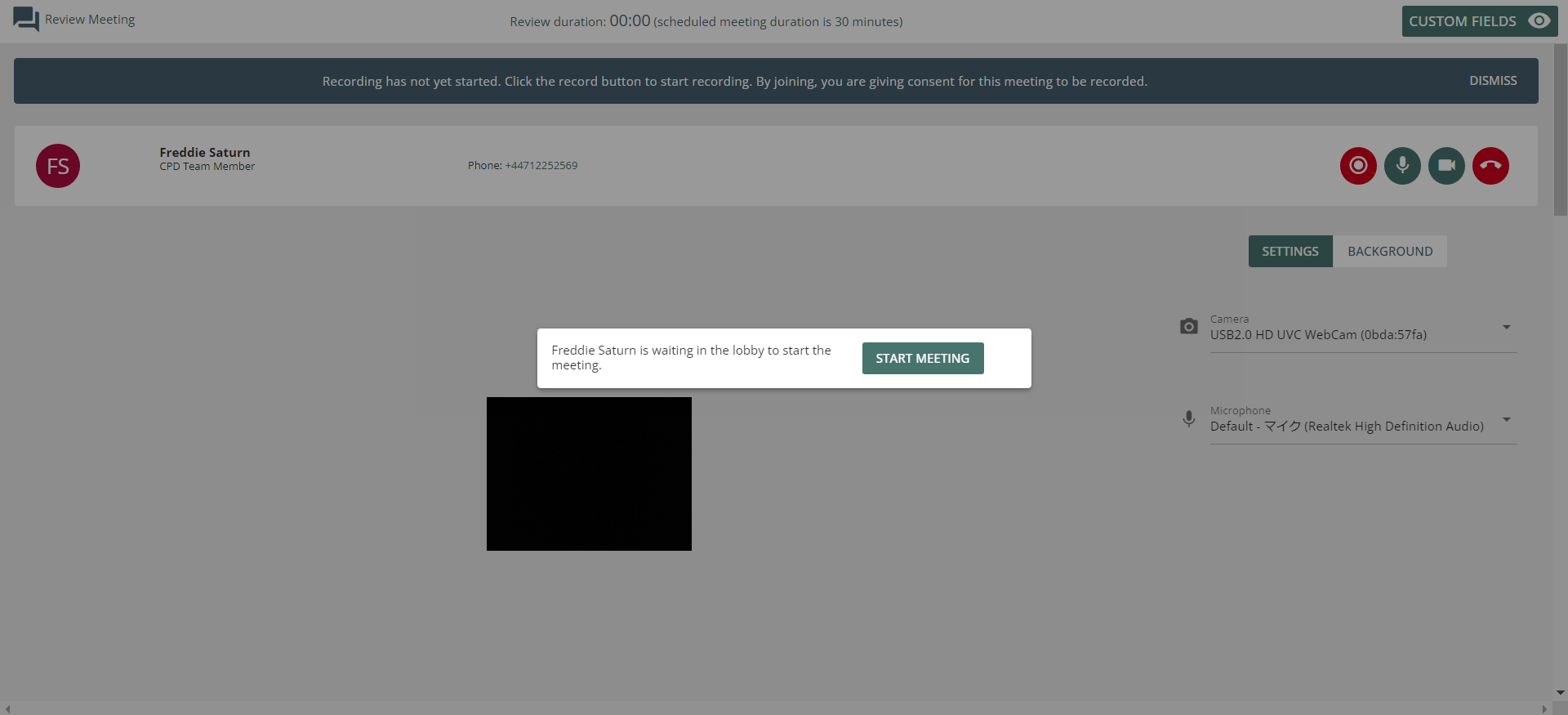
The Team leader has the option to record the review meeting so that they can be viewed later. To record an review meeting, click the record button to the left of the mute microphone button.
Recording can be stopped by selecting the record button a second time, and this will automatically save the recording. Multiple recordings can be made from one review meeting by selecting the record button again to start another recording.
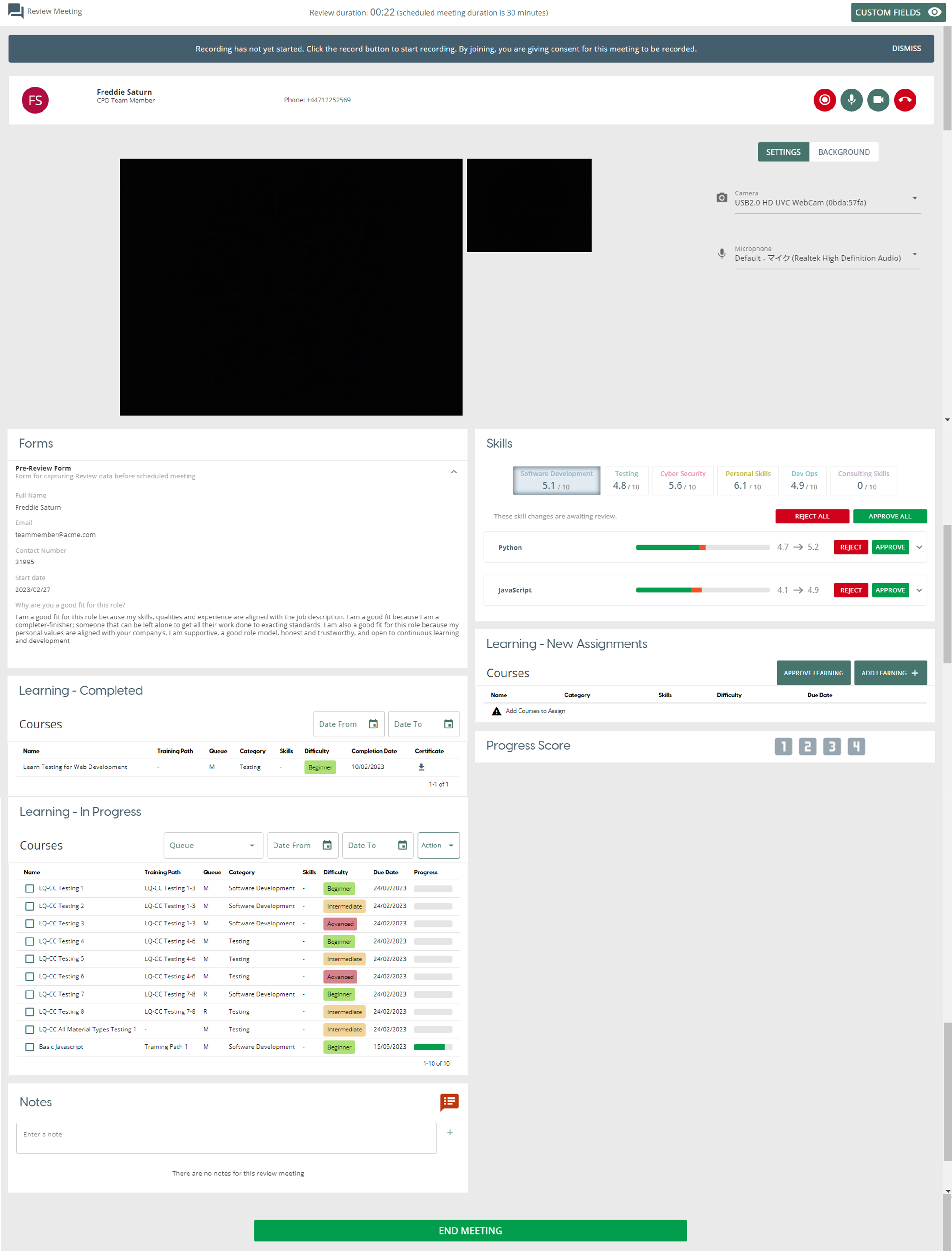
Forms
Team leader can view the team member’s previous form submissions for that particular review process by expanding the Forms element. Each submission has an individual expander.
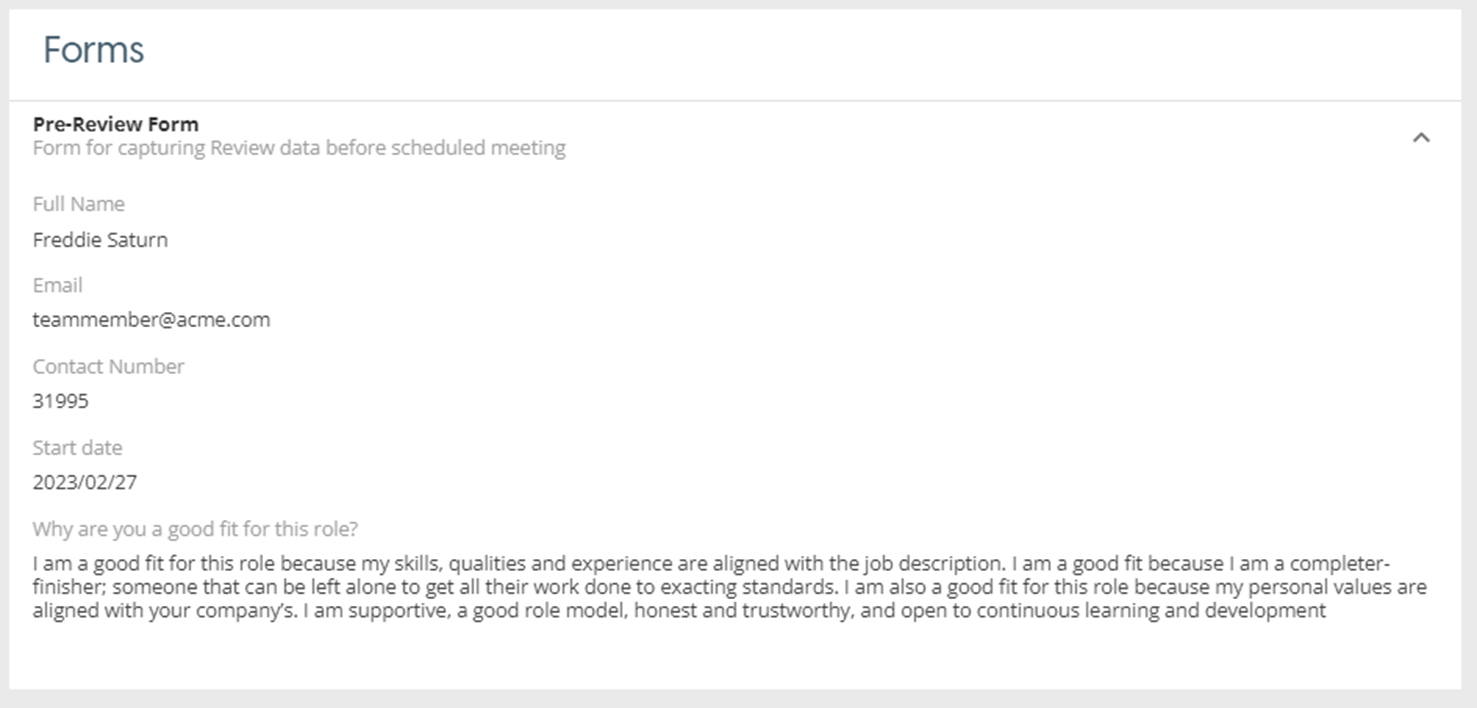
Skills
Team leader can view the team member’s skills scores. Team leader can also Approve and Reject newly adjusted scores by the team member
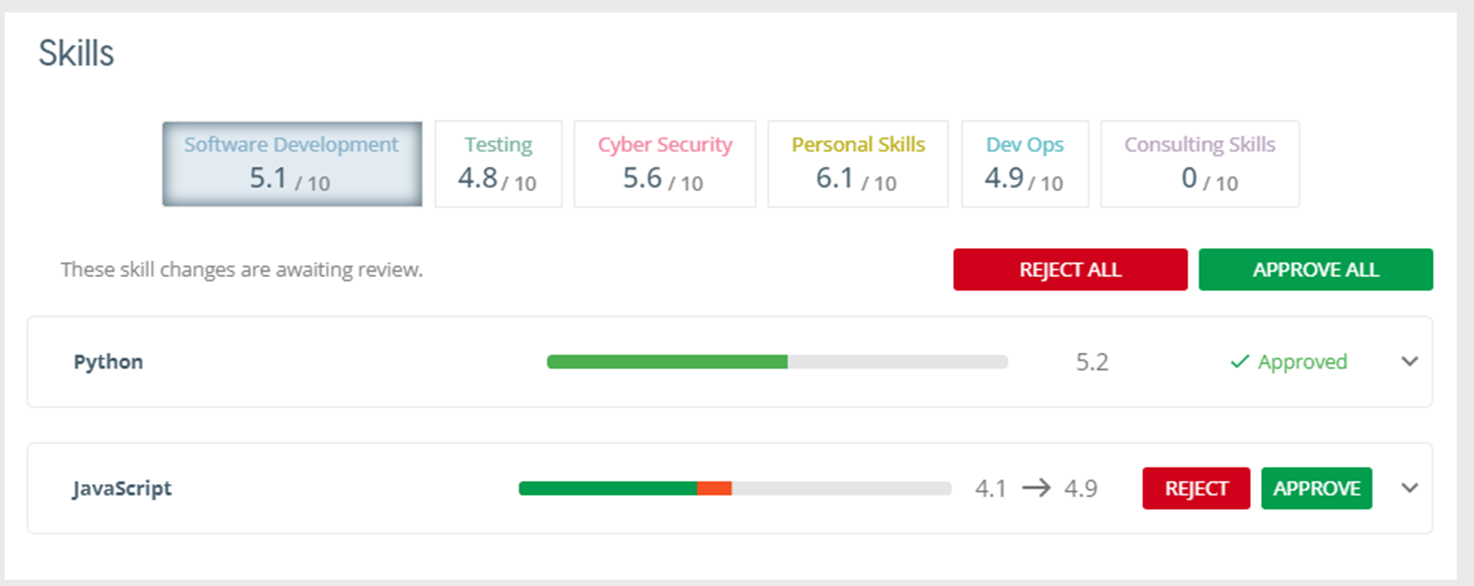
Learning
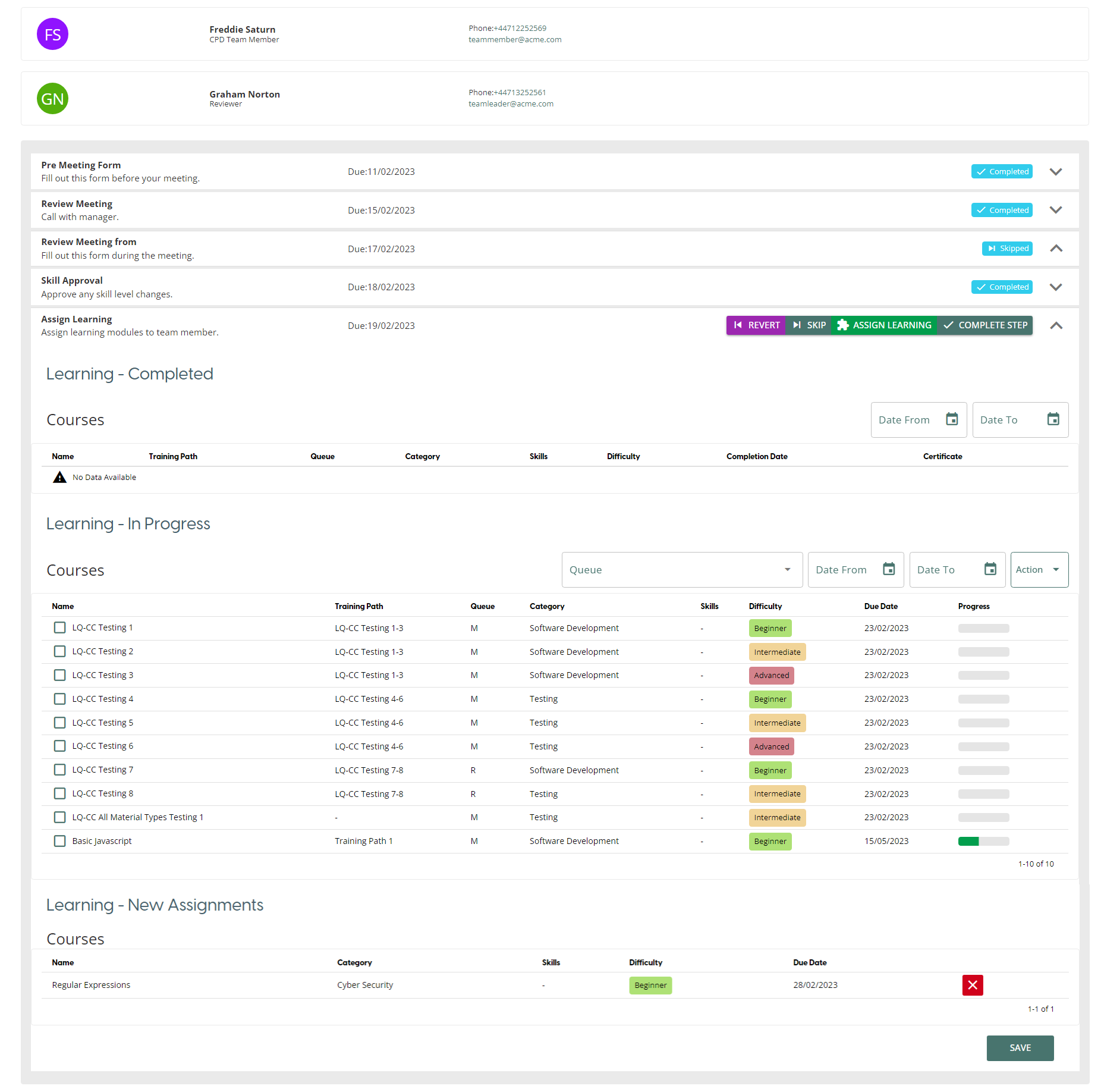
Team Leader can view all the team member’s assigned learning. Team Leader can also add new courses by clicking “ADD LEARNING“. After clicking “APPROVE LEARNING“, new add courses will be moved to In Progress table.
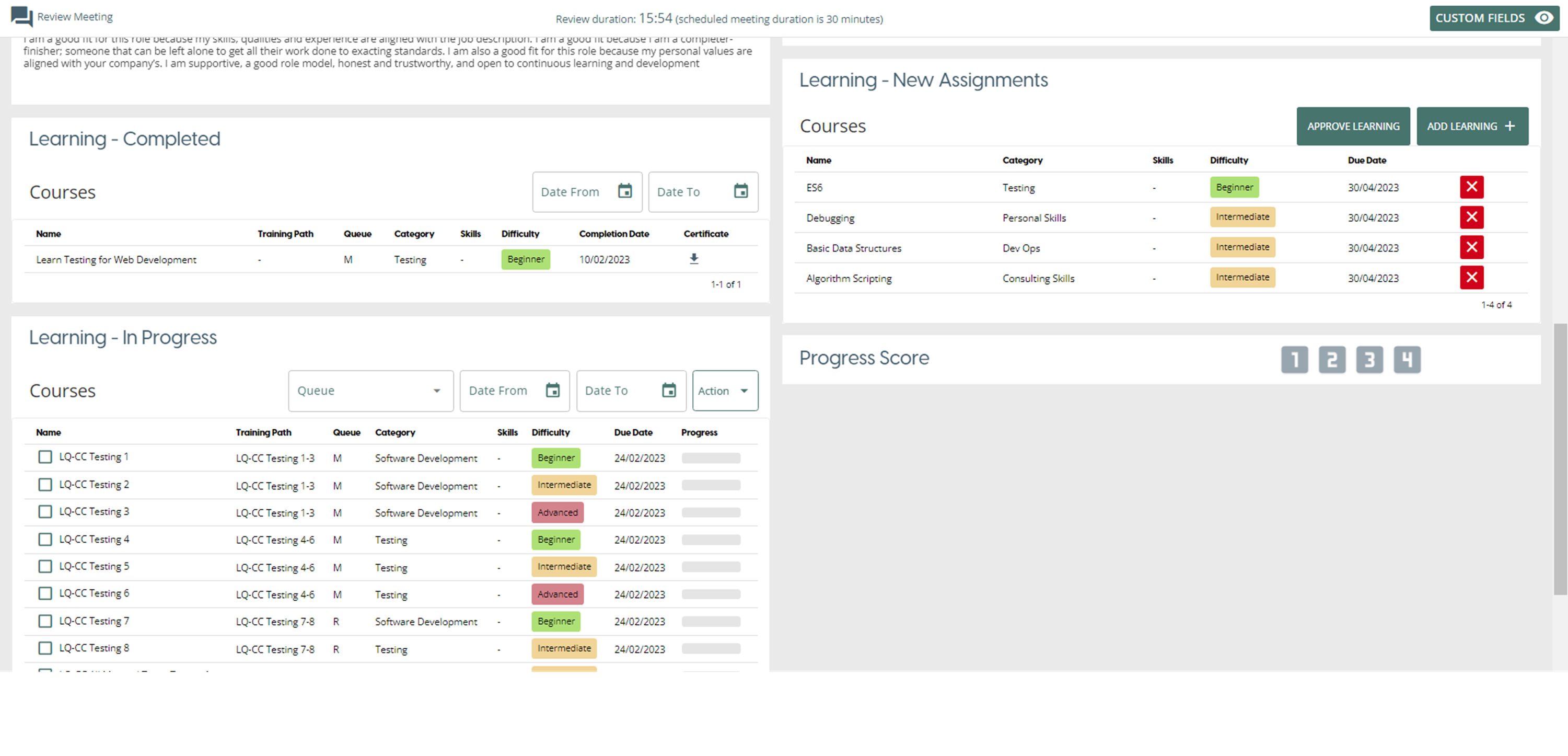
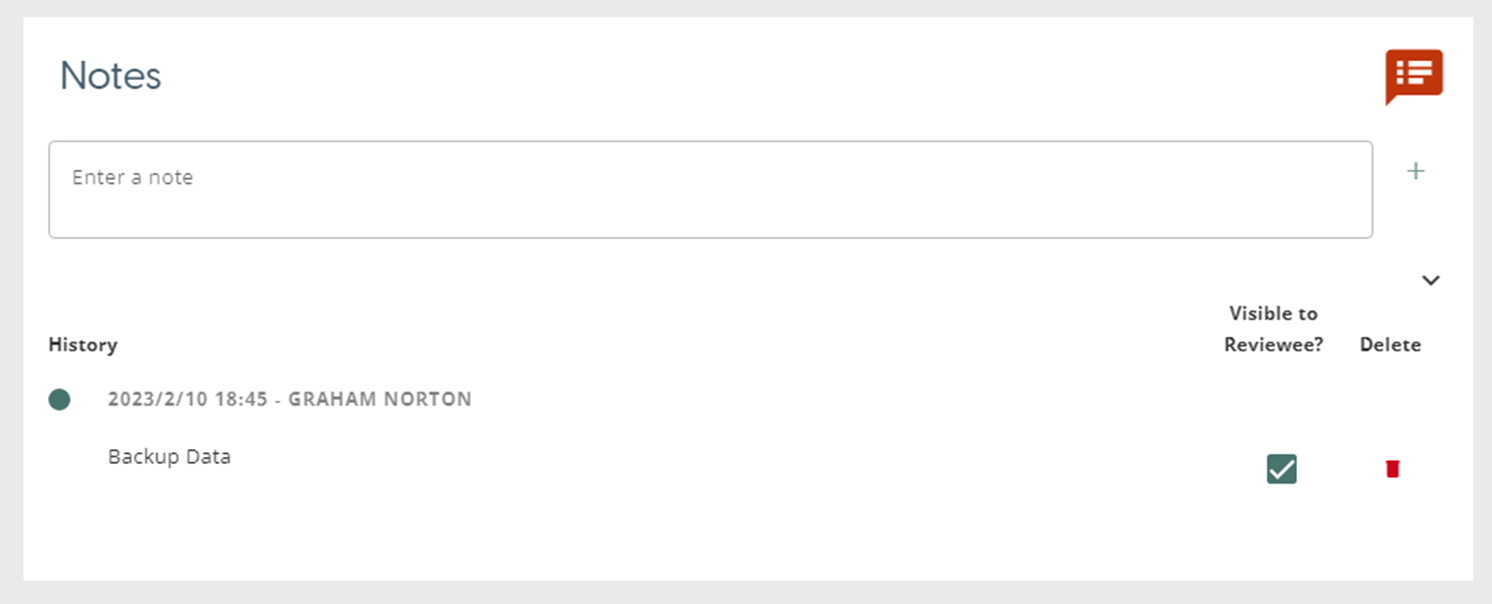
Notes
Team leader can add notes during the review meeting. Notes can be toggled to be visible to team member with the Visible to Reviewee checkbox
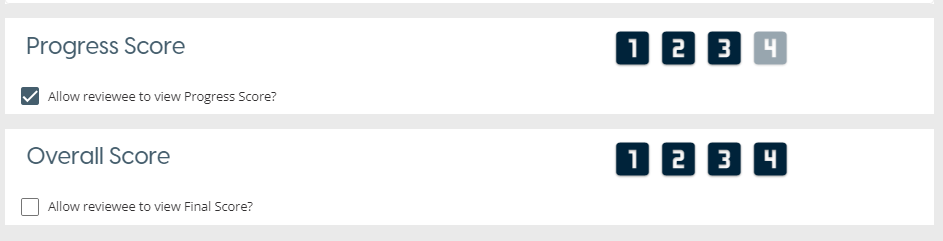
Progress Scores
Team leader can add scores during the review meeting. Score can be made visible to the team members when team leader ticks the Allow reviewer to view Progress Score? checkbox.
- Overall Score will be available if Require Final Review is set to true during Review Process Creation
Completing Review Meeting
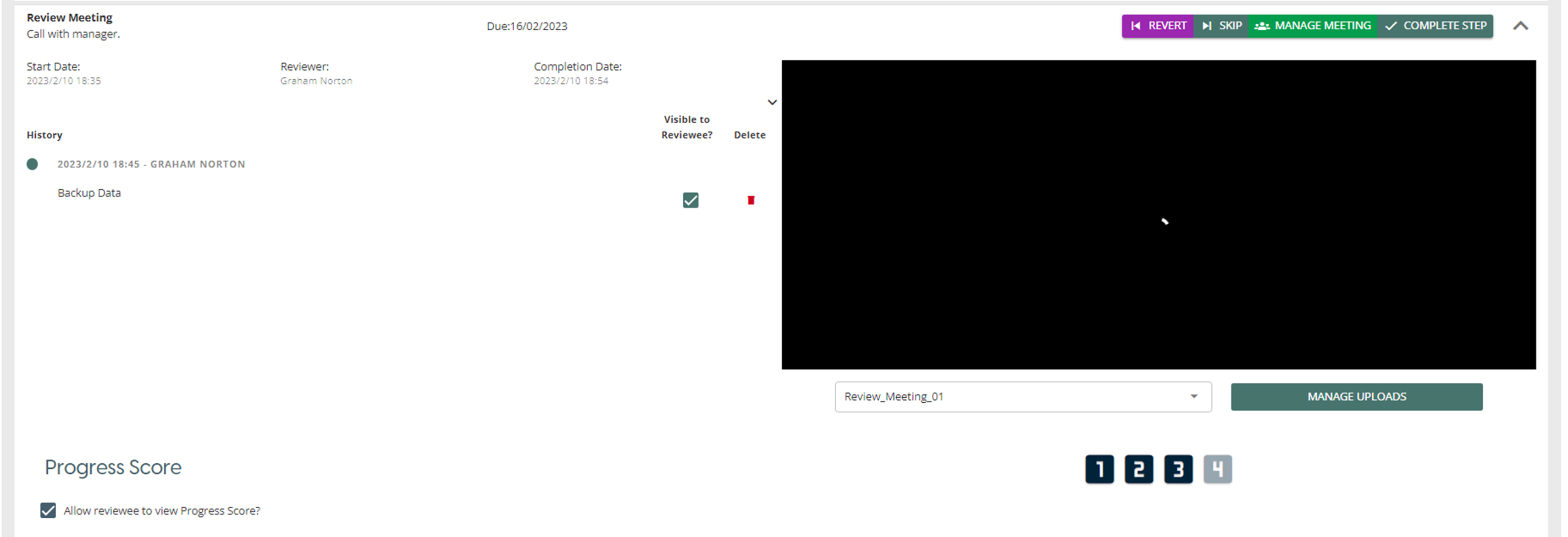
After the team leader leaves the meeting by clicking “END MEETING“ on the Review Meeting screen, scores and notes (if set) will be saved and will be displayed on the expanded Review Meeting Step,
Recording(s) can also be replayed from this screen; if there are multiple recordings, a drop-down allows for selection.
The “MANAGE UPLOADS” button allows for recordings to b downloaded as well for new videos to be uploaded.
Assign Learning
When ‘Assigned Learning’ has been included as a Review Process, the team leader can assign learning courses by clicking the green ‘Assign Learning’ button. Please refer to the ‘Assign Learning to Others’ and Assign Learning to Yourself' for other ways to assign learning.
Other ways to Assign Learning
• How to assign learning to others
• How to assign learning to yourself
Skill Approval
When a Review Process is a “Skill Review” , the team leader can see all the Skills score requests created by the team member.
The team leader can Approve and Reject the Skills added by the Reviewee. Skills ratings are on a scale of 1 to 10.
The Reviewee can add Skills for review on their personal development page.