Review Process Workflow
DevelopNow Portal > Personal Development
Description
As a user I want to be able to progress through a review process so that I can share progress with my line manager Team leader.
Applicable User Roles
List of roles that have access or can use this feature.
Team Member
How To
When a Review Meeting is set and scheduled by the Reviewer, it will be added on the Review Process Section
Review Process Step Type
There are different Step type for Review Process :
Review Form Submission
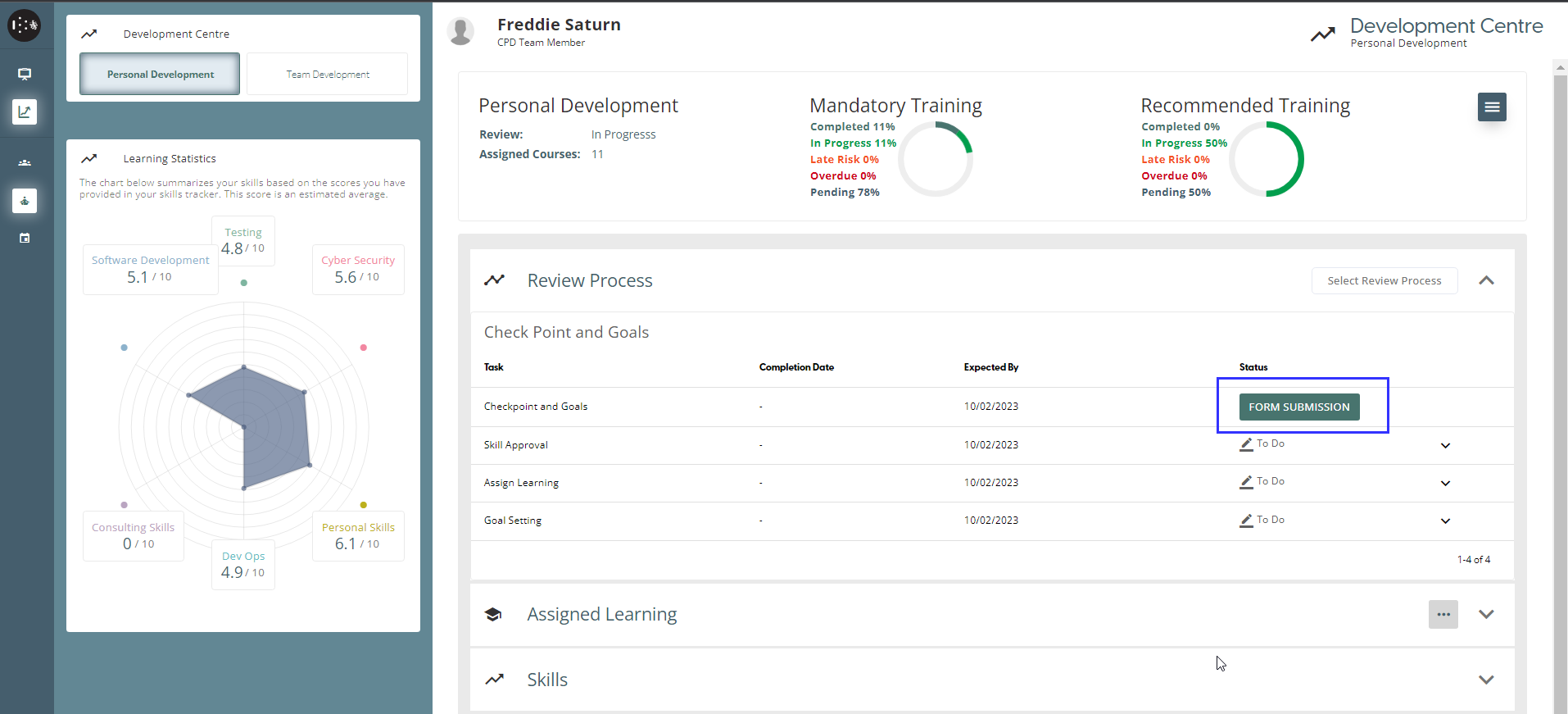
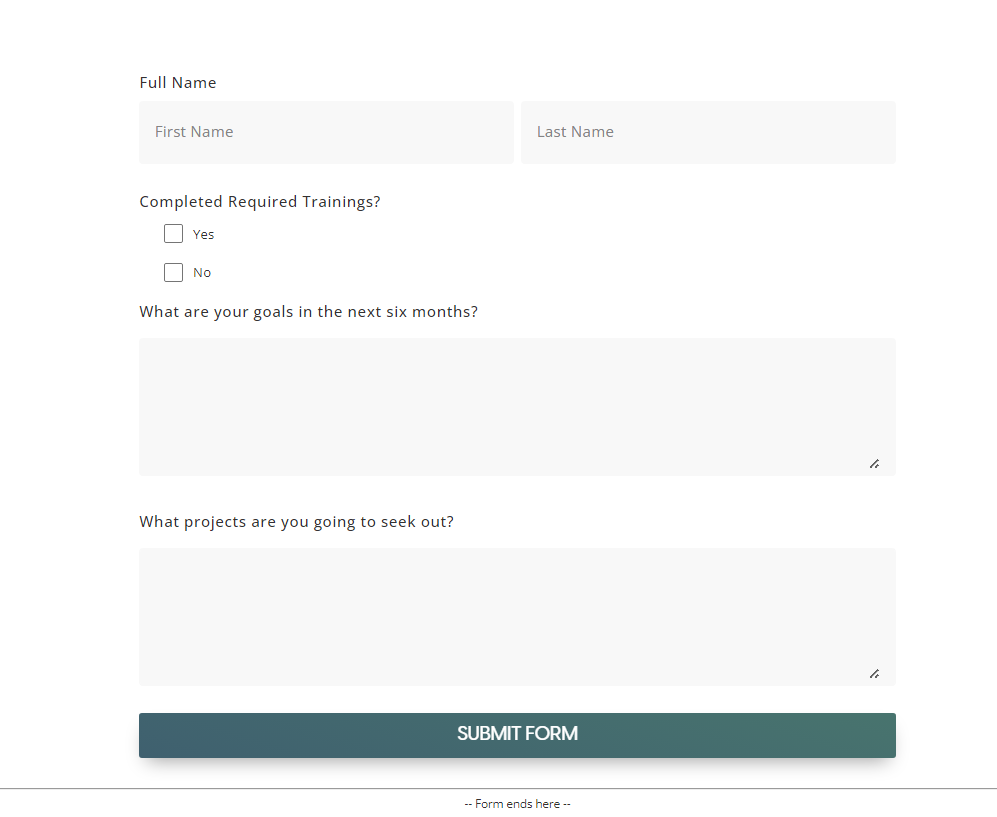
When a user’s task in the Review Process is a Form, user will input details on the form and submit it to complete the task.
On the Review Process Task > Click Form Submission
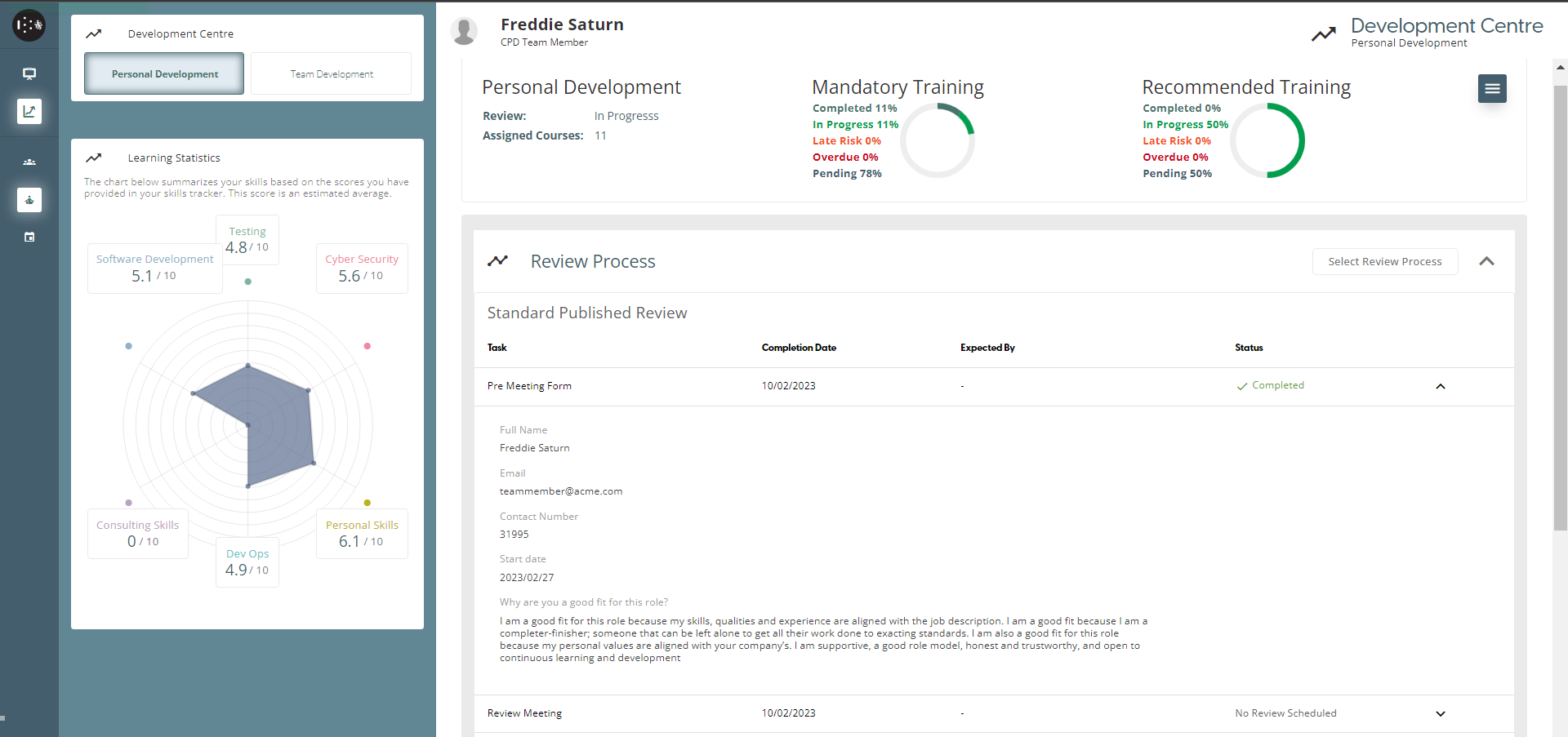
After the Form was submitted, it will be marked as “Completed”
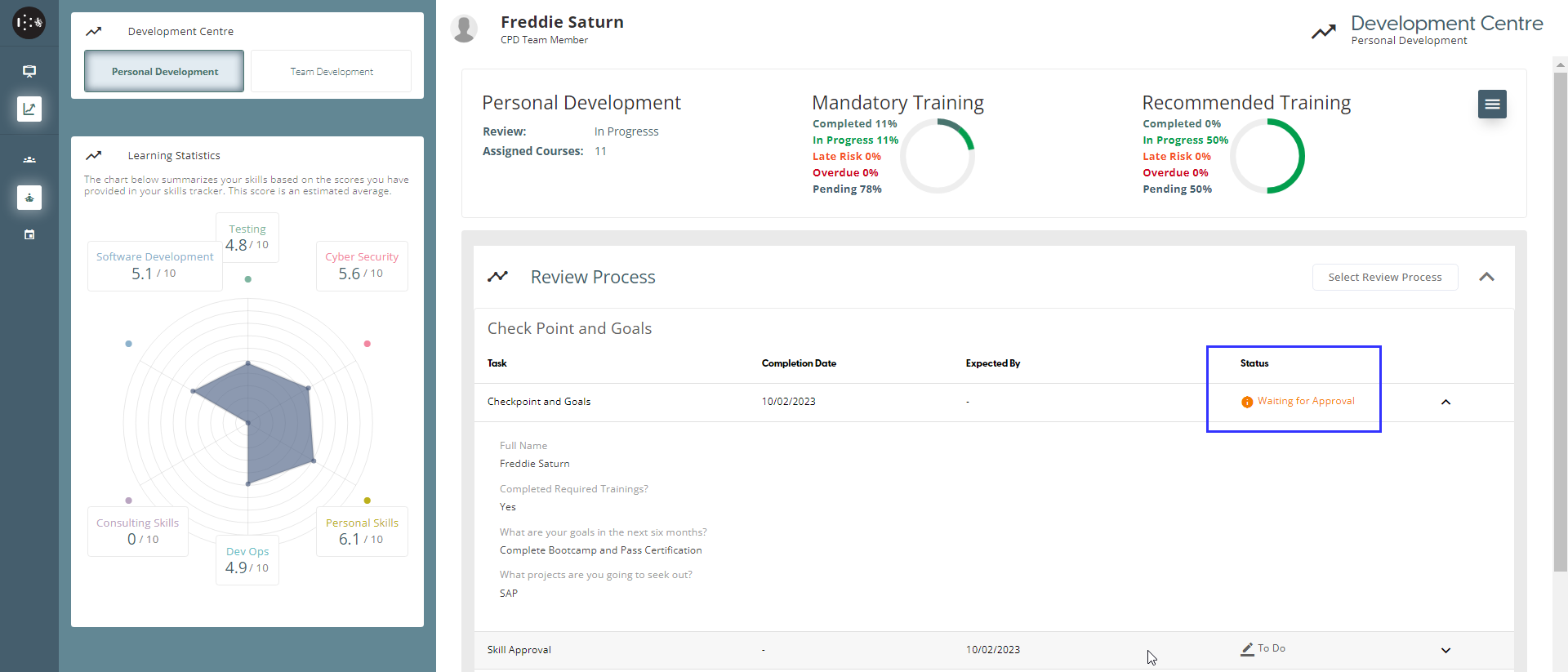
Note : When teamleader set the Form step with “Require Reviews” during Review Process Creation, form step status will be marked as “Waiting for Approval“ while waiting for team leader’s approval
Review Meeting
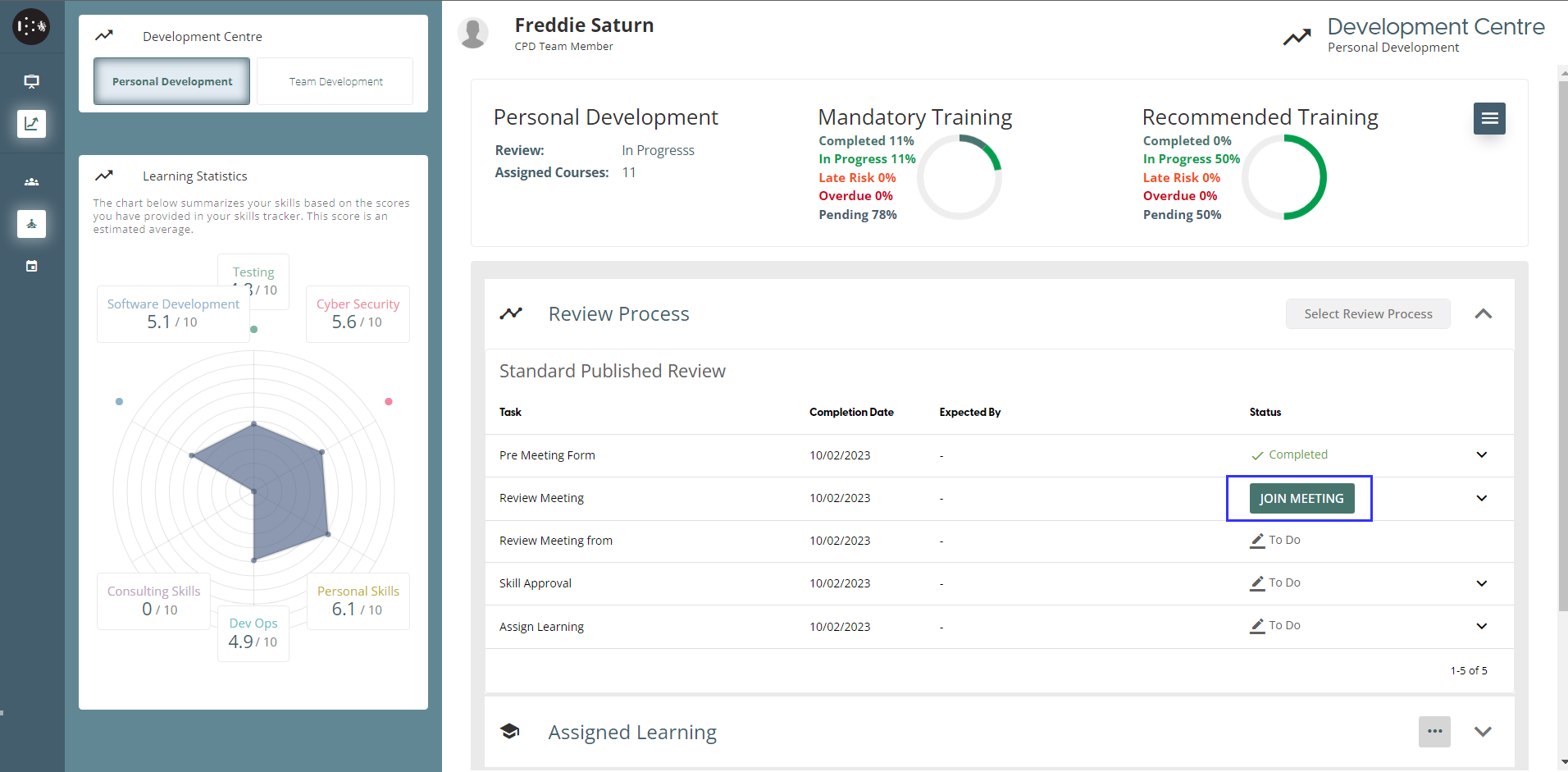
When a user’s task in the Review Process is a Meeting, a meeting will be scheduled by the Reviewer
Up to ten minutes before the start of the meeting, the Reviewee can select a ‘Join Meeting’ button underneath the Review Process to start their meeting.
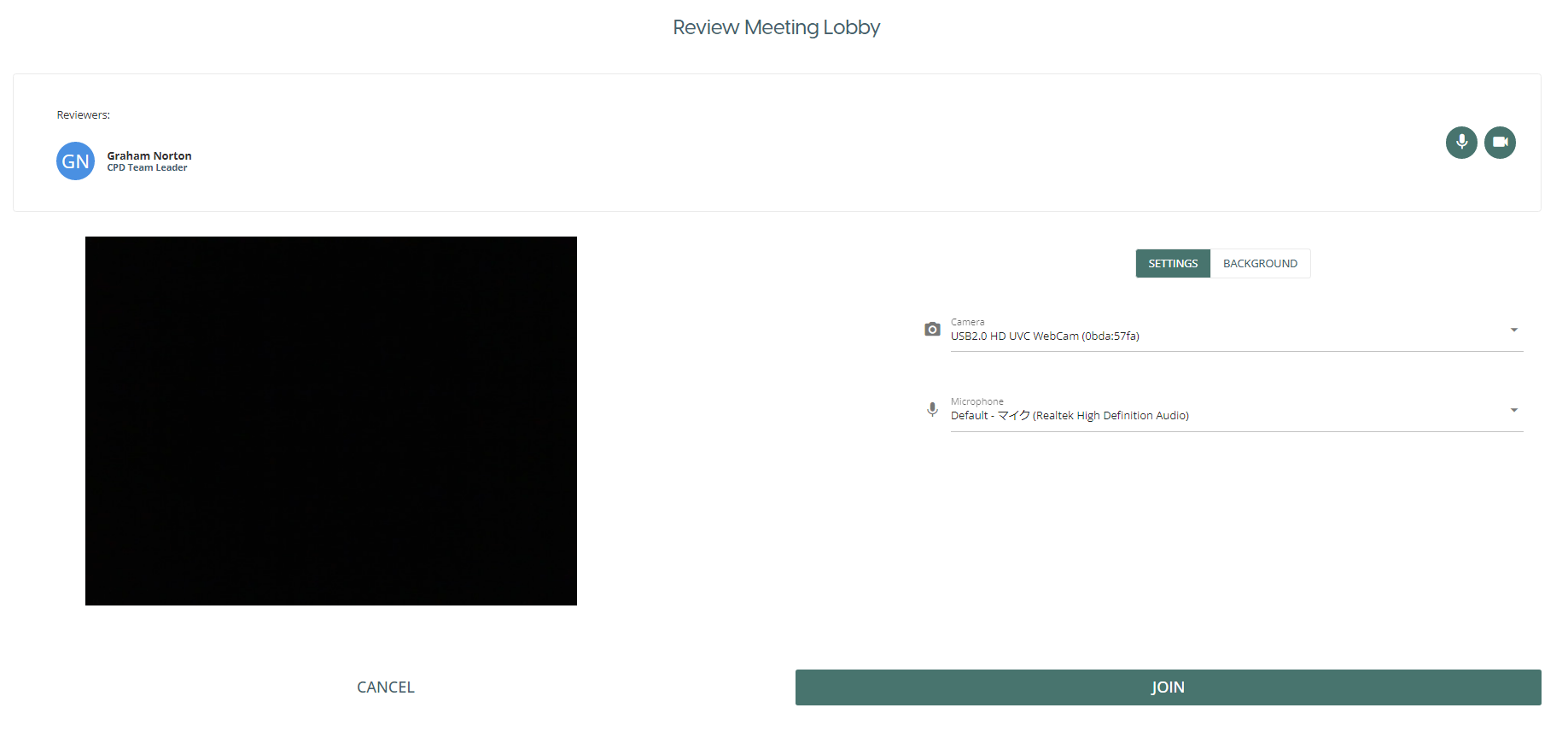
Review Meeting Lobby
The review meeting lobby provides options to the participant before joining the meeting.
The participant can change the source of their video (BACKGROUND tab) and microphone (SETTINGS tab), as well as edit their video camera background by uploading their own background image or blur their background.
All options available in the lobby can also be configured during the meeting.
Review Meeting Screen
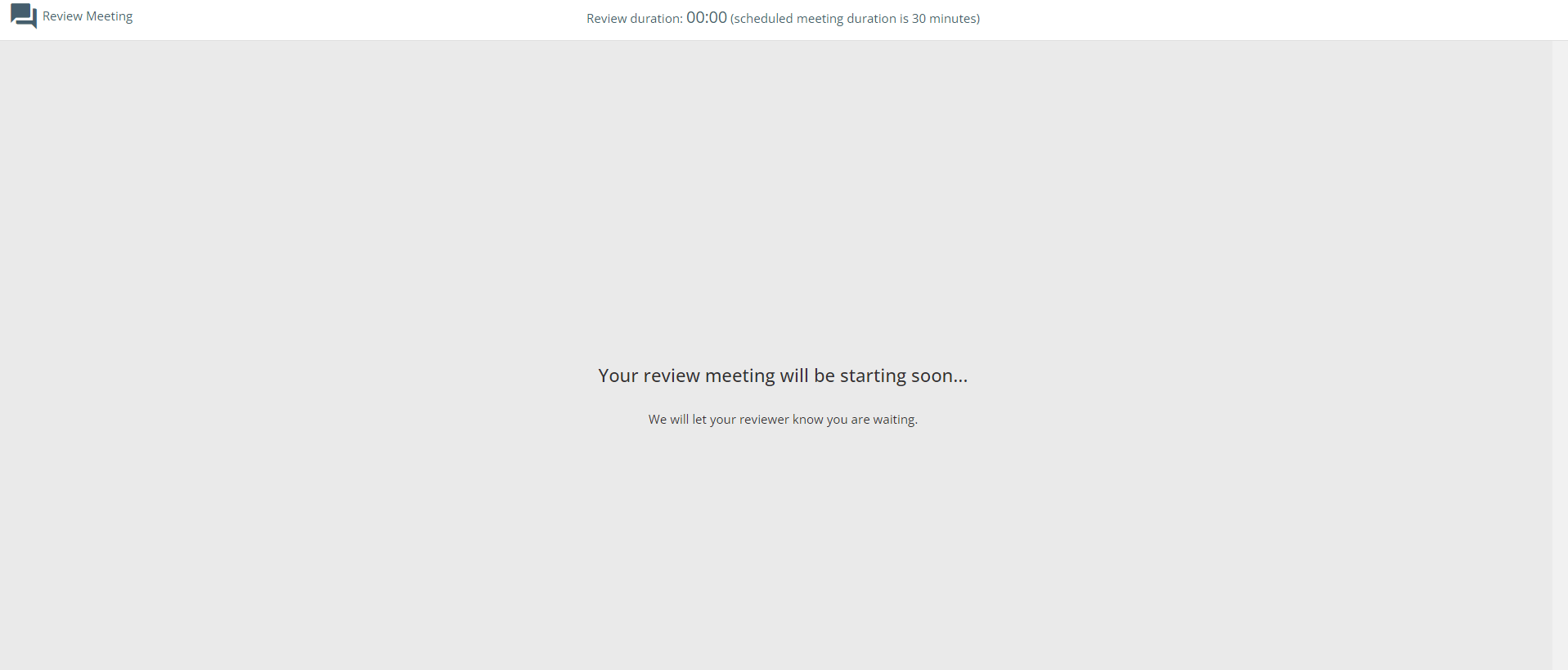
After clicking JOIN on the lobby, team member will be in the waiting lobby until the team leader admits
When team leader admits the team member, the Review Meeting Screen will be displayed.
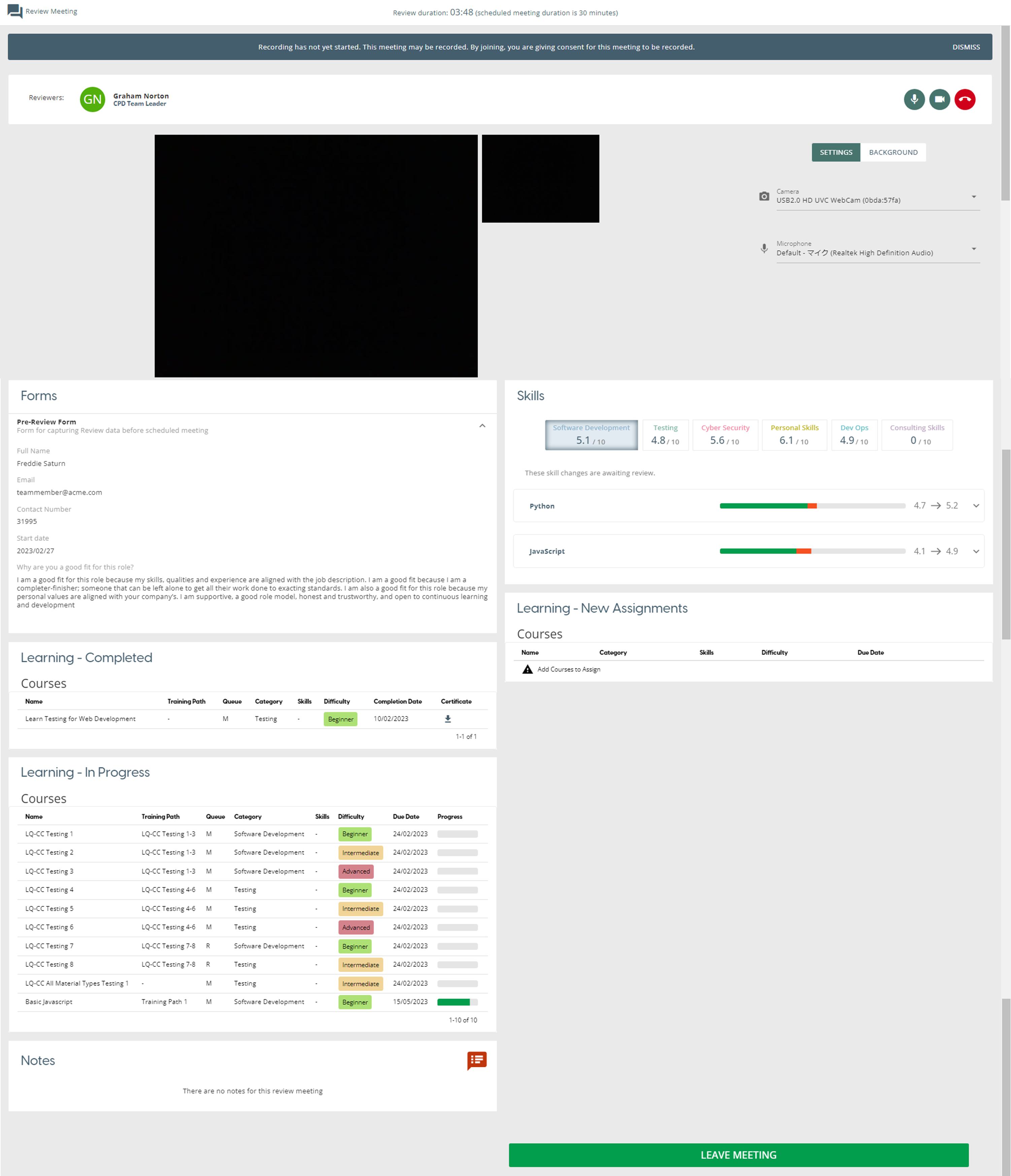
Review Meeting Forms
team member’s submissions are displayed for the current review meeting by expanding the element
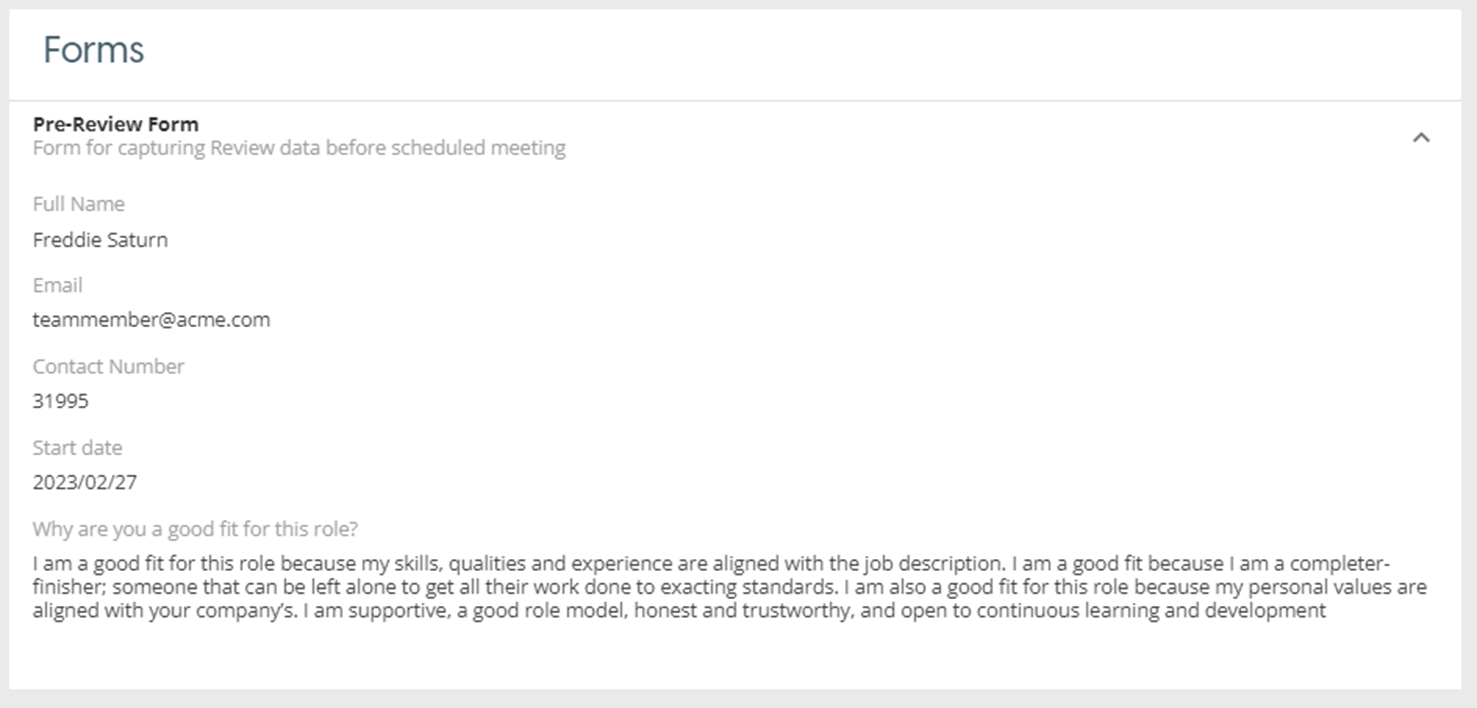
Review Meeting Skills
team member’s skills are displayed and can see the approve or rejected skills by the team leader during the review meeting
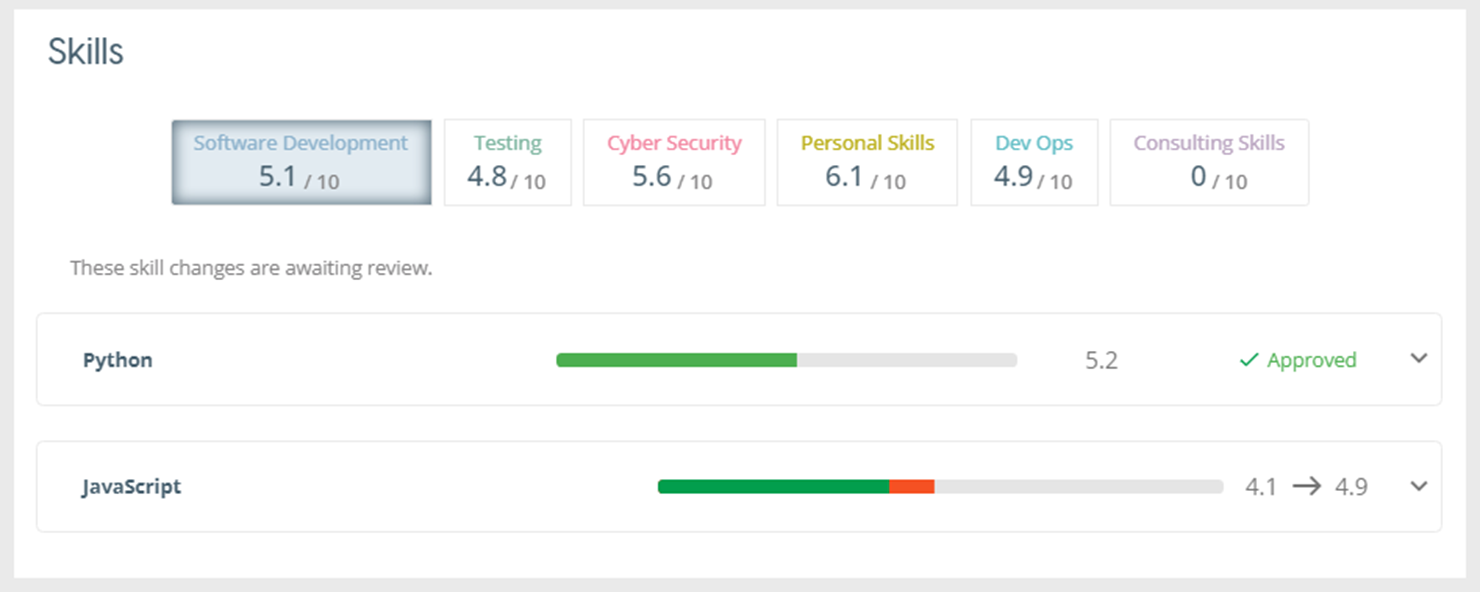
Review Meeting Learning
All the team member’s assigned learning is displayed. Team leader can also see new courses added by the Team Leader during the review meeting and added courses will be moved to In Progress table when the team leader approved them.
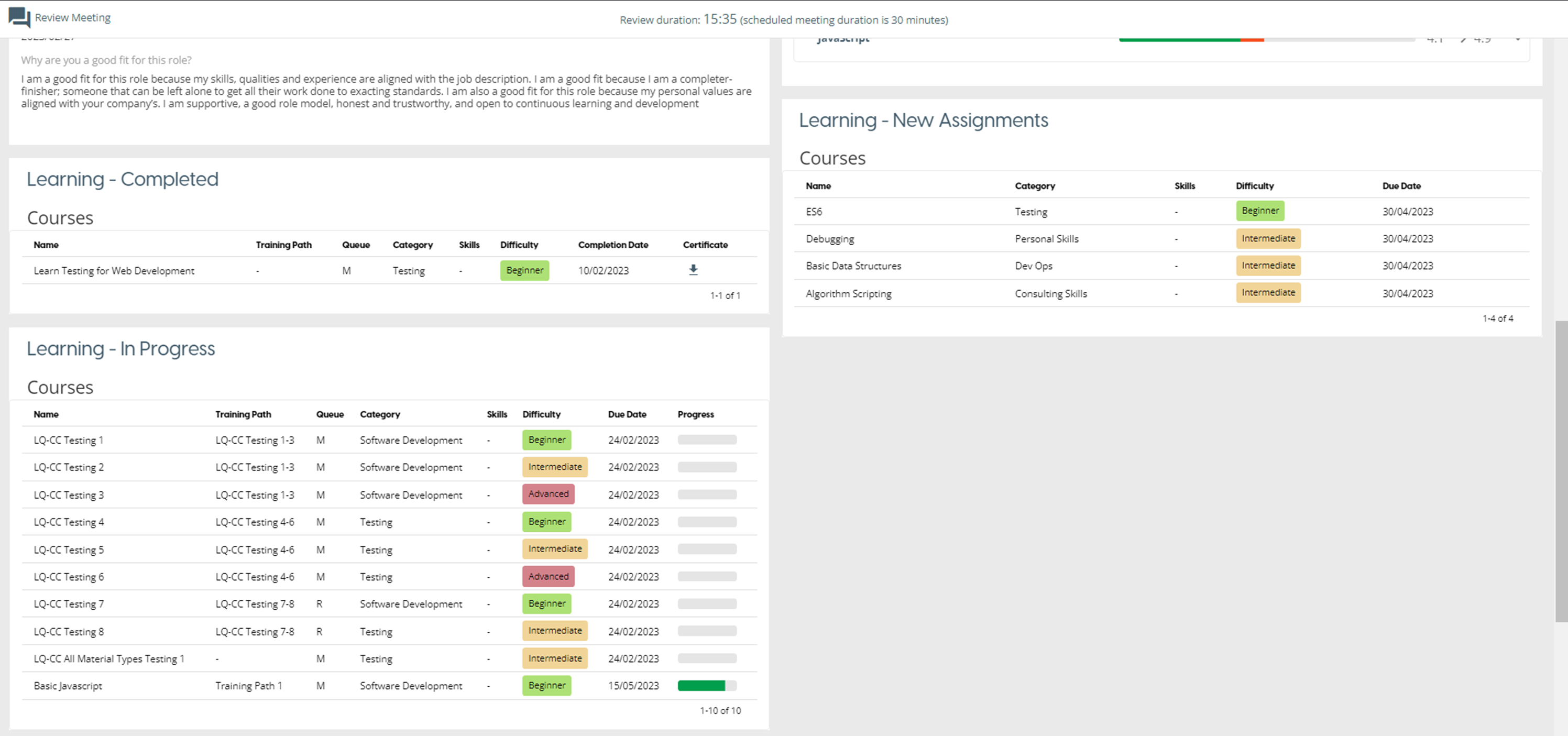
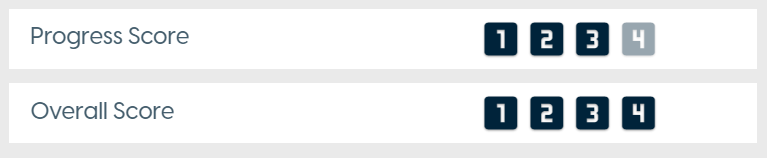
Review Meeting Progress Score
Team member can view scores added by team leader if team leader ticked Allow reviewer to view Progress Score? checkbox.
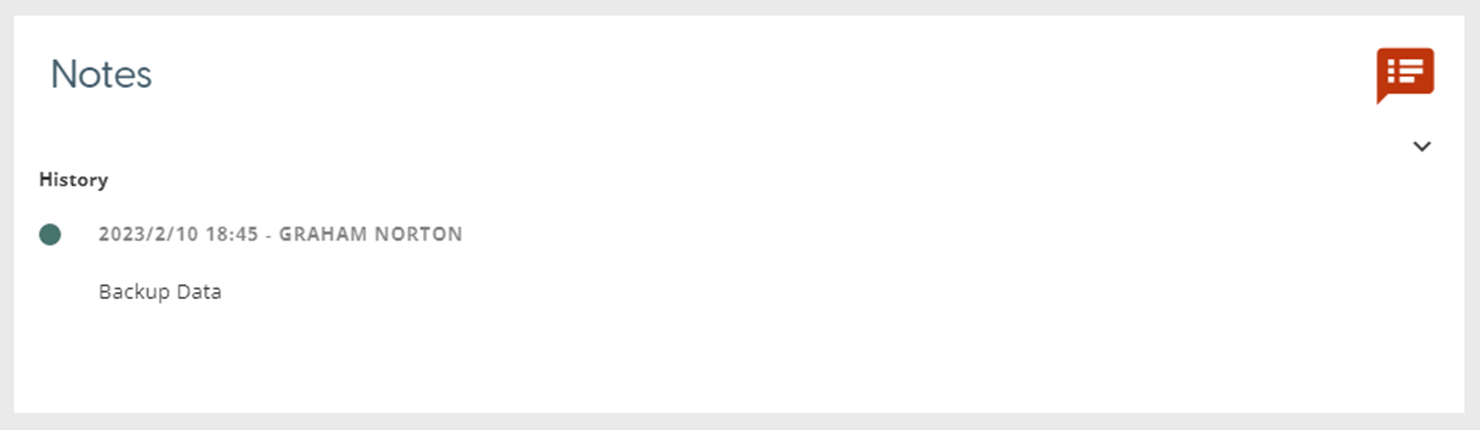
Review Meeting Notes
Team member can view notes added by team leader if team leader ticked Visible to Reviewee checkbox
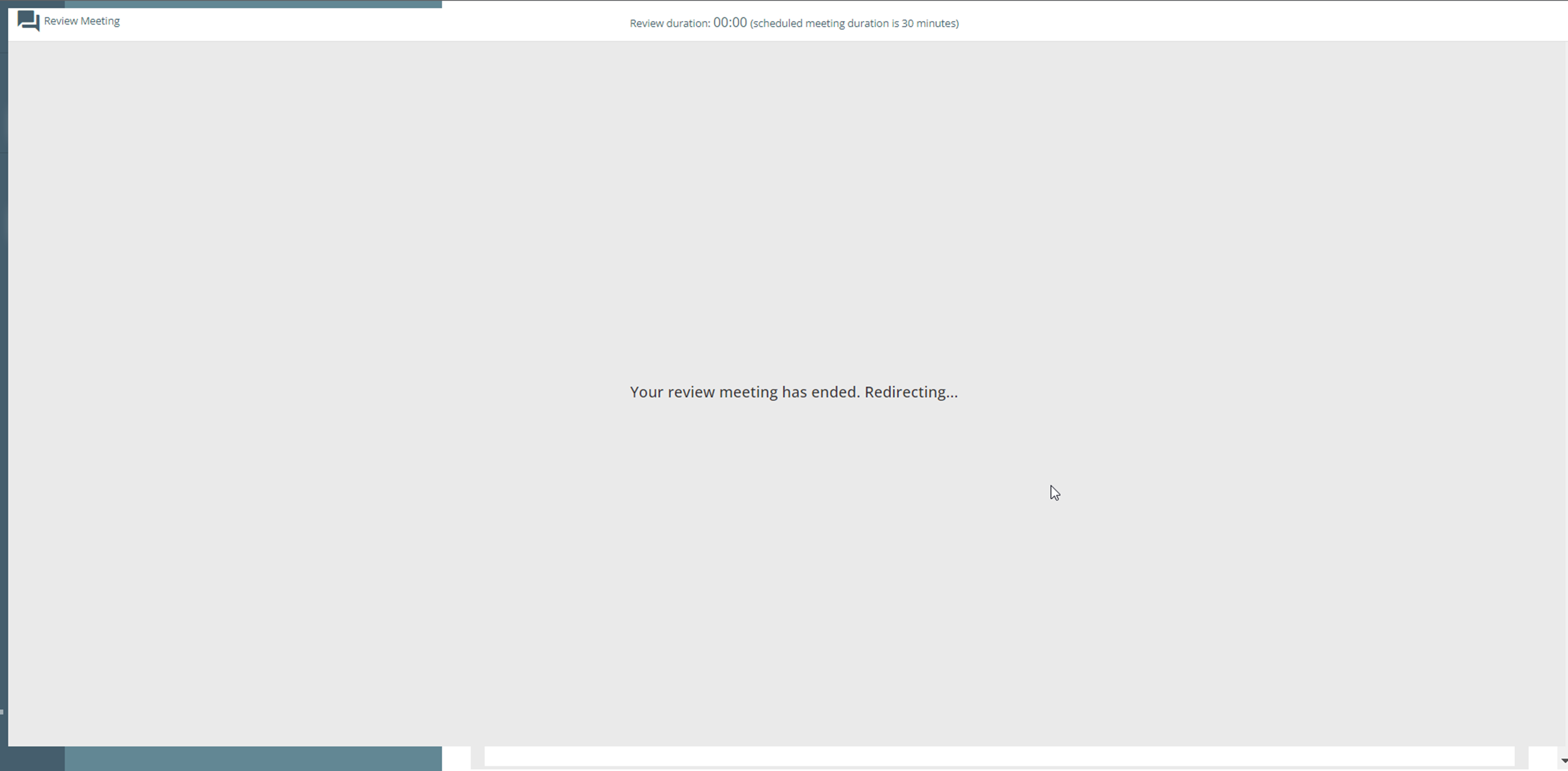
End Meeting
When the team leader ends the meeting, each team member's meeting screen will also close.
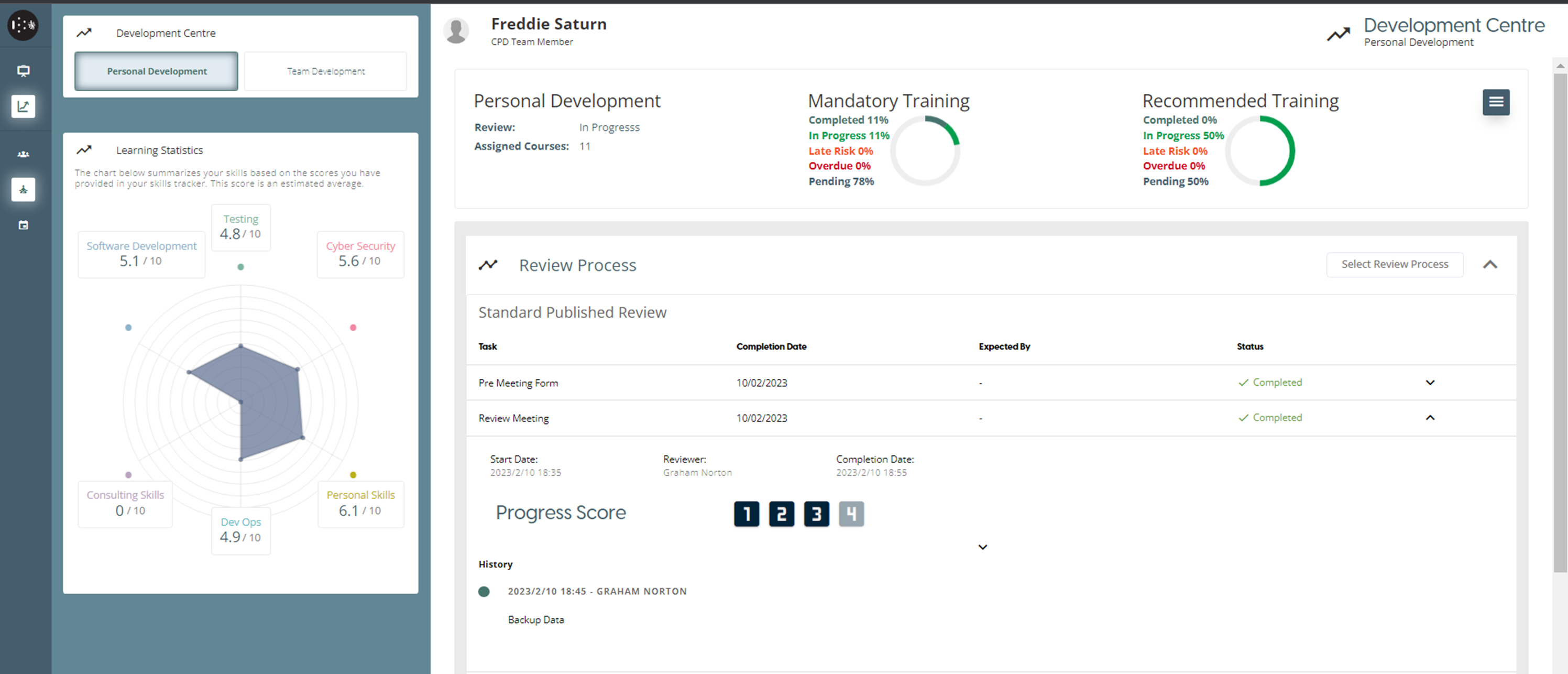
After teamleader ends the meeting, scores and notes (if set) will be saved and will be displayed on the expanded Review Meeting Step,
Assign Learning
When a user’s task in the Review Process is a “Assign Learning”, the currently assigned Learnings preview will be displayed on the Process Step, “Waiting For Review” status shown while waiting for the Reviewer to assign new learning or complete the learning step.
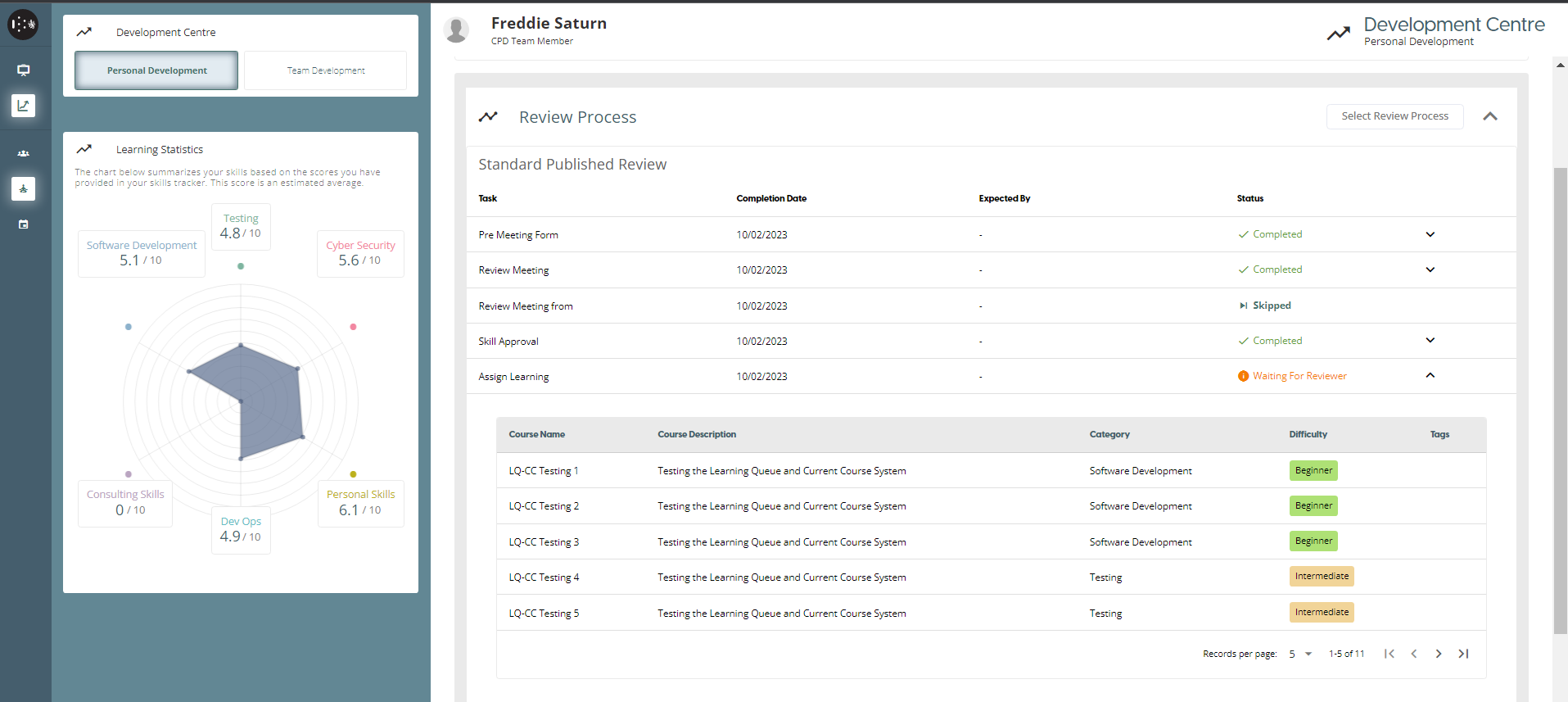
Other ways to Assign Learning
Skill Approval
On the Personal Development page, the user can document their new skills. Once they have acquired a new skill, they can list it on this page and provide a rating for it between 1 and 10, and also record any sub-skills. Any new skills and the scores will be presented in the Learning Statistics graph. When a user’s task in the Review Process is a “Skill Review”, added skills by the user will be sent to Reviewer for Approval.
Pending Approval
Skills which a Reviewee has added but which are not yet approved will be marked as pending approval. For the user’s skill to be approved by the Team Leader, a Review needs to be scheduled. The review process must include a meeting or Skills Approval review process step.
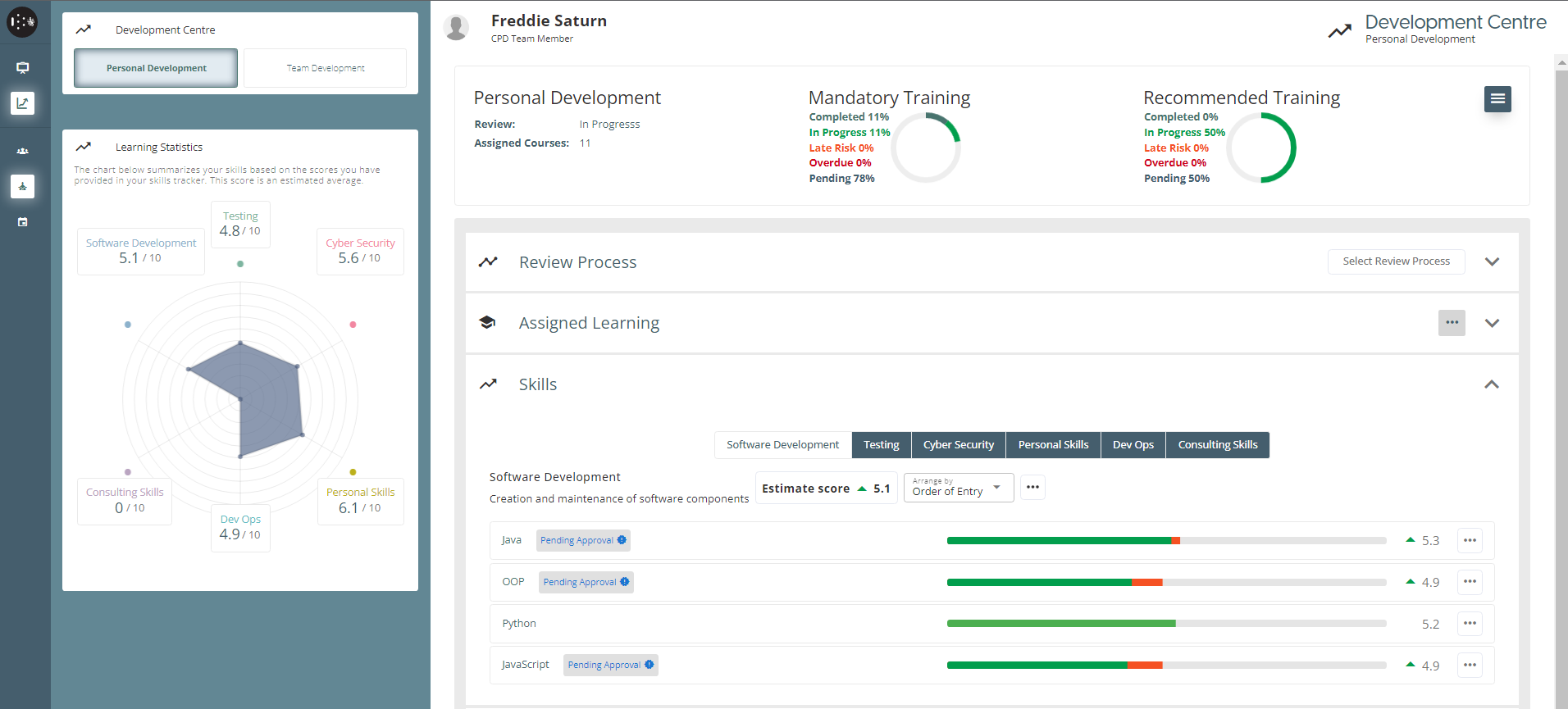
To add Skill
Personal Development > Skills > Click Ellipsis (….)
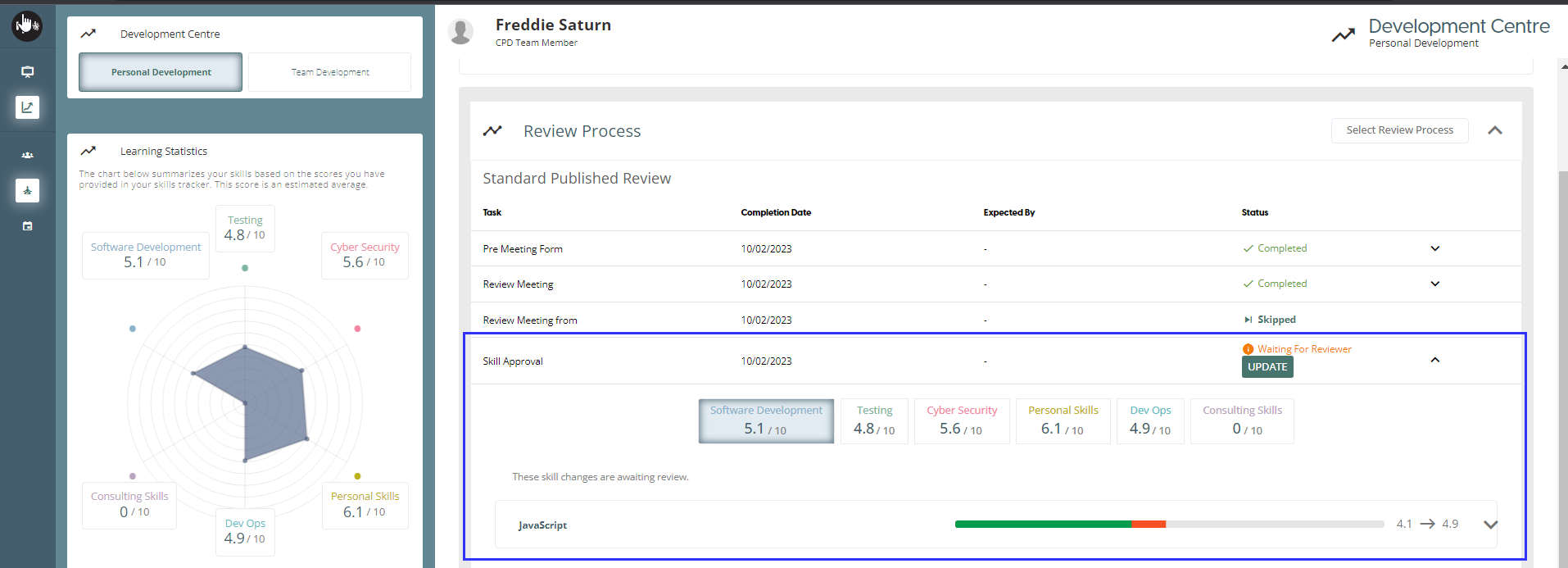
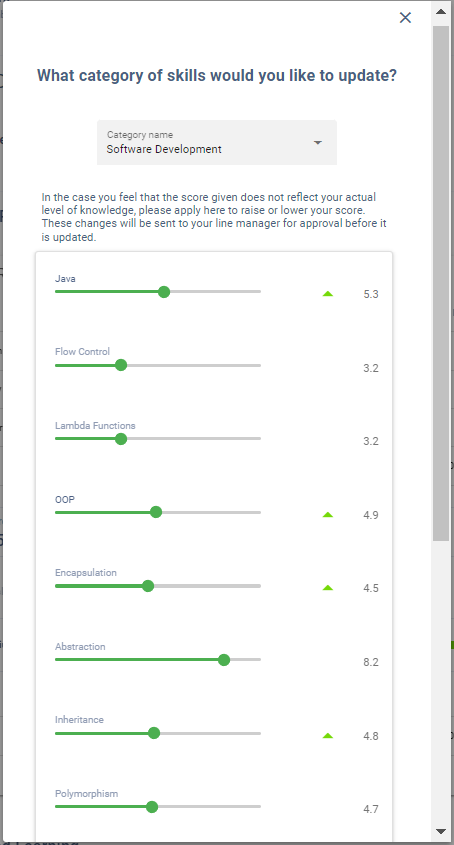
While waiting for the Approval of the Reviewer, the Reviewee can update the own Skill by clicking “Update” on the Review Process Task